
The right PC for 3D rendering depends first on the render software you use: Corona and V-Ray CPU need a CPU with many cores, while V-Ray GPU, Enscape, D5 Render and Lumion need a strong graphics card with plenty of VRAM. For architectural and interior visualisation in 2026, a sensible starting point is a 6–8 core CPU, 32 GB of RAM, a graphics card with 16 GB of VRAM and an NVMe SSD; professionals should move up to 64 GB of RAM. This lesson explains the role of each component, how to choose by software, how to estimate RAM, how to size a safe power supply, and compares three sample builds of about 30, 55 and 90 million VND whose totals add up.
By the end of this lesson, you will be able to:
- Work out whether your software renders on the CPU or the GPU, and therefore where to put your money.
- Choose a rendering graphics card by VRAM, and a CPU for V-Ray and Corona by core count and clock speed.
- Answer "how much RAM is enough" for each type of project: a single room, an apartment, a large exterior.
- Calculate the power supply (PSU) you need and assemble the PC safely in terms of electricity and heat.
- Draw up a 2026 render PC build for a given budget with a cost total that adds up.
Learning 3D modelling and visualisation properly? Choosing a computer is part of step 1 of the roadmap, together with reading drawings and scale. See the 8-step 3D modelling and visualisation roadmap to know which software your machine will have to run in later steps.
Does 3D rendering use the CPU or the GPU?
Rendering is the computer calculating light, materials and shadows to turn a 3D model into an image. There are two ways to do it: on the CPU (central processor) or on the GPU (the chip on the graphics card). Each program uses one or the other, so the first question is not "which card is the fastest" but "which software will I render with".
Software that renders on the CPU
- Corona Renderer: renders on the CPU. More cores means faster renders. The graphics card is mainly used for the viewport and some denoising features.
- V-Ray CPU (V-Ray's default mode): also uses every CPU core.
Software that renders on the GPU
- V-Ray GPU: runs on NVIDIA cards (CUDA, RTX). Speed depends mainly on the card, and the scene must fit in VRAM.
- Enscape, D5 Render, Lumion: real-time renderers that rely almost entirely on a graphics card with ray tracing support. Each vendor publishes its own system requirements, so read the software's official site before buying a card.
What the viewport needs
When you build walls or move furniture in SketchUp or 3ds Max, most operations run on one or a few CPU cores, so high single-core clock speed keeps modelling smooth, and a mid-range card is enough for orbiting the view. That is why a balanced machine usually beats one that spends everything on a single part. Note that 3ds Max only runs on Windows; this lesson covers Windows desktops, the most common setup for visualisation work in Vietnam.

Photo: Airman 1st Class Jordyn Fetter / Wikimedia Commons, Public domain

Choosing a CPU for V-Ray and Corona
For CPU rendering, render time falls roughly in proportion to the number of cores (within the same generation and clock speed). A 16-core CPU usually renders clearly faster than an 8-core one, but you should check render benchmarks from independent review sites for the exact software you use rather than trusting a single fixed number.
Common CPU groups in 2026
- Entry (6 cores): AMD Ryzen 5 9600X (6 cores, 12 threads) or Intel Core Ultra 5 245K (14 cores: 6 performance + 8 efficiency). Enough for learners who mostly render on the GPU.
- Mid-range (8–20 cores): Ryzen 7 9700X (8 cores, 16 threads) or Core Ultra 7 265K (20 cores: 8 + 12). Balanced for freelancers who use both Corona and Enscape.
- High-end (16–24 cores): Ryzen 9 9950X (16 cores, 32 threads) or Core Ultra 9 285K (24 cores: 8 + 16). For people rendering with Corona or V-Ray CPU every day.
- Workstation: AMD Threadripper and Intel Xeon have even more cores, with much higher CPU and motherboard prices; usually only studios or dedicated render machines need them.
CPU cooling is essential
Rendering keeps the CPU at 100% for hours. A CPU that runs too hot lowers its own clock speed and renders slow down. CPUs with 16 cores or more should use a large tower air cooler or a 280–360 mm AIO liquid cooler, in a case with air flowing in at the front and out at the back and top (Figure 4). Monitor temperatures with a hardware monitoring tool during your first long render.
The motherboard goes with the CPU
Choose a board with the right socket (AM5 for Ryzen 9000, LGA1851 for Core Ultra 200S), enough RAM slots for later upgrades, at least 2 NVMe slots, and power delivery (VRM) good enough for a many-core CPU under long heavy loads.
Rendering graphics cards: why VRAM matters
For GPU rendering, the graphics card decides speed, and VRAM (the memory on the card) decides how large a scene you can render. A scene that exceeds VRAM will fail with out-of-memory errors, have textures cut down or slow to a crawl.
How much VRAM is enough
- 8 GB: acceptable for learning SketchUp and simple room scenes, but easily exhausted by 4K textures and lots of vegetation.
- 12–16 GB: the level to aim for in 2026 for apartment interiors, Enscape, D5 and Lumion.
- 24–32 GB: large exterior scenes, heavy vegetation, long walkthrough videos, heavy V-Ray GPU scenes.
NVIDIA or AMD
V-Ray GPU only runs on NVIDIA cards, and many visualisation programs are best optimised for the RTX line. That is why visualisers usually choose NVIDIA GeForce RTX (for example the RTX 50 series: 5060 Ti 16 GB, 5070 Ti 16 GB, 5080 16 GB, 5090 32 GB). AMD Radeon cards offer good value for gaming and run some real-time software, but check your software's support list before buying.
Are used cards worth it?
A used card with lots of VRAM (for example a previous-generation 24 GB model) can cost less than a new card with the same VRAM, but there are risks: crypto mining history, worn fans, no warranty. If you buy one, ask for at least 30 minutes of heavy-load testing on the spot, and check temperatures, fan noise, the invoice and any remaining warranty.
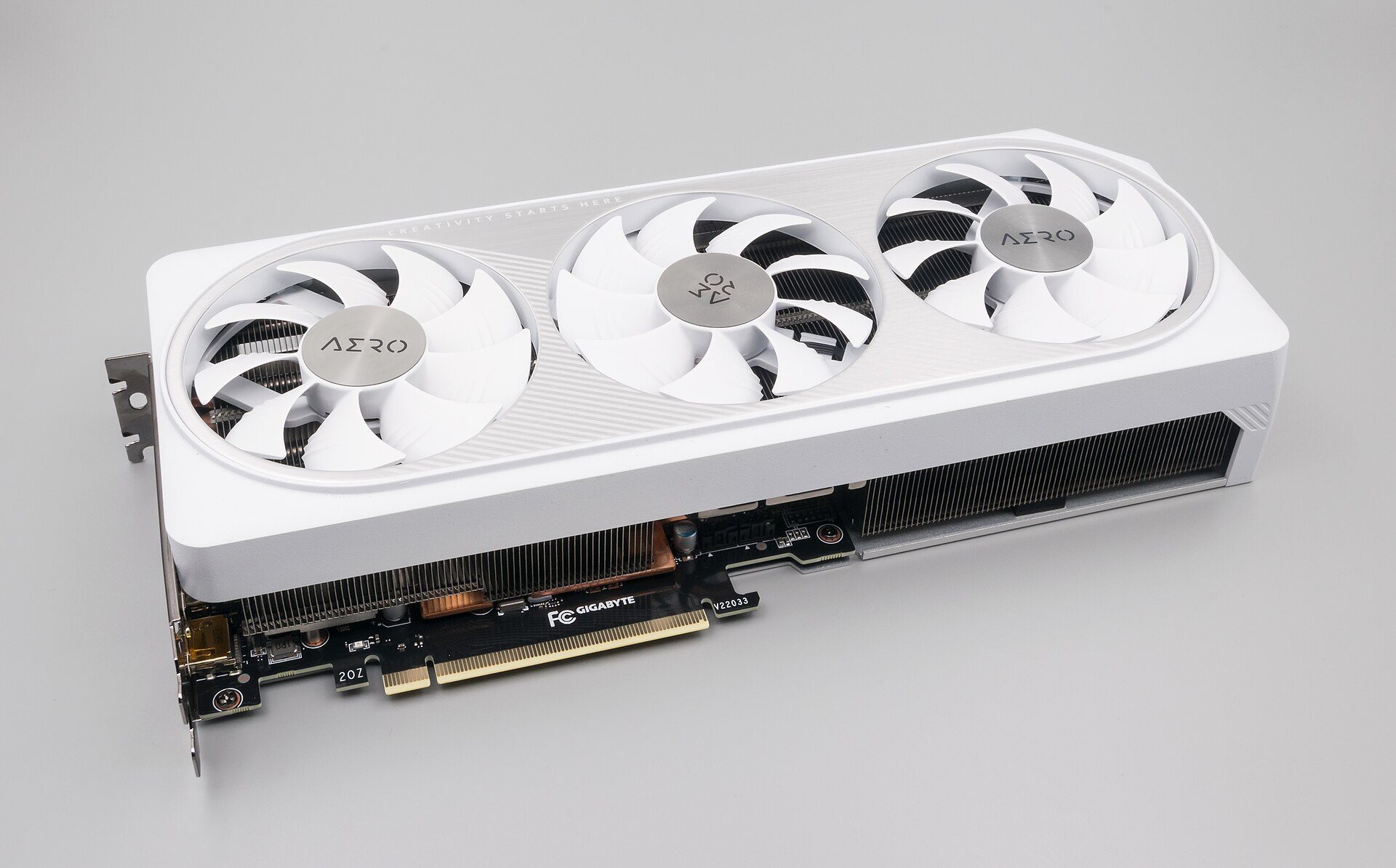
Photo: Jacek Halicki / Wikimedia Commons, CC BY-SA 4.0

How much RAM is enough for 3D rendering?
RAM holds the whole scene, textures, vegetation proxies and every open program. With too little RAM, the computer uses the disk as temporary memory, everything slows down sharply, or the software crashes mid-render.
RAM estimates by project type
| Project type | Minimum RAM | Recommended RAM | Notes |
|---|---|---|---|
| Learning SketchUp, single-room renders | 16 GB | 32 GB | 16 GB runs short once Photoshop and a browser are open too |
| 2–3 bedroom apartment interiors, 3ds Max + Corona/V-Ray | 32 GB | 64 GB | Many furniture models, 4K textures |
| Exteriors, landscapes, heavy vegetation | 64 GB | 128 GB | Tree proxies and scattering use a lot of memory |
| Walkthrough videos, long animations | 64 GB | 128 GB | Plus video editing software running alongside |
Installing RAM correctly
Use DDR5 in pairs (2 sticks) for dual-channel operation. Prefer 2 large sticks (2 × 32 GB) over 4 small ones, because 4 DDR5 sticks often have to run at lower speeds and leave less room to upgrade. RAM prices have been very volatile since late 2025, so check real prices when you buy.
Storage
Use an NVMe SSD for Windows, software and current projects (at least 1 TB, ideally 2 TB), and an HDD or NAS for archived projects and model libraries. A visualiser's model and texture library grows quickly, and a few hundred GB after one year is normal; always keep a backup on another drive or in the cloud.
Power, electricity and safety when building a render PC
A render machine runs at heavy load for hours, so the power supply (PSU) and the household wiring matter as much as the CPU or graphics card.
Electrical safety warning when building a PC: Always shut down, switch the power supply to O and unplug the cable before opening the case or fitting or removing parts. Touch the metal of the case or wear an anti-static wrist strap before handling RAM, the CPU or the card. Never open the power supply casing: the capacitors inside can still hold a dangerous voltage after unplugging. Plug the PC into an earthed socket rated for the load, and do not share a cheap extension lead with an iron or electric kettle. With the 16-pin (12V-2x6) power connector on high-end cards, push it in firmly until fully seated and do not bend the cable right next to the plug; a loose connector can melt. For overnight renders, keep the PC in a ventilated spot away from curtains and paper, and add a UPS if the local power supply is unstable.
How to size the power supply
- Take the graphics card's maximum power (TGP, listed on the maker's site).
- Add the CPU's maximum power at full load (usually higher than its rated TDP).
- Add about 100 W for the motherboard, RAM, SSDs, fans and USB.
- Multiply by 1.4–1.5 so the PSU runs in its efficient range and can handle the card's sudden power spikes. Compare with the card maker's recommended PSU and take the larger figure.
Choose a good PSU, not just enough watts
Pick a PSU with 80 Plus Gold efficiency certification or better, from a brand with a long warranty, with all the connectors your card needs (Figure 3). A cheap no-name "1000 W" unit often cannot deliver its rated power and lacks protection circuits, and is a common cause of sudden shutdowns mid-render or damage to other parts.
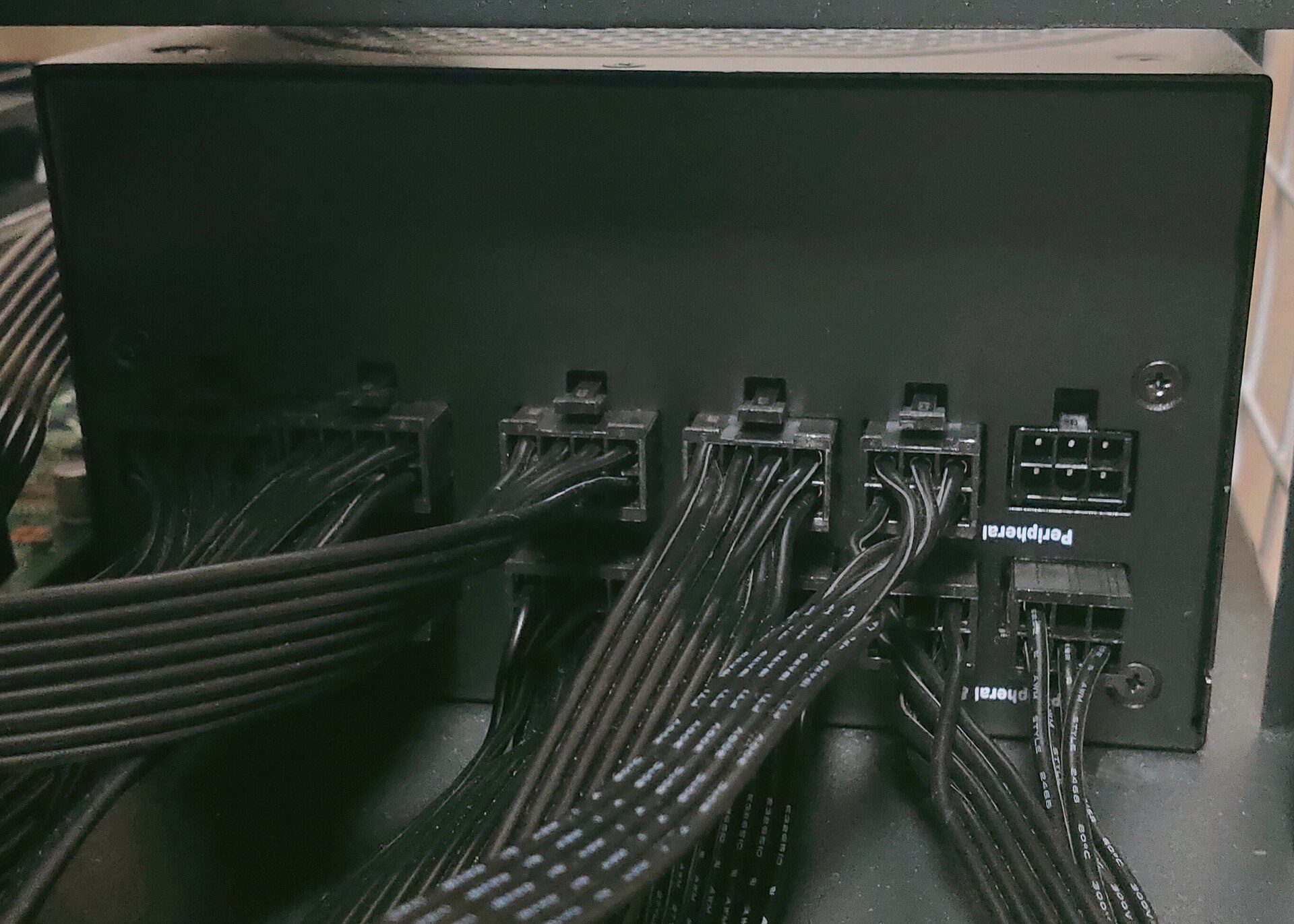
Photo: Project Kei / Wikimedia Commons, CC BY-SA 4.0

Electricity cost of heavy rendering
A mid-range machine rendering draws about 0.4–0.6 kW. Ten hours at 0.5 kW is 5 kWh; at a higher-tier household rate of about 3,000 VND per kWh (a 2026 reference in Vietnam, depending on tier and contract type), one night of rendering costs about 15,000 VND. That is small, but over a month it is worth including in your quotes.
2026 render PC builds by budget: 3 sample configurations
The three builds below are worked examples for practising budget balancing. Prices are the mid-point of 2026 reference ranges for new parts in Vietnam, varying by shop, region and timing; RAM and high-end cards move the most. Monitor, keyboard, mouse and software licences are extra. As a rough guide, 1 million VND is about 38 USD.
Reference component price ranges, 2026
| Component | Entry | Mid-range | High-end |
|---|---|---|---|
| CPU | 4–6.5 million (6 cores) | 7–10 million (8–20 cores) | 13–17 million (16–24 cores) |
| Graphics card | 11–14 million (16 GB, 60 Ti class) | 21–26 million (16 GB, 70 Ti class) | 30–37 million (16 GB, 80 class) |
| DDR5 RAM | 3–6 million (32 GB) | 6–11 million (64 GB) | 12–22 million (128 GB) |
| NVMe SSD | 1.5–2.5 million (1 TB) | 2.5–4.5 million (2 TB) | 3–5 million (2 TB, faster standard) |
| 80 Plus Gold PSU | 1.2–2 million (650 W) | 2.5–3.5 million (850 W) | 3.5–5.5 million (1000 W) |
Build 1: about 30 million VND, learners and GPU rendering
| Component | Suggestion | Reference price (million VND) |
|---|---|---|
| CPU | Ryzen 5 9600X or Core Ultra 5 245K | 5.0 |
| Motherboard | B650 or B860 | 3.0 |
| RAM | 32 GB DDR5 (2 × 16 GB) | 4.0 |
| Graphics card | RTX 5060 Ti 16 GB | 12.5 |
| SSD | 1 TB NVMe | 2.0 |
| Power supply | 650 W 80 Plus Gold | 1.5 |
| Case + cooling | Airy case, air cooler | 2.0 |
| Total | 30.0 | |
Check: 5.0 + 3.0 + 4.0 + 12.5 + 2.0 + 1.5 + 2.0 = 30.0 million. Suits SketchUp + Enscape or D5 and medium V-Ray GPU scenes; Corona works but slowly.
Build 2: about 55 million VND, interior freelancers
| Component | Suggestion | Reference price (million VND) |
|---|---|---|
| CPU | Ryzen 7 9700X or Core Ultra 7 265K | 8.5 |
| Motherboard | Good B650 or B860, 2 NVMe slots | 4.5 |
| RAM | 64 GB DDR5 (2 × 32 GB) | 8.0 |
| Graphics card | RTX 5070 Ti 16 GB | 23.0 |
| SSD | 2 TB NVMe | 3.5 |
| Power supply | 850 W 80 Plus Gold | 3.0 |
| Case + cooling | Good-airflow case, large tower cooler | 4.5 |
| Total | 55.0 | |
Check: 8.5 + 4.5 + 8.0 + 23.0 + 3.5 + 3.0 + 4.5 = 55.0 million. Balanced for people working in both 3ds Max + Corona and D5 or Lumion.
Build 3: about 90 million VND, heavy CPU and GPU rendering
| Component | Suggestion | Reference price (million VND) |
|---|---|---|
| CPU | Ryzen 9 9950X or Core Ultra 9 285K | 15.0 |
| Motherboard | X870 or Z890, good VRM | 7.0 |
| RAM | 128 GB DDR5 (2 × 64 GB) | 16.0 |
| Graphics card | RTX 5080 16 GB | 33.0 |
| SSD | 2 TB NVMe | 4.0 |
| Storage drive | 4 TB HDD for archives and libraries | 3.0 |
| Power supply | 1000 W 80 Plus Gold | 4.5 |
| Case + cooling | Large case, 360 mm AIO liquid cooler | 4.5 |
| UPS | Backup power for PC and monitor | 3.0 |
| Total | 90.0 | |
Check: 15.0 + 7.0 + 16.0 + 33.0 + 4.0 + 3.0 + 4.5 + 4.5 + 3.0 = 90.0 million.
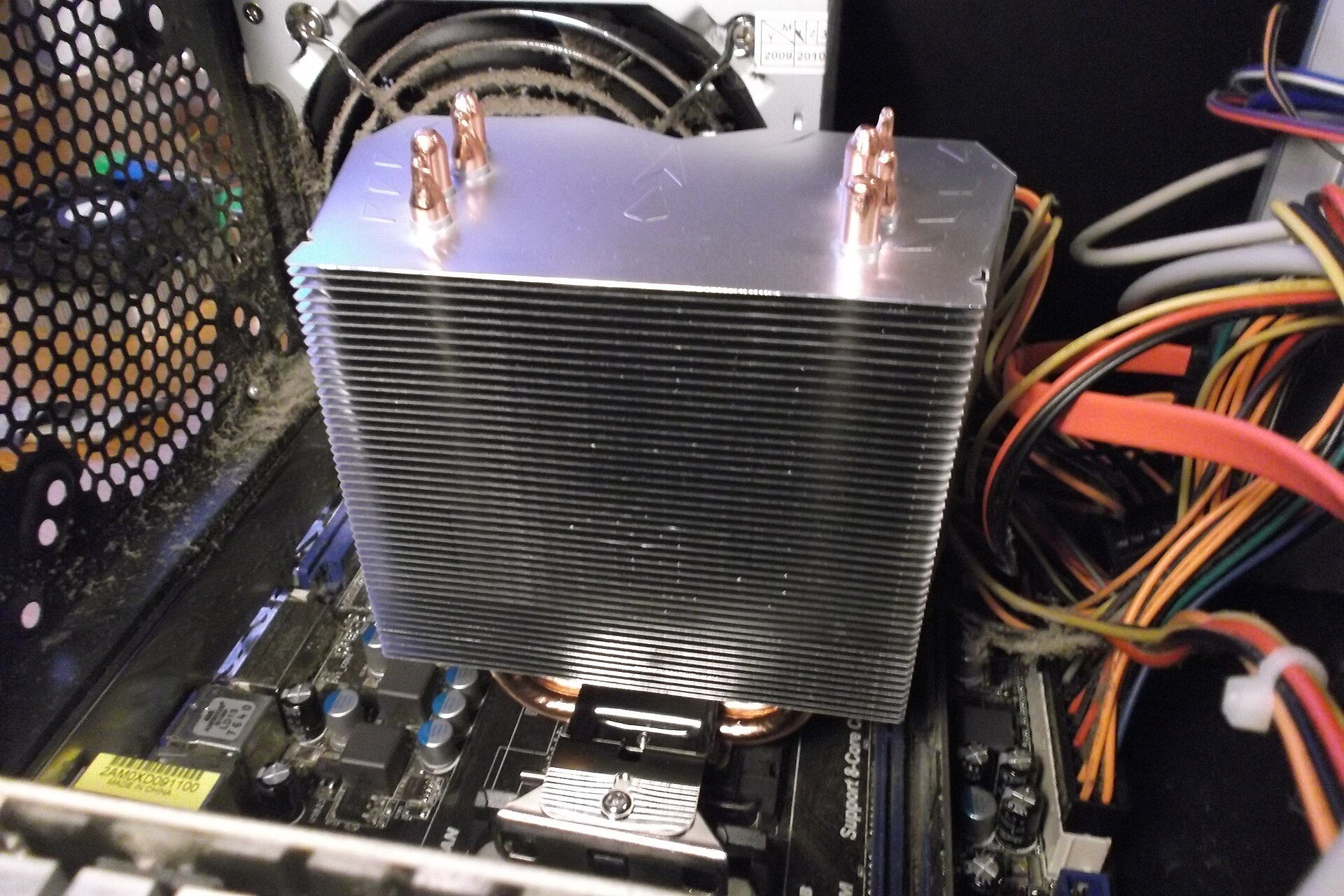
Photo: Blackcat / Wikimedia Commons, CC BY-SA 4.0

Worked example: sizing the PSU for build 3
This is how a careful builder checks whether the 1000 W in build 3 makes sense. The power figures below are rounded for practice; when you build for real, read the exact specifications on the maker's site for the parts you buy.
Step 1: add up maximum power
- RTX 5080 card: maximum power about 360 W.
- 16-core CPU at full render load: take about 230 W.
- Motherboard, 2 RAM sticks, 2 drives, fans, AIO pump, USB: take 100 W.
- Total: 360 + 230 + 100 = 690 W.
Step 2: apply the safety factor
690 × 1.4 = 966 W; 690 × 1.5 = 1,035 W. A 1000 W PSU falls within this range, so it is reasonable. When rendering on both CPU and GPU at once (for example a V-Ray mode that uses both), the PSU runs at about 690 ÷ 1000 = 69% of capacity, an efficient range with headroom for the card's sudden spikes.
Step 3: check the UPS and the socket
The UPS must handle the real power of the PC plus the monitor (about 690 + 40 = 730 W at peak). Read the W rating (not VA) on the UPS; a 1000 VA UPS is often only about 600 W, which is not enough. For build 3, choose a UPS with a real output of about 900 W or more. The socket and wiring to the room must handle about 730 ÷ 220 ≈ 3.3 A continuously, so do not share the socket with high-power heating appliances.
Common mistakes when choosing a render PC
All the money on the card, a weak CPU
Symptom: Enscape is fast but Corona renders take all night and 3ds Max stutters. Cause: a high-end card paired with an old 4–6 core CPU. Fix: decide on your main software first; if you use Corona, shift budget towards the CPU.
Not enough RAM
Symptom: software crashes when rendering large scenes, and the drive works constantly. Cause: 16 GB for apartment or exterior projects. Fix: upgrade to 32–64 GB as in the table; meanwhile, use proxies and reduce unnecessarily large textures.
A poor-quality power supply
Symptom: the PC shuts down suddenly while rendering or restarts for no reason. Cause: a no-name PSU whose real output is lower than its label. Fix: replace it with an 80 Plus Gold unit sized using the method above.
A cramped, hot case
Symptom: long renders gradually slow down, fans roar, and the CPU goes above 95 °C. Cause: few fans, the case pushed against a wall, dust build-up. Fix: arrange airflow in at the front and out at the back and top, and clean out dust every 3–6 months (shut down and unplug first).
Frequently asked questions
What is the minimum PC spec for learning 3D rendering?
For learning SketchUp and basic 3ds Max and rendering small scenes: a recent 6-core CPU, 32 GB of RAM, a 12–16 GB VRAM card and a 1 TB NVMe SSD, as in build 1. You can still learn on 16 GB of RAM and an 8 GB card, but it will feel cramped once you start real projects.
Should a rendering graphics card be NVIDIA or AMD?
If you use V-Ray GPU, it must be NVIDIA. For Enscape, D5 and Lumion, NVIDIA RTX is still the safest choice; AMD can run some programs, but check the software vendor's support list first.
Should a CPU for V-Ray and Corona be Intel or AMD?
Both work; what matters is core count, clock speed and cooling. Compare render scores for the exact software you use on independent review sites within the same price range, and include the cost of the matching motherboard.
How much RAM is enough for interior visualisation?
32 GB is the minimum for apartment projects, and 64 GB is comfortable for freelancers using 3ds Max with Corona or V-Ray and many furniture models. Exteriors with lots of vegetation should plan for 64–128 GB.
Can a laptop do 3D rendering?
Yes, a laptop with an RTX card works for learning and for presenting to clients. But for the same money, a laptop renders more slowly than a desktop over long renders, runs hotter and is hard to upgrade. For a long-term career, a desktop is the main tool and a laptop the secondary one.
Practice tasks and self-assessment
- List the 2–3 programs you will use most in your first year, and note whether each renders on the CPU or the GPU (read the vendor's official site).
- Draw up a build for a 40 million VND budget using the templates above, with a price column and a total row; explain why you favoured the CPU or the card.
- Size the power supply for your build using the 4 steps, recording the card's TGP and the CPU's power taken from the makers' sites.
Self-assessment criteria
- Pass: your build table's total equals the sum of its rows and stays within budget.
- Pass: your CPU and card choices match your main software (Corona favours the CPU; Enscape and D5 favour the card).
- Pass: the PSU rating is 1.4–1.5 times the total maximum power and not below the card maker's recommendation.
- Not yet: less than 32 GB of RAM for apartment projects, a no-name PSU, or assembling the PC without unplugging it.
With the right machine in place, move on to the next roadmap step: Modelling with SketchUp and 3ds Max, where you build walls, ceilings and doors from CAD files, learn groups, components and modifiers, and avoid flipped and overlapping faces at render time.
Keep learning 3D modelling and visualisation: after choosing your machine come SketchUp and 3ds Max modelling, materials and textures, lighting and rendering with V-Ray and Corona, real-time rendering and post-production. See the 8-step 3D modelling and visualisation roadmap.