Docker is an open-source tool that packages an application together with all of its libraries, configuration and runtime into an image, then runs that image as a container: an isolated process that starts in seconds and behaves the same on a laptop, a company server or the cloud. That makes "but it works on my machine" almost disappear, because every machine runs the same image. This lesson explains Docker the way a senior engineer coaches a junior: how containers differ from virtual machines, writing a Dockerfile, building an image, running several services with docker compose, the basic Docker commands and the security mistakes beginners make most often.
By the end of this lesson, you will be able to:
- Explain how containers and virtual machines differ, and when to use each.
- Tell apart images, containers, registries, volumes and networks, and read a Dockerfile.
- Write a multi-stage Dockerfile for a web application, build the image and run the container as a non-root user.
- Run a web app plus PostgreSQL with docker compose, setting memory limits whose totals fit the server.
- Use about 15 basic Docker commands confidently and avoid the ones that wipe data.
Learning DevOps and cloud properly? Docker is step 4 of the roadmap, after Linux and networking, Bash and Python scripting, and Git with CI/CD. See the 9-step DevOps and cloud engineer roadmap to learn in the right order before Kubernetes.
What is Docker, and what problem does it solve?
Before containers, putting an application on a server meant installing the right language version, libraries and environment variables, then hoping the server matched the developer's machine. One mismatched library version was enough to break it. Docker launched in 2013 and popularised a different approach: package everything into an immutable image that runs the same way everywhere.
The shipping container metaphor
The name "container" comes from sea freight (Figure 1). Before standard containers, every kind of cargo had its own packaging, and loading was slow and damage was common. Once everything went into boxes of the same size, cranes, ships and trucks only had to handle "a box" without caring what was inside. Docker does the same for software: the server only needs to know how to run a container, not whether it holds Node.js, Python or Java.
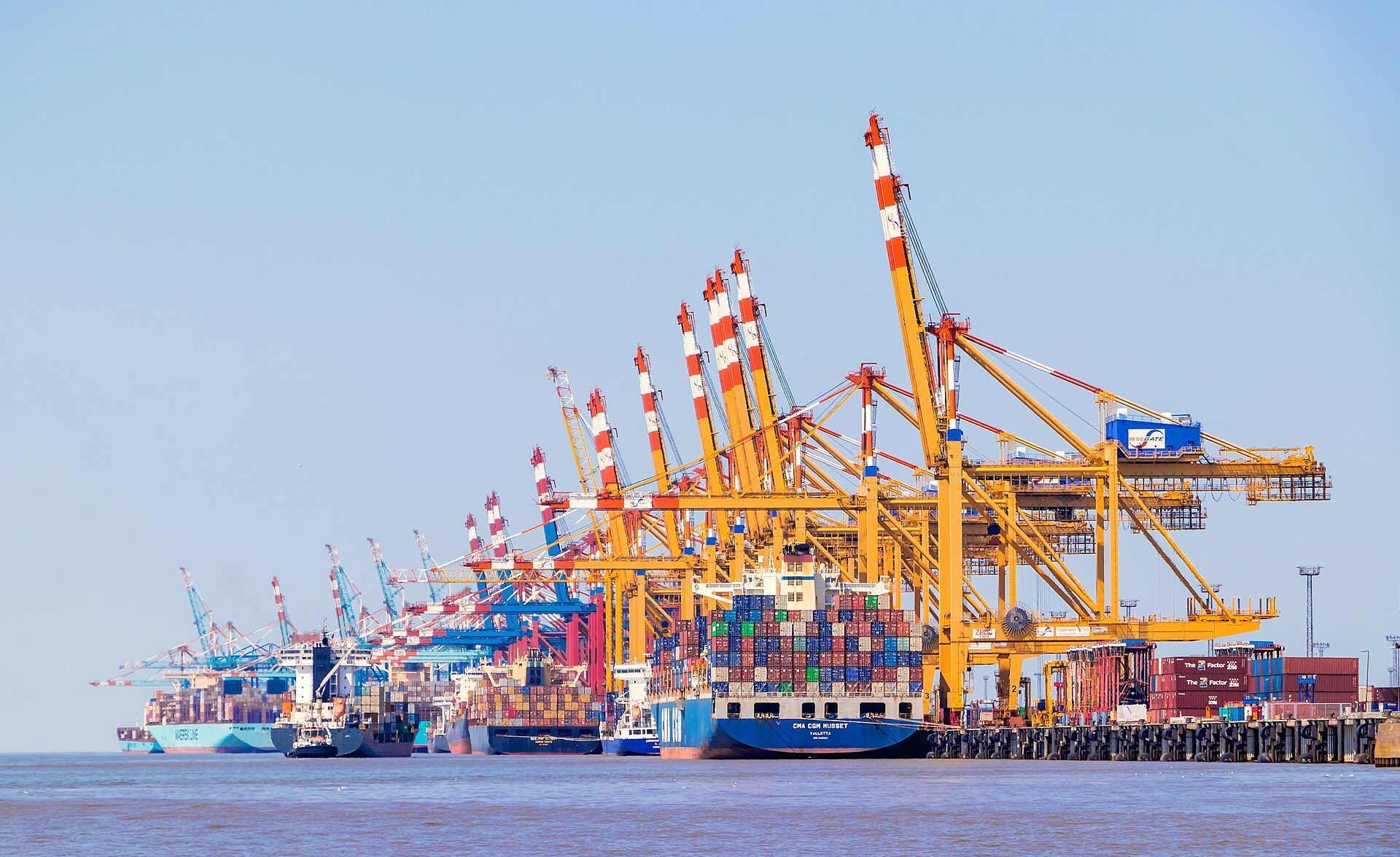
Photo: H. Zell / Wikimedia Commons, CC BY-SA 3.0

Docker Engine, Docker Desktop and licensing
Docker Engine is the open-source core that runs on Linux servers. Docker Desktop is the app for Windows and macOS; inside it runs a small Linux virtual machine (on Windows usually through WSL 2), because Linux containers need a Linux kernel. Docker Desktop is free for personal use, education and small businesses; companies above a headcount or revenue threshold need a paid plan. Thresholds and prices change over time, so read the current terms on Docker's official site before using it at work.
How are containers different from virtual machines?
This is a near-certain DevOps interview question. A virtual machine (VM) emulates a whole computer: each VM has its own operating system and runs on a hypervisor such as VMware ESXi, Proxmox or Hyper-V. A container only isolates processes: all containers on a host share the host's Linux kernel, but each one sees its own file system, network and process list.
Containers vs virtual machines
| Criterion | Container (Docker) | Virtual machine (VM) |
|---|---|---|
| What is virtualised | Processes, sharing the host kernel | The whole hardware, one OS per VM |
| Typical size | Tens to a few hundred MB | Several GB or more |
| Start-up time | Usually a few seconds or less | Usually tens of seconds to a few minutes |
| Isolation | Lower: a kernel flaw affects every container | Higher: each VM has its own kernel |
| Running a different OS | No: Linux containers need a Linux kernel | Yes: you can run Windows on a Linux host |
| Best for | Packaging apps, microservices, CI/CD, Kubernetes | Separating customers, other operating systems, legacy software that needs a whole machine |
In practice you use both
In the cloud you rent a VM (EC2, Compute Engine or a local VPS), install Docker on it and run many containers inside. The VM provides the security and resource boundary from other customers; the containers provide fast, consistent deployments. Containers do not simply "replace" virtual machines.
Core concepts: image, container, registry, volume, network
These five concepts are the vocabulary you will use every day with Docker.
Images and containers
A Docker image is a read-only package made of stacked layers: a minimal OS layer, a runtime layer, a library layer and a source-code layer. A container is one running instance of an image, with a thin writable layer on top. If the image is the cake tin, the container is the cake: one image can run many containers. When you delete a container, its writable layer goes with it.
Registries and tags
A registry stores images: Docker Hub, GitHub Container Registry, Amazon ECR, Google Artifact Registry or a private registry. Images are referenced by name and tag, for example postgres:16 or shop-web:1.4.2. The latest tag is just an ordinary tag and does not automatically mean "newest"; in production, pin a specific version so every deployment knows exactly what it runs.
Volumes and networks
A volume stores data that must outlive the container, such as database files. Without a volume, deleting a database container deletes the data. A network is a virtual network on which containers talk to each other by service name, for example the web app reaches the database as db instead of by IP address.
Photo: Victor Grigas / Wikimedia Commons, CC BY-SA 3.0

The Dockerfile: the recipe for an image
A Dockerfile is a text file listing each step to build an image. Every instruction creates a layer; Docker caches each layer, and unchanged layers are reused on the next build, which makes builds much faster.
Common Dockerfile instructions
FROM: the base image, for examplenode:22-alpine.WORKDIR: the working directory inside the image.COPY: copy files from the build machine into the image.RUN: run a command at build time, such as installing libraries.ENV: set environment variables.EXPOSE: document the port the app listens on (documentation only; it does not open the port).USER: which account runs the app; it should not be root.CMD/ENTRYPOINT: the command run when the container starts.
Example multi-stage Dockerfile for a Node.js app
A multi-stage build separates building from running: the first stage has all the build tools, the second copies only the results it needs, so the final image is smaller and has fewer vulnerabilities.
# Stage 1: install libraries and build
FROM node:22-alpine AS build
WORKDIR /app
COPY package*.json ./
RUN npm ci
COPY . .
RUN npm run build

# Stage 2: the runtime image, only what is needed
FROM node:22-alpine
WORKDIR /app
ENV NODE_ENV=production
COPY package*.json ./
RUN npm ci --omit=dev
COPY --from=build /app/dist ./dist
USER node
EXPOSE 3000
CMD ["node", "dist/server.js"]
Note the order: copy package*.json and install libraries first, then copy the source code. When you only change code, the library layer comes from cache and the build takes seconds instead of reinstalling everything. The USER node line switches to the node account that ships with the official Node image, so the app does not run as root.
The .dockerignore file
Put a .dockerignore file next to the Dockerfile so junk and secrets stay out of the image:
node_modules
.git
.env
*.log
dist
Without it, COPY . . can copy a .env file full of passwords into the image, and anyone who can pull the image can read them.
Basic Docker commands to learn by heart
These commands work the same on Linux, Windows and macOS once Docker is installed. Try each one on your own machine or a lab VM, never on a production server.
Docker commands by task
| Task | Command | Notes |
|---|---|---|
| Check the install | docker version | Shows client and engine versions |
| Test run | docker run hello-world | Pulls and runs a sample image |
| Pull an image | docker pull postgres:16 | Always state the tag |
| List images | docker image ls | Images and their sizes |
| Build an image | docker build -t shop-web:1.0 . | The dot is the folder with the Dockerfile |
| Run a container | docker run -d --name web -p 8080:3000 shop-web:1.0 | -d runs in the background, -p host port:container port |
| List running containers | docker ps | Add -a to include stopped ones |
| View logs | docker logs -f web | -f follows the log |
| Open a shell inside | docker exec -it web sh | For inspection; do not hand-edit and leave it |
| Stop and remove a container | docker stop web, docker rm web | Removing a container keeps the image |
| Remove an image | docker image rm shop-web:1.0 | Remove containers using it first |
| Watch resources | docker stats | CPU and RAM per container |
| List volumes | docker volume ls | Where long-lived data lives |
| Start a whole stack | docker compose up -d | Reads compose.yaml |
| Stop a whole stack | docker compose down | Keeps volumes unless you add -v |
That is 15 tasks, enough for most beginner day-to-day work. docker compose (with a space) is Compose v2, built into Docker; the old docker-compose (with a hyphen) is the discontinued v1 that you still see in older tutorials.
Reading docker run correctly
In -p 8080:3000, the left number is the port on the host and the right number is the port the app listens on inside the container. Browse to port 8080 on the host and Docker forwards it to port 3000 in the container. Swapping them is the most common beginner mistake.
Docker compose: running several services together
Real applications rarely use a single container: there is usually a web app, a database, a cache and a queue. Docker compose describes the whole set in one YAML file and starts it with one command. The recommended file name today is compose.yaml; the older docker-compose.yml still works.
Example compose.yaml for web + PostgreSQL
services:
  web:
    build: .
    ports:
      - "8080:3000"
    environment:
      DATABASE_URL: postgres://app:${DB_PASSWORD}@db:5432/shop
    depends_on:
      - db
    mem_limit: 512m
    restart: unless-stopped

  db:
    image: postgres:16
    environment:
      POSTGRES_USER: app
      POSTGRES_PASSWORD: ${DB_PASSWORD}
      POSTGRES_DB: shop
    volumes:
      - db-data:/var/lib/postgresql/data
    mem_limit: 1g
    restart: unless-stopped

volumes:
  db-data:
What to notice in this file
- The web app reaches the database as
db: compose creates a shared network with internal DNS by service name. - The database has no
portsline: only the web container can reach it, and the Internet cannot touch port 5432. - The password comes from the variable
${DB_PASSWORD}, set in a.envfile next to compose.yaml (and listed in .gitignore), never written into the file. - The
db-datavolume keeps the data when the database container is deleted and recreated. depends_ononly controls start order; it does not guarantee the database is ready to accept connections, so the app must still retry.
Photo: Lbronn / Wikimedia Commons, CC BY-SA 4.0

Worked example: web + database on a 4 GB RAM VPS
Scenario: a small online shop rents a VPS with 4 GB RAM (4,096 MB) and 2 vCPUs running Ubuntu Server, at roughly 150,000–400,000 VND (about 6–16 USD) per month in Vietnam in 2026, depending on the provider. You must deploy the compose.yaml above and make sure memory never runs out and freezes the server.
Step 1: split the RAM budget
| Component | RAM limit / reserve | Reason |
|---|---|---|
| OS + Docker Engine + SSH, monitoring | 768 MB | Reserve so the server always has headroom for itself |
| Web container | 512 MB | mem_limit: 512m |
| PostgreSQL container | 1,024 MB | mem_limit: 1g |
| Total allocated | 2,304 MB | 768 + 512 + 1,024 |
| Free | 1,792 MB | 4,096 − 2,304, for disk cache and peaks |
A month later the shop adds Redis as a cache (256 MB limit) and Nginx as an HTTPS reverse proxy (128 MB). New total: 2,304 + 256 + 128 = 2,688 MB, leaving 4,096 − 2,688 = 1,408 MB free, still safe. If the total climbs past about 3,500 MB, upgrade the VPS rather than squeezing the limits.
Step 2: deploy
- SSH into the VPS with a normal account that has sudo, and install Docker Engine following the official Ubuntu instructions.
- Pull the source code (or let the CI/CD pipeline build the image and push it to a registry).
- Create a
.envfile with a strongDB_PASSWORD, readable only by its owner. - Run
docker compose up -d --build, thendocker compose psto see both services running. - Check that
docker compose logs webshows no database connection errors, and open port 8080 in a browser. - Run
docker statsat peak time and compare real RAM use with the table above.
Step 3: acceptance checks
- Reboot the VPS: both containers come back on their own thanks to
restart: unless-stopped. - Recreate the database container (
docker compose up -d --force-recreate db): the data is still there thanks to the volume. - From an outside machine, a port scan shows port 5432 on the VPS closed.
Security and common Docker mistakes
Data and security warning:docker compose down -valso deletes volumes, which means deleting the database data.docker system prune -a --volumesdeletes every unused image, stopped container and unused volume; only run it when you are certain which machine you are on. Do not mount/var/run/docker.sockinto a container unless you fully understand it: a container with that socket controls Docker, which is equivalent to root on the host. Never experiment on production, and always back up database volumes before upgrades.
Running containers as root
Symptom: the Dockerfile has no USER line and the process runs as uid 0. Consequence: if the app is compromised, the attacker has root inside the container and escalation is easier. Fix: use or create a normal account such as USER node, and grant write access only to the folders that need it.
Passwords baked into the image
Symptom: ENV DB_PASSWORD=... written in the Dockerfile, or no .dockerignore so .env is copied in. Consequence: anyone who pulls the image can read it with docker history or by unpacking the layers. Fix: pass secrets at run time through environment variables from an uncommitted .env file, or use the platform's secret mechanism; if a secret has leaked, change it immediately.
Database port open to the Internet
Symptom: the compose file has ports: "5432:5432" for the database. Consequence: Internet scanners find it and try passwords. Also note that Docker adds its own iptables rules for published ports, so they can bypass the UFW firewall rules you set. Fix: remove the database ports line, or bind it to 127.0.0.1 ("127.0.0.1:5432:5432") when you need access from the server itself.
Bloated images full of vulnerabilities
Symptom: images of several GB and scans reporting hundreds of vulnerabilities. Cause: a full base image, no multi-stage build, node_modules and build tools copied into the runtime image. Fix: slim or alpine base images, multi-stage builds, .dockerignore, and regular scans with a tool such as Trivy in the CI pipeline.
Disk full of old images and logs
Symptom: the server runs out of disk after a few months. Fix: docker system df to see what takes space, remove old images selectively, and cap container log size in the Docker configuration.
Photo: The National Archives (UK) / Wikimedia Commons, CC BY 3.0

Frequently asked questions
What is Docker, in one sentence for non-specialists?
Docker packages software into standard "boxes" called containers so it runs identically on every machine, just as shipping containers travel on any ship or truck.
How are containers and virtual machines different?
A virtual machine has its own operating system, weighs several GB and starts more slowly; a container shares the host's kernel, is light and starts fast but is less isolated. In practice, containers usually run inside virtual machines.
What is the difference between a Dockerfile and a Docker image?
A Dockerfile is the text recipe; a Docker image is what you get after running docker build on that recipe. The Dockerfile lives in Git, the image lives in a registry.
When should I use docker compose?
When an app needs several containers running together (web, database, cache) on one machine: development environments, labs and small servers. When you need many machines, autoscaling and self-healing, move to Kubernetes.
What should I know before learning Docker?
How to use the Linux command line (folders, permissions, processes), basic ports and DNS, and how to read a Bash script. That is why Docker comes after the Linux, scripting and Git steps of the roadmap.
Can I learn Docker on a modest laptop?
Yes. A machine with 8 GB RAM runs Docker Desktop and a few small containers comfortably; or rent a cheap VPS running Docker Engine on Ubuntu to practise, and shut it down when you are not using it to save money.
Practice tasks and self-assessment
- Install Docker, run
docker run hello-world, then run Nginx:docker run -d --name thu-nginx -p 8081:80 nginx:stableand open port 8081 in a browser. - Write a multi-stage Dockerfile for a small app of your own (Node.js, Python or Go), build it and record the image size before and after using multi-stage.
- Set up a web + database compose.yaml like the example, delete the database container, recreate it, and prove the data is still there.
- Draw up a RAM budget table for a 2 GB VPS running the same stack, with a total row and the free remainder.
Self-assessment criteria
- Pass: the app in the container runs as a non-root user (
docker exec web iddoes not show uid 0). - Pass: the image contains no .env file and the database publishes no port to the outside.
- Pass: the data survives recreating the container, and your RAM table adds up and stays within the machine's RAM.
- Not yet: using the latest tag in production, a password written in the Dockerfile, or running
down -vwithout understanding that it deletes volumes.
Once Docker feels comfortable, move on to the next roadmap step: Kubernetes: deployment and operations, where the containers you have just packaged run across many machines, scale automatically and restart themselves on failure.
Keep learning DevOps and cloud: after Docker come Kubernetes, AWS or Google Cloud with Terraform, monitoring and logging, and a project deploying a web app on Kubernetes. See the 9-step DevOps and cloud engineer roadmap.