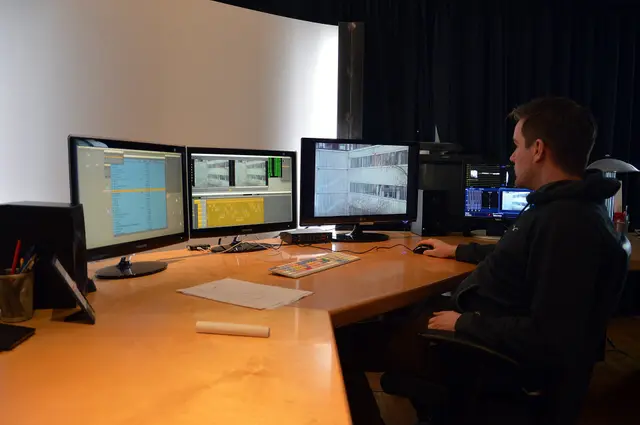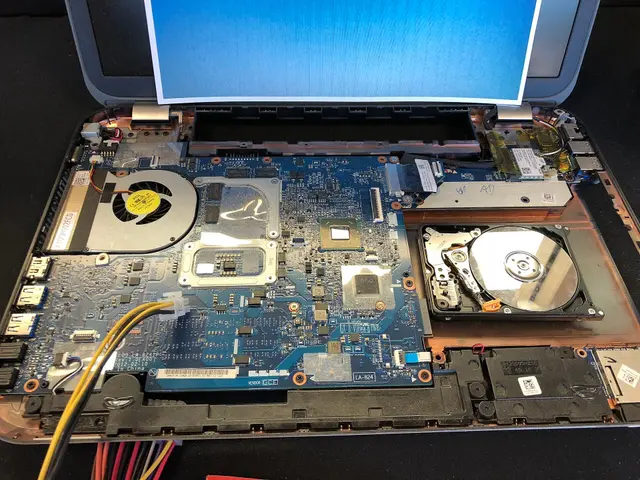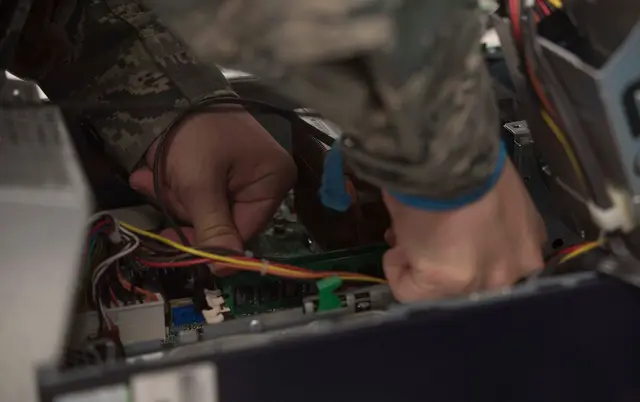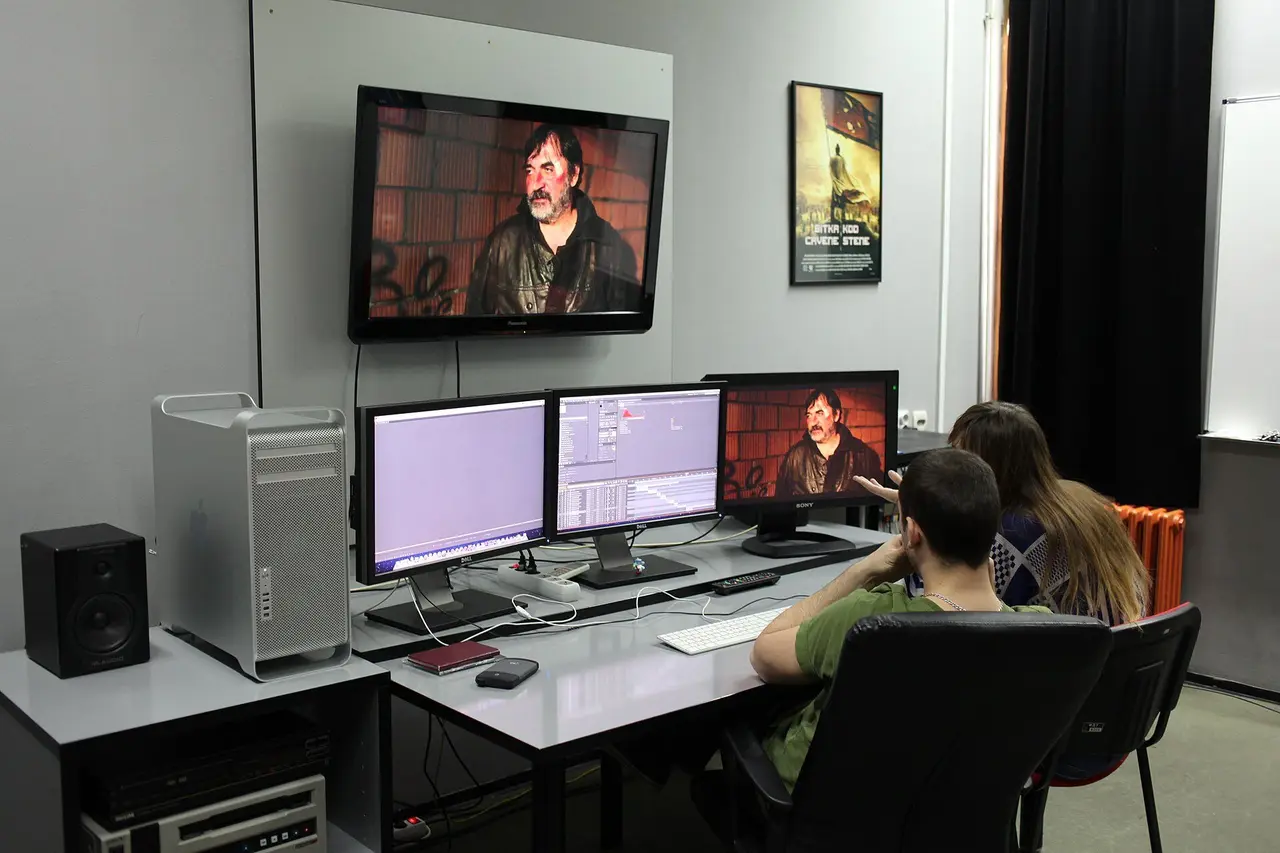
A computer that is good enough for a beginner editing 1080p video has a recent 6–8 core CPU with hardware video decoding, 16 GB of RAM (32 GB if you edit 4K), a dedicated graphics card with about 6–8 GB of memory or a strong integrated chip, one NVMe SSD for the operating system and projects, plus separate storage for footage. A powerful machine is not enough on its own, though: editors usually lose clients because they lose files, deliver videos that get muted for unlicensed music, or reopen a project to a timeline full of red "media offline" clips. This is the first lesson of the video editor roadmap: you will choose a machine for your workload, split drives by role, offload memory cards safely, back up with the 3-2-1 rule, use proxies on slower machines and keep licence records for every music track.
By the end of this lesson, you will be able to:
- Choose an editing setup by type of work (short 1080p video, 4K YouTube, multi-layer colour projects) with a reference price range.
- Split storage into 3 roles — system, project and cache, archive — and work out the space a project needs.
- Offload footage from memory cards with verification, and back up using the 3-2-1 rule.
- Understand delivery codecs versus editing codecs, and know when to create proxies.
- Keep a "licence log" for music, footage and fonts so your videos are not taken down or hit with copyright claims.
Starting out as a video editor? Computer, media management and copyright is step 1 of the 8-step roadmap, before editing language, software, sound, colour and publishing. See the 8-step video editor roadmap to learn in the right order.
What an editing computer needs
Editing software (Premiere Pro, DaVinci Resolve, CapCut for desktop, Final Cut Pro) relies on four things: a CPU to decode and process, RAM to hold what you are working on, a graphics card to accelerate effects and colour, and storage fast enough to read and write. A timeline that stutters is usually caused by a bottleneck in one of these four, and it is not always the CPU.
CPU and hardware decoding
Footage from phones and cameras is now mostly compressed as H.264 or H.265 (HEVC), and many cameras record 10-bit. This compression keeps files small but is heavy to decode. A CPU or graphics chip with a hardware decoder for that exact format plays back far more smoothly than a many-core CPU that has to decode in software. Before buying, check whether the chip supports 10-bit H.265 decoding (and 4:2:2 chroma subsampling if your camera records it).
RAM
16 GB is enough for short 1080p video with a few text layers and music. For 4K, many layers or running graphics software alongside, go for 32 GB. When RAM runs out, the computer starts using the drive as temporary memory and slows down sharply.
Graphics card
The graphics card speeds up effects, colour grading, noise reduction and exporting. DaVinci Resolve leans on the graphics card especially heavily. For a beginner, a dedicated card with about 6–8 GB of memory is comfortable; a machine with a strong integrated chip still handles short videos well.
Laptop or desktop
For the same money a desktop is more powerful, easier to upgrade and runs cooler during long exports. A laptop is easy to take to clients and events. If you choose a laptop, prioritise good cooling, a fast USB-C or Thunderbolt port for external drives, and a screen with reasonably accurate colour.
| Workload | CPU / GPU | RAM | Storage | 2026 reference price (Vietnam) |
|---|---|---|---|---|
| Short 1080p video, TikTok, Reels | 6–8 cores with H.264/H.265 decoding; strong integrated chip or entry-level dedicated card | 16 GB | NVMe SSD 512 GB–1 TB + archive drive | 15–25 million VND |
| 4K YouTube, a few layers, basic colour | 8–12 cores; 8 GB dedicated card | 32 GB | NVMe SSD 1 TB + 1–2 TB project SSD + archive drive | 25–45 million VND |
| Multi-camera 4K, deep colour, heavy effects | 12+ cores; 12 GB+ dedicated card | 64 GB | Several NVMe SSDs + large archive storage | 45–90 million VND |
Prices are 2026 reference ranges only, varying by area, new or used parts, and component price swings (25 million VND is about USD 990). Beginners do not need the most expensive machine: a mid-range computer plus proxies (see below) handles most work for small clients.
Split your drives by role
A common beginner mistake is putting everything on the C: drive — operating system, software, footage, cache and exports. The drive fills up, the software throws render errors, the machine slows, and if that drive fails you lose everything. Professional editors split storage into at least three roles.
System drive
An NVMe SSD holds the operating system and software. Keep at least 15–20% of it free so the system and software run reliably.
Project and cache drive
A fast SSD (internal NVMe or an external SSD on a high-speed port) holds the footage of the current project, the project file, proxies, cache and temporary render files. This is the drive that needs the most speed, because the software reads from it constantly as you scrub the timeline. When the project is finished, clear the cache and move the project to archive storage.
Archive and backup drives
Large hard disk drives (HDDs), cheap per TB, are for storing finished projects and backups. HDDs are much slower than SSDs, so they are not suitable for editing multi-layer 4K footage directly. External drives on USB-C (Figure 2) are portable, but they are also the easiest thing on your desk to drop and break.
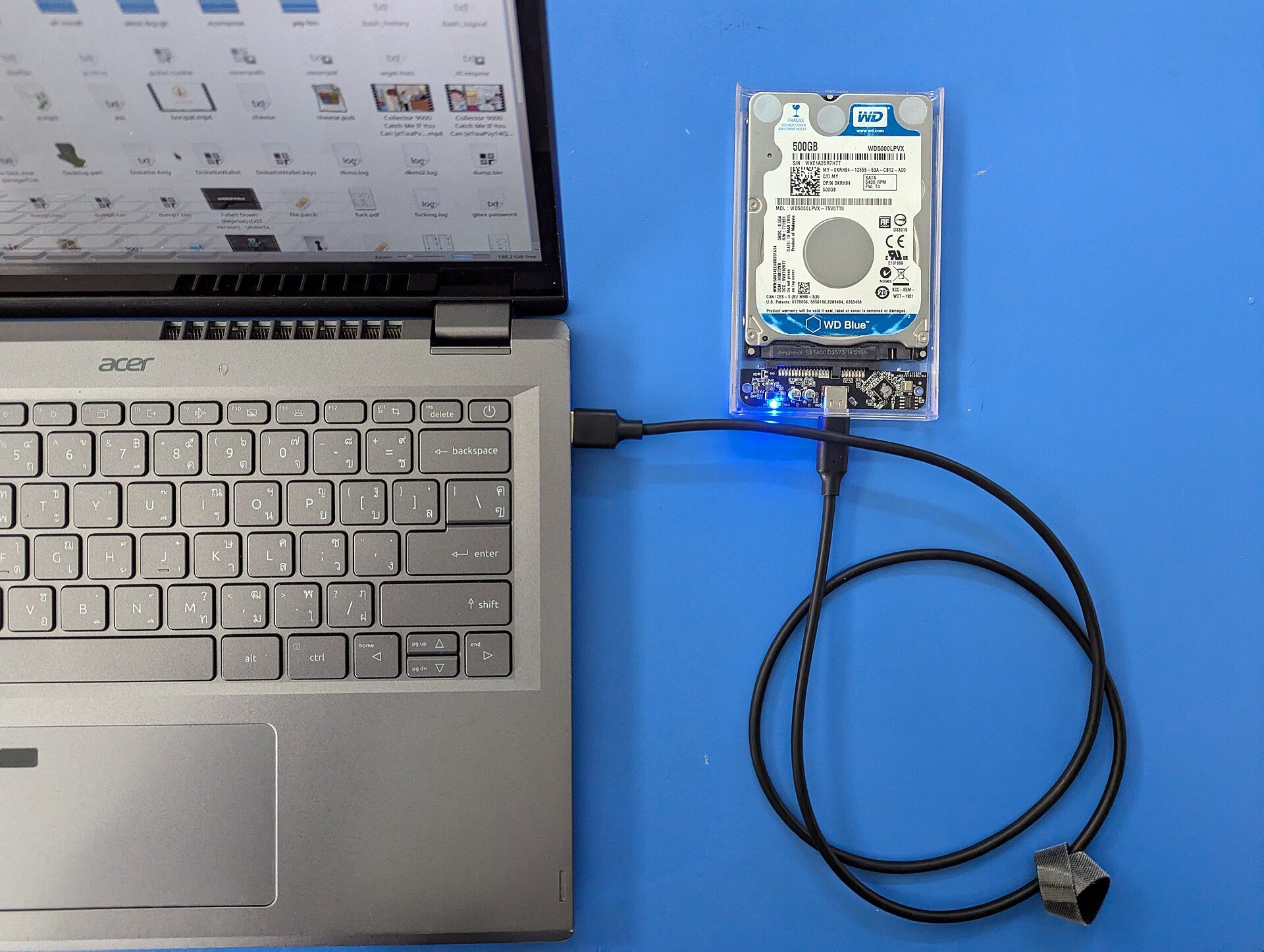
Photo: Augkun-ane / Wikimedia Commons, CC BY 4.0
Is the drive fast enough for your footage?
Footage bitrate is listed in the camera specs in Mbps (megabits per second). Divide by 8 to get MB/s (megabytes per second). 4K footage at 100 Mbps needs about 12.5 MB/s for one stream; with 2 camera angles stacked, plus music and effects, the drive needs to be many times faster. SSDs handle this easily; external HDDs start to choke when several 4K streams play at once.
Offloading memory cards with verification
The camera card is the only place your original footage exists until you copy it off. One careless copy can lose shots you can never reshoot, especially at weddings and events.
The offload routine
- Lock the card (if it has a lock switch) and insert it into a fast card reader (Figure 3); never edit straight from the card.
- Copy the card's full folder structure into the project's footage folder, naming subfolders by date and camera, for example
2026-11-20_CamA_Card1. - Compare: total size and number of files on the card and in the copied folder must match; open a few clips from the start, middle and end.
- If your copy software offers checksum verification (comparing a check code for each file), turn it on.
- Copy again to a second backup drive. Only when you have two verified copies does the card go back to be formatted.
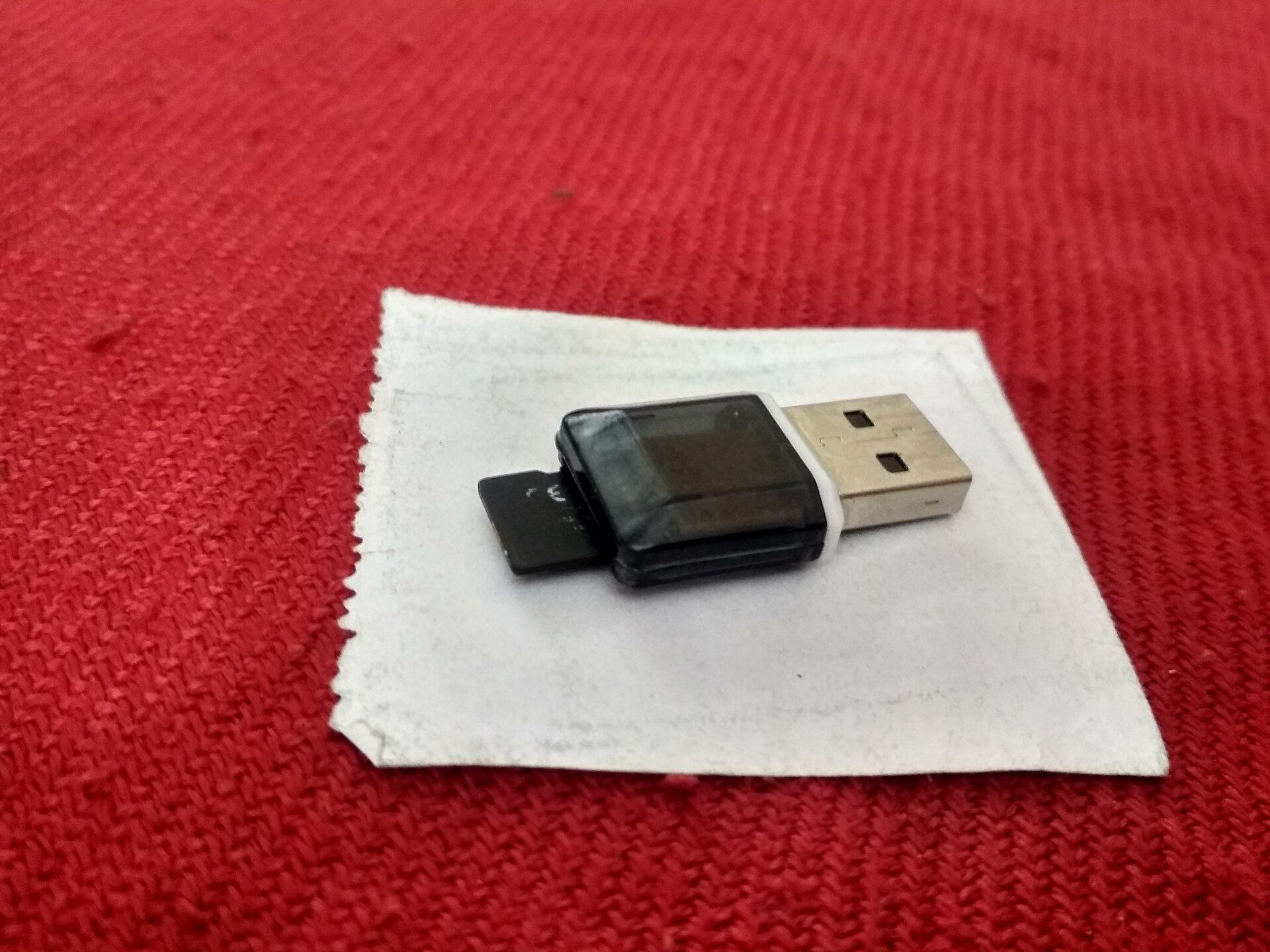
Photo: Dineshkumar Nallaveerappan / Wikimedia Commons, CC BY-SA 4.0
Label your cards
Mark each offloaded card "COPIED x2" with the date. At events with several camera operators, this label stops anyone formatting a card that has not been copied yet.
Backing up with the 3-2-1 rule
The 3-2-1 rule means: keep 3 copies of your data (1 working copy + 2 backups), on 2 different types of device, with 1 copy kept somewhere else (another home, another office or cloud storage). A fire, theft, flood or simultaneous drive failure will not take all three.
Applying it as a freelance editor
- Copy 1: footage and project on the project SSD, used for daily editing.
- Copy 2: an external HDD on your desk, written straight after the offload (Figure 4).
- Copy 3: a second HDD kept somewhere else, or uploaded to cloud storage if your connection and plan allow.
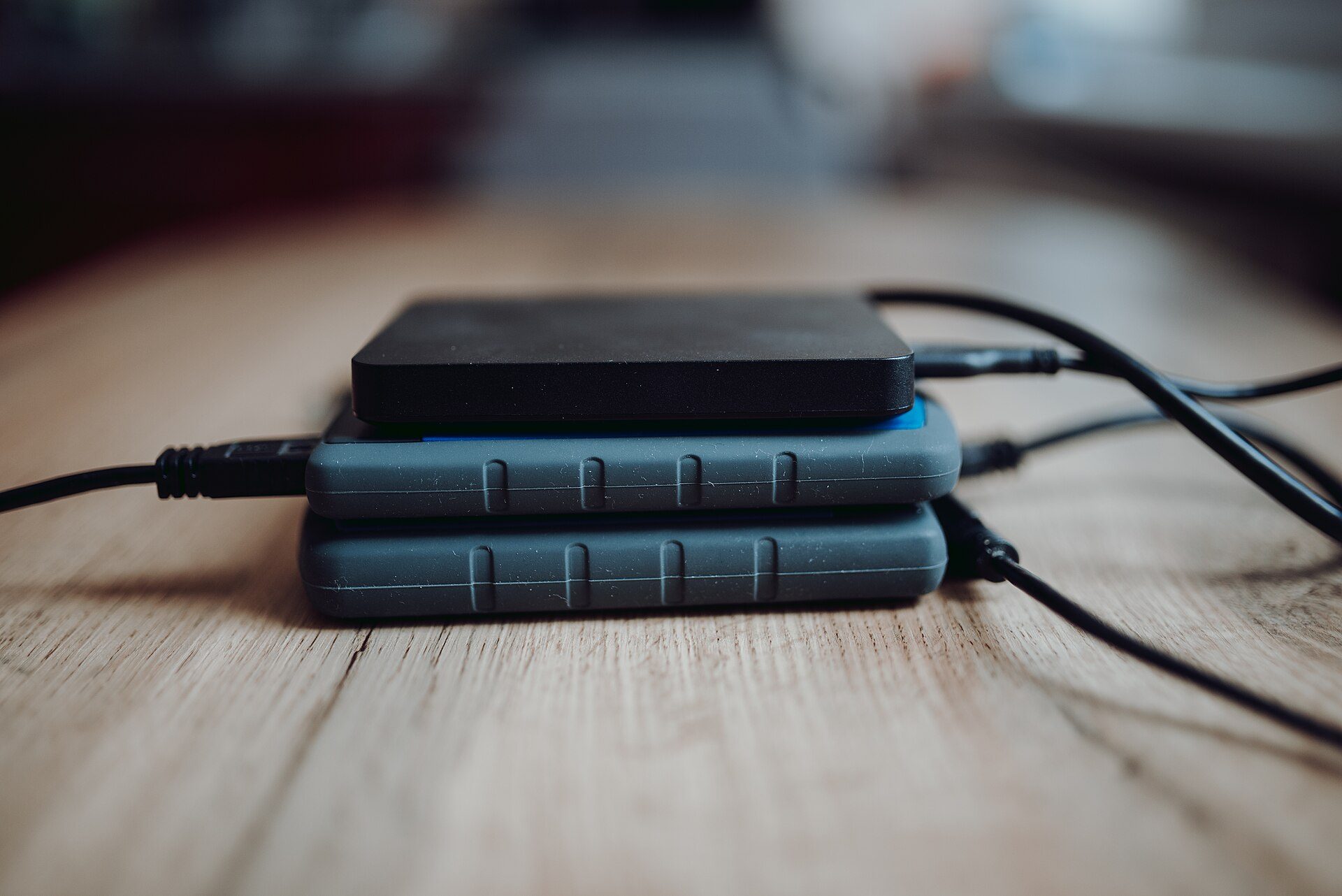
Photo: Shixart1985 / Wikimedia Commons, CC BY 2.0
What to back up and what not to
Back up: original footage, separately recorded audio, music and licences, client graphics, project files and final exports. No need to back up: proxies, cache and temporary renders, because the software can rebuild them from the original footage.
How long to keep files after delivery
Agree on this with the client at the start and put it in your quote: for example, footage and project kept for 3–6 months after delivery, after which they are deleted or the client pays an archiving fee. Do not promise to "keep it forever", because drives are finite.
Naming projects, folders and versions
The 5-branch folder structure (footage, audio, music, graphics, exports) is covered in the lesson on editing videos in CapCut on desktop. Here we add naming rules so files work on any machine.
Naming rules
- Start with the date as year-month-day so folders sort themselves by time:
2026-11-20_CompanyABCEvent. - Avoid accented letters, spaces and special characters in file names, to prevent errors when moving to another computer or uploading to the cloud.
- Give exports a version number and date:
ABCEvent_Recap_v03_2026-11-25.mp4; never "final", "final2", "final-really".
Do not move files after importing
Editing software only stores the path to your footage; it does not embed footage in the project file. Rename a drive or drag a folder elsewhere and the project reports "media offline". To move a project, use the software's project manager or collect-files feature.
Codecs and proxies: smooth editing on a mid-range machine
A codec is the method used to compress and decompress video. Understanding two groups of codecs helps you decide when your computer needs help.
Delivery codecs and editing codecs
H.264 and H.265 are delivery codecs: small files, good for recording and posting online, but heavy to scrub because each frame depends on others. ProRes and DNxHR are editing codecs: every frame stands alone, files are many times larger, but playback is very light. Deliverables usually use H.264/H.265; export settings are covered in the lesson on exporting video without blur.
What a proxy is
A proxy is a low-resolution, lightweight-codec copy of the original footage (for example, 4K H.265 with a quarter-resolution proxy in an editing codec). You edit on the proxy for smooth playback, and on export the software switches back to the originals, so quality is not reduced.
When to create proxies
- The timeline stutters or drops frames with 4K or 10-bit H.265 footage.
- You are editing several cameras at once (multicam).
- You are editing on a laptop while travelling, with the originals on a slow external drive.
Proxies take extra time to create and extra space (often about a tenth of the original footage), but they save hours of waiting during the edit.
Copyright for music, footage and fonts
The videos you edit for clients are commercial. A track that is trending online, or a clip you downloaded, does not mean you are allowed to use it.
Common licence types
| Source | Typical conditions | Notes |
|---|---|---|
| Paid music and stock footage libraries (subscription or per track) | Licensed per account, per project or per channel | Register the client's channel or project if the terms require it |
| "Royalty-free" music and footage | No per-use fee, but conditions apply: may ban advertising, may require credit | Read the current terms; do not guess from the name |
| Creative Commons licences | Credit the author; some types ban commercial use (NC) or modification (ND) | Never use NC material in advertising |
| Libraries built into editing apps | Often limited by purpose and platform | Check before using in an advert |
| Original or commissioned music | Per the contract with the composer | Spell out usage rights in the contract |
Keep a licence log
For every project, create a spreadsheet or text file in the music folder with one row per item: track or clip name, source, download account, download date, licence type, licence code or link, plus a PDF or screenshot of the licence. When a claim arrives, you open the log and have your evidence within minutes.
When a video gets a copyright claim
Large platforms have automatic content-matching systems. A video may be muted, blocked in some countries, have its revenue redirected to the rights holder, or be taken down. If you hold a valid licence, dispute through the platform's official process with the evidence from your log. If you have no licence, replace the music and export again. Never file a false dispute: the account can be penalised more heavily.
Data and copyright warning: Never format a memory card until you have two verified copies. Never leave a client's footage on a single drive, even "just for a few days". Commercial videos should only use music, footage and fonts licensed for that purpose, with proof of licence kept in the project folder. Filming people's faces clearly for public posting requires their consent. On legal matters this lesson only states principles; for a specific dispute, read the platform's terms and Vietnam's current intellectual property rules, or ask a lawyer.
Worked example: storage and copy time for an event video
You are hired to edit a company anniversary event. Two cameras (A and B) each record about 3 hours of 4K H.265 at 100 Mbps. The client wants a 3-minute highlight and a 20-minute long version.
Working out footage size
- 100 Mbps / 8 = 12.5 MB/s. One hour: 12.5 × 3,600 = 45,000 MB, about 45 GB.
- 2 cameras × 3 hours × 45 GB = 270 GB of original footage.
Space on the project drive
| Item | Calculation | Size | Backed up? |
|---|---|---|---|
| Original footage | 2 × 3 × 45 GB | 270 GB | Yes |
| Separate audio, photos, music, graphics | Estimate | 10 GB | Yes |
| Proxies | About 1/10 of footage | 27 GB | No |
| Cache and temporary renders | Estimate | 50 GB | No |
| Exports (3 versions) | 3 × 5 GB | 15 GB | Yes (final) |
| Total on project drive | 372 GB | ||
Check: 270 + 10 + 27 + 50 + 15 = 372 GB. The project drive should keep at least 20% free, so you need an SSD of at least 372 / 0.8 = 465 GB; choose 1 TB to leave room for parallel projects. Each backup contains the "Yes" items: 270 + 10 + 15 = 295 GB, plus about 1 GB of project files makes 296 GB. Two backups need 2 × 296 = 592 GB, so 2 TB backup drives have room for several projects.
Working out copy time
A card reader to SSD copy runs at about 90 MB/s in practice (a reference figure; it depends on card and reader). 270 GB = 270,000 MB / 90 = 3,000 seconds = 50 minutes for the first copy. Copying to the backup HDD at about 120 MB/s: 296,000 / 120 ≈ 2,467 seconds, about 41 minutes. Together that is about 1 hour 31 minutes before verification, so put it in your schedule: set aside about 2 hours on the evening after the event to copy and check before you go to bed.
Common mistakes and how to fix them
The project opens with "media offline"
Sign: clips on the timeline turn red. Cause: footage was renamed or moved, or the external drive got a different drive letter. Fix: use relink to point to the correct folder; next time, consolidate files with the software's own feature rather than dragging them by hand.
Exports fail halfway
Sign: the export errors out or the machine hangs part-way through. Common cause: the project or system drive is nearly full, or the cache has ballooned. Fix: clear old project caches and keep at least 15–20% of each drive free.
A client's video gets muted
Sign: the client reports the posted video is muted or flagged for copyright. Cause: the music was not licensed for that use. Fix: replace it with licensed music, export again and update the licence log; next time, pick music from logged sources from the rough cut onwards.
New project checklist
- Create the project folder using the dated naming pattern, with all subfolders.
- Offload the cards, compare size and file count, open test clips.
- Make the second backup copy; schedule the third copy off-site.
- Check the project drive still has at least 20% free after copying.
- Test playback; if it stutters, create proxies from the start.
- Create the licence log in the music folder before choosing the first track.
Frequently asked questions
What is a budget video editing PC spec for beginners?
For short 1080p video, a machine around 15–25 million VND (2026 reference in Vietnam, depending on area and new or used parts) with a 6–8 core CPU with hardware decoding, 16 GB of RAM and an NVMe SSD is enough to start. Use proxies when you meet 4K footage.
How much RAM does a video editing laptop need?
16 GB for 1080p and short videos; 32 GB if you edit 4K regularly or run several programs at once. Many laptops have soldered RAM that cannot be upgraded, so buy enough at the start.
Is backing up to Google Drive or the cloud enough on its own?
The cloud is a good choice for the "somewhere else" copy in the 3-2-1 rule, but uploading hundreds of GB takes a long time and needs a suitable storage plan. Keep at least one copy on a local drive for fast recovery.
Can royalty-free music be used in advertising videos?
It depends on each source's terms. "Royalty-free" usually means no per-use payment, not unlimited use. Read the terms on commercial use, credit and platforms before using a track, then record it in your licence log.
Practice tasks and self-assessment
- Write down your current computer's specs (CPU, RAM, graphics card, drives) and place it in a row of the spec table above.
- Shoot 5 clips on your phone, offload them using the 5-step routine, compare size and file count, and make one backup copy.
- Work out the storage for a wedding project: 1 camera recording 5 hours of 4K at 150 Mbps.
- Create a licence log for 3 music tracks you plan to use, filling every column.
Self-assessment criteria
- Pass: the project folder is named by date without accents; size and file count match between card and computer.
- Pass: the calculation is correct: 150 / 8 = 18.75 MB/s × 3,600 = 67,500 MB per hour, × 5 hours = 337,500 MB, about 337.5 GB.
- Pass: every track in the log has a source, licence type and proof.
- Not yet: only one copy of the footage exists, a card was formatted before verification, or music with an unclear licence was used.
With your machine and data in order, move on to the next step of the roadmap: Editing language: shots, pacing, transitions, where you learn shot sizes, the 180-degree rule, cutting on action and pacing to music.
Keep learning video editing: after computers and data come editing language, software, sound, colour grading, titles and publishing for each platform. See the 8-step video editor roadmap.