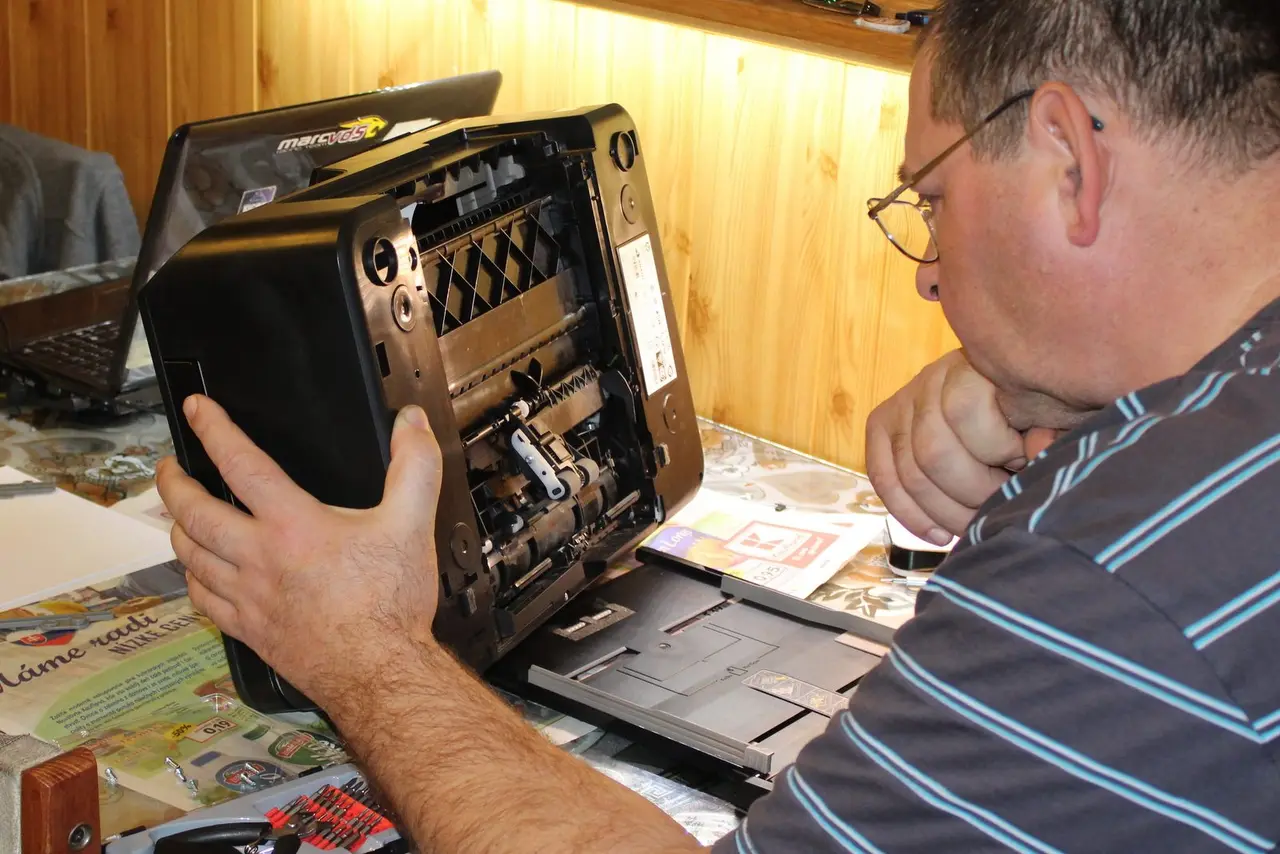
When a printer will not print, check things in order from the outside in: the printer's control panel (errors, paper, toner or ink, paper jams), the connection (USB, network cable, Wi-Fi), the status on the computer (offline, default printer), a stuck print queue, and only last of all a driver reinstall. Most helpdesk cases in offices are a network printer that changed IP address or one bad print job blocking the whole queue, not broken hardware. This lesson gives you a 7-step process, a symptom table, how to clear stuck print jobs, how to fix a printer showing offline, and a worked case in a 12-person office with step times that add up.
By the end of this lesson, you will be able to:
- Ask the 3 right questions to tell whether the fault is in the printer, the network or one computer.
- Fix a printer showing offline and clear stuck print jobs by restarting the Print Spooler service.
- Find a network printer's IP address, test it with ping and fix the printer port when the IP changes.
- Remove and reinstall a printer driver cleanly from the maker's official website.
- Clear paper jams safely and know when to hand over to a printer technician.
Learning IT support properly? Printer troubleshooting belongs to step 4 of the roadmap: basic networking, Wi-Fi and printers. See the 8-step IT support technician roadmap to learn in the right order, from electrical safety, hardware and Windows to accounts, email and helpdesk job applications.
Narrow it down before fixing: the first 3 questions
A good helpdesk technician does not jump straight into reinstalling drivers. Three first questions tell you where the fault is and save you half a morning fixing the wrong thing.
One person or the whole office?
If only one computer cannot print, the fault is usually on that computer: driver, default printer, queue or printer port. If the whole office cannot print, the fault is in the printer or the network: a printer error, a changed IP, lost Wi-Fi, a failed switch.
Since when, and what just changed?
Ask the user: was Windows just updated, was the router or ISP modem replaced, was there a power cut, did someone move desks or replace a cartridge? The answer often points straight at the cause. A weekend power cut followed by the router handing out a new IP is a classic case.
Is the printer showing anything?
Look at the screen and lights on the printer: paper jam, out of paper, out of toner, cover open, a numbered error code. Print a test page from the printer's own control panel (configuration page or self-test page). If it prints, the mechanics are fine and the fault is on the path from the computer to the printer.
The 7-step process for a printer that will not print
Work through the steps in order and try printing after each one. Do not change several things at once; when it starts working you will not know which step fixed it, and you need that for the ticket.
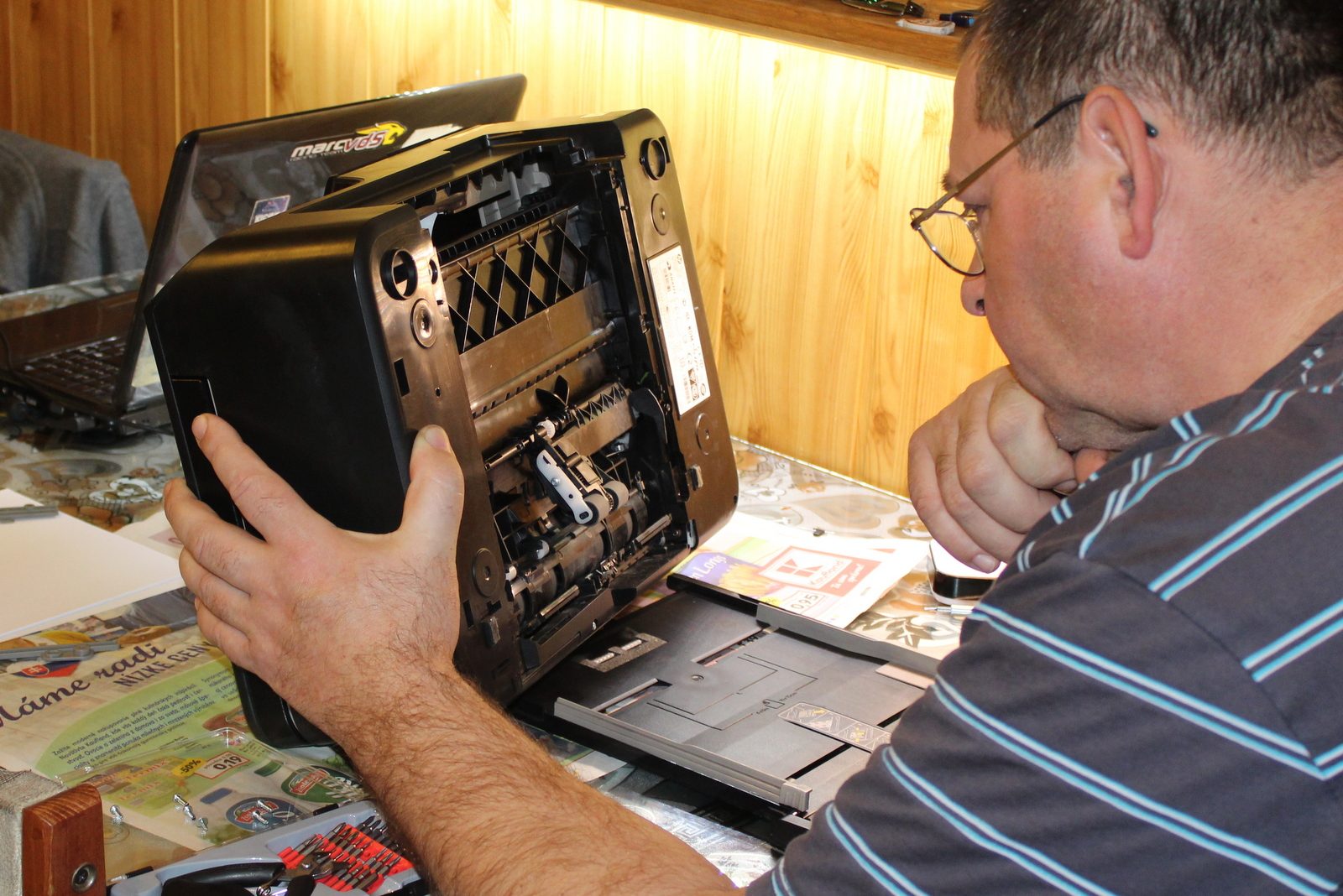
Photo: Robo Michalec / Wikimedia Commons, CC0

- Power and control panel: printer on, no error, paper loaded, ink or toner present, covers fully closed.
- Print a self-test page from the control panel: if it prints, the mechanics are fine.
- Physical connection: USB cable firmly in; a network printer has its LAN port light on or its Wi-Fi icon connected.
- Status in Windows: go to Settings → Bluetooth & devices → Printers & scanners and check whether it says Offline and whether it is the default printer.
- Print queue: open the queue and delete the failed job; if that does not work, restart the Print Spooler.
- Network (for network printers): find the printer's IP, ping it, compare it with the printer port set on the computer.
- Driver: remove the printer, remove the driver package, install the latest version from the maker's official site.
Symptom table
| Symptom | Common cause | Step |
|---|---|---|
| Printer shows offline | Changed IP, lost Wi-Fi, "Use printer offline" switched on, deep sleep | Steps 4 and 6 |
| Job sits in the queue forever | One failed job blocks the rest, Print Spooler hung | Step 5 |
| Whole office cannot print to one network printer | Printer got a new IP after a power cut or router change | Steps 2, 6 |
| Blank or faded pages | Out of ink or toner, seal not removed from a new cartridge, dry print head | Steps 1, 2 |
| Garbled characters | Wrong or corrupted driver | Step 7 |
| Paper jam reported but no paper visible | Small scrap of paper left inside, dirty sensor | Paper jam section below |
Printer shows offline: how to fix it
"Offline" in Windows means the computer cannot reach the printer, or the printer has been set to work offline. A printer with its lights on is not necessarily a printer the computer can "see".
Check on the computer
- Open the printer's queue (Open print queue), go to the Printer menu (or the three-dot button on Windows 11) and untick "Use Printer Offline" if it is ticked.
- Check the default printer. Windows has an option that changes the default to the most recently used printer; the user may be printing to a different printer or to "Microsoft Print to PDF".
- USB printers: try another USB port and another cable; avoid unpowered hubs.
Check network and Wi-Fi printers
Wi-Fi printers often drop off when the router's network name or password changes, or when the printer sits far from the router. Many printers only support the 2.4 GHz band; if the router combines 2.4 and 5 GHz under one name, the printer may struggle to connect. The printer and the computer must be on the same network: a computer on guest Wi-Fi usually cannot see printers on the internal network. If weak signal is the cause, see the article how to fix weak Wi-Fi in the network technician career.
Sleep and power saving
Some printers go into deep sleep and switch off their network card. Press a button on the printer to wake it and print again. If it keeps happening, adjust the sleep timer in the printer's web configuration page following the maker's instructions.
Stuck print jobs: clear the queue and restart the Print Spooler
The Print Spooler is the Windows service that takes print jobs from applications, queues them and sends them to the printer. When a failed job (a huge file, a faulty driver, a printer that dropped off mid-job) hangs at the front of the queue, every job behind it waits.
Quick way: delete from the queue
- Open Printers & scanners, choose the printer, click Open print queue.
- Right-click the failed job (usually showing Error or Deleting) and choose Cancel.
- If it stays stuck on Deleting, use the thorough method below.
Thorough way: stop the Spooler and delete the waiting files
- Open Services (type services.msc), find Print Spooler and click Stop.
- Open C:\Windows\System32\spool\PRINTERS and delete the files inside (only the files in this folder; do not delete the folder or touch any other folder).
- Go back to Services and click Start for Print Spooler.
- Print a short test, for example Printer properties → Print Test Page.
These steps need administrator rights on the computer. At work, follow your IT department's rules; if you are a standard user without admin rights, raise a ticket instead of trying to get around the restriction.
Jobs keep getting stuck
If the same file always blocks the queue, try printing a different file: if that works, the problem is the file (a damaged PDF, a huge image), so try "Print as image" in your PDF reader. If every file gets stuck, suspect a faulty driver (step 7).
Network printer not found: find the IP and fix the printer port
Computers reach a network printer by its IP address. If the router hands out dynamic addresses (DHCP) and the printer gets a new IP after a power cut, every computer keeps sending jobs to the old IP and reports the printer offline.
Find the printer's real IP
- Print the network configuration page from the printer's control panel.
- Or check the network menu on the printer's screen, or the device list on the router's admin page.
- Look at the ports on the back of the printer (Figure 2) to see whether it is using USB or a network cable.
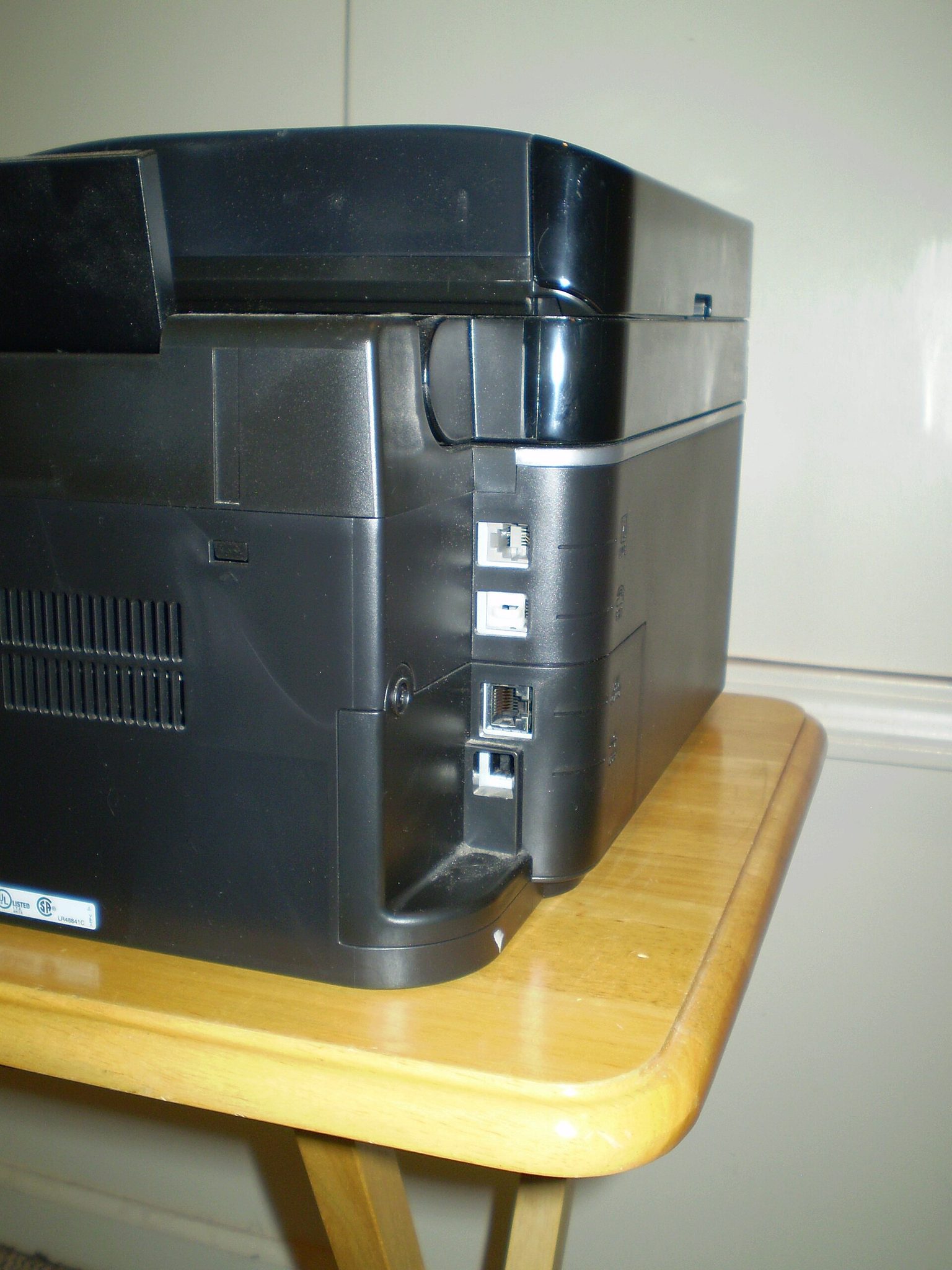
Photo: Rjluna2 / Wikimedia Commons, CC BY-SA 4.0

Ping and compare the printer port
Open Command Prompt and type ping followed by the printer's IP, for example ping 192.168.1.57. A reply means the computer can reach the printer. Next open Printer properties → Ports tab and see which IP the Standard TCP/IP port points to. If the two IPs differ, you have found the cause.
Lasting fix: keep a fixed IP for the printer
Changing the printer port on each computer only treats the symptom. The lasting fix is a DHCP reservation on the router (always giving the printer's MAC address the same IP) or a static IP on the printer outside the DHCP range. Label the printer with its IP and record it in the office network documentation.
Reinstall the printer driver cleanly
Reinstalling the driver is the last step, once you are sure the printer, connection and queue are fine. Installing a new driver over a broken one often does not fix the problem, because the old driver package stays on the system.
Remove the old driver completely
- Remove the printer from Printers & scanners.
- Open Print server properties (from Printers & scanners, or type printui /s), go to the Drivers tab, select the printer's driver, click Remove and choose to remove the driver package too.
- If the driver is in use, restart the Print Spooler or the computer and try again.
Install the new driver from the right source
Download the driver from the maker's official support site, for the exact model on the printer's label and your 64-bit Windows version. Do not download drivers from unknown sites or "driver bundles": they often carry adware or malware. For a network printer, connect using the fixed IP from the section above, then print a test page.
Windows generic drivers
Windows can install a generic driver through Windows Update, which is enough for basic printing. For features such as automatic duplex, tray selection or scanning, use the maker's full driver.
Paper jams and hardware faults: work safely
Paper jams are the hardware fault a helpdesk technician is allowed to handle. Printers usually have a jam-clearing diagram stuck right inside the cover (Figure 3).
Safety warning: switch the printer off and unplug it before reaching deep inside to clear a jam. The fuser unit of a laser printer is very hot right after printing; wait at least 10–15 minutes or as the warning label on the printer says, and do not touch rollers marked with heat warnings. Do not use scissors, screwdrivers or knives to pry paper out: you can tear the paper, scratch rollers and risk electric shock. Toner dust is very fine: do not blow it away and do not use a household vacuum cleaner; wipe with a damp cloth, and wash toner off skin with cold water and soap. Do not open the circuit boards or power supply inside the printer.
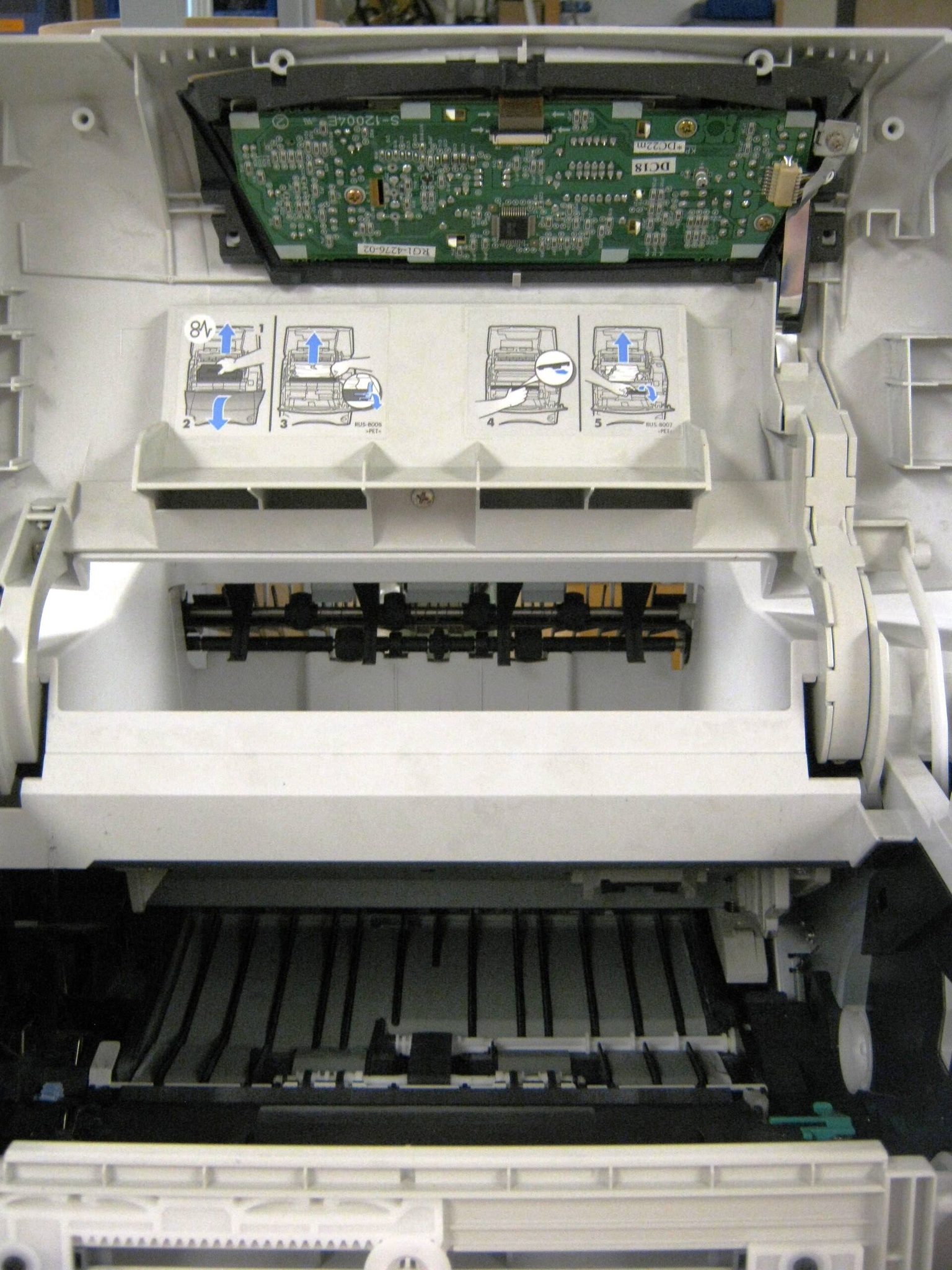
Photo: Connor.delaney6 / Wikimedia Commons, CC BY-SA 3.0

How to clear a paper jam
- Switch off, unplug, and let a laser printer cool down.
- Open the covers as the maker's guide shows and pull out the paper tray.
- Hold both edges of the sheet and pull slowly in the direction the paper travels, without jerking.
- Check for small scraps left behind with a torch.
- Reload paper: not above the tray's maximum mark, not damp or curled, with the guides set against the paper edges.
When to hand over to a printer technician
Pass the ticket to a printer technician or service centre (Figure 4) when: the printer shows a hardware error code after a restart; it makes strange noises or smells of burning; paper keeps jamming at the same spot; a roller or gear is broken; the printer is still under warranty (opening it yourself may void it). An on-site technician visit costs about 150,000–300,000 VND (roughly 6–12 USD) per visit before parts (2026 reference, depending on region and printer type).
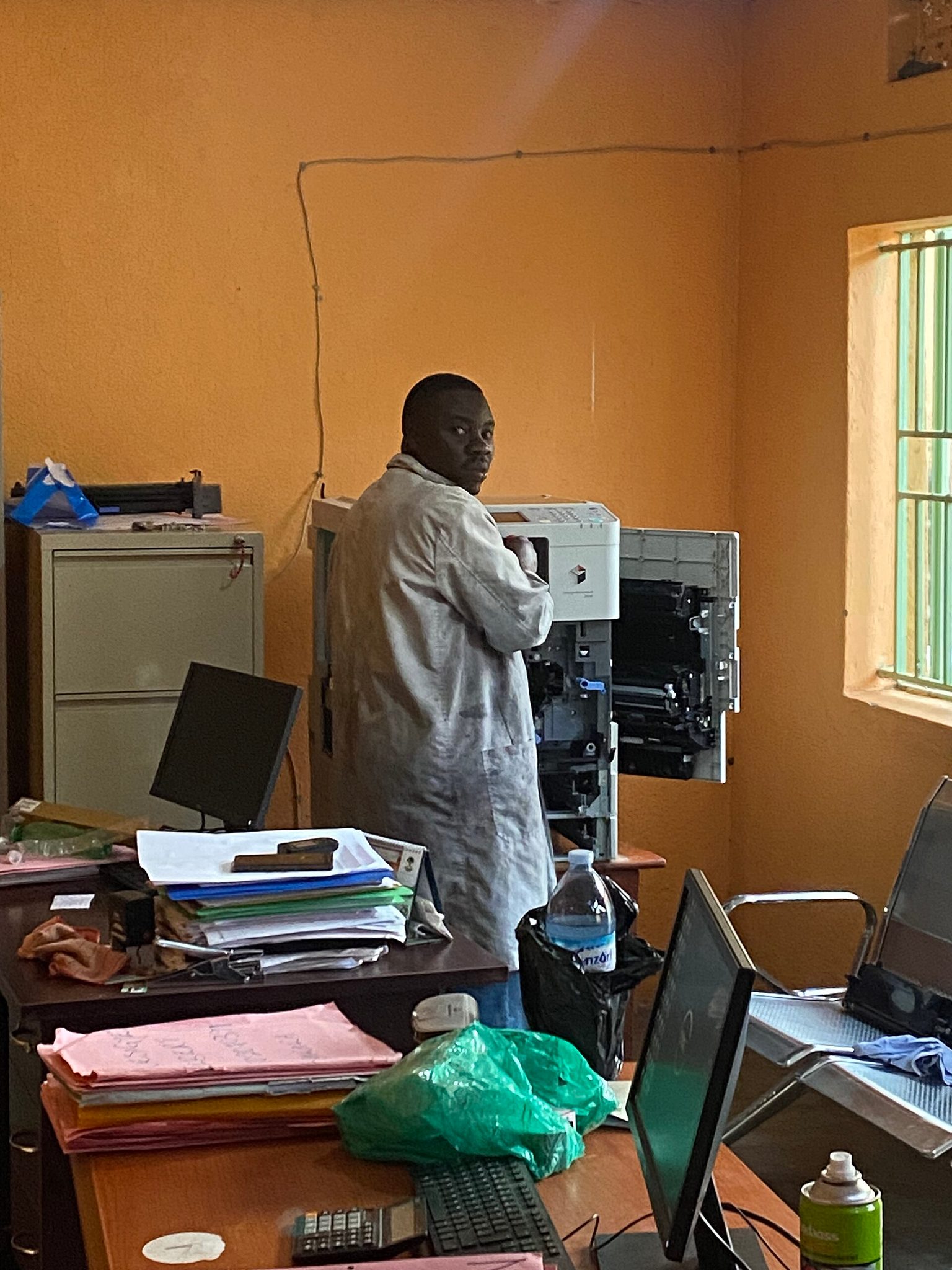
Photo: B722N / Wikimedia Commons, CC BY-SA 4.0

Worked example: a 12-person office reports the printer offline
On Monday morning, a 12-person accounting office shares one laser printer connected by network cable. The building had a power cut over the weekend. Every computer shows the printer as offline. You are the helpdesk technician called up.
What happened and how long each step took
| Step | Action and result | Time |
|---|---|---|
| 1 | Ask about scope: all 12 computers affected → fault in printer or network | 2 min |
| 2 | Check the control panel: no error, network light on | 2 min |
| 3 | Print the network configuration page: IP is 192.168.1.57; computers use port 192.168.1.50 | 3 min |
| 4 | Ping 192.168.1.57 from one computer: it replies | 1 min |
| 5 | Set a DHCP reservation on the router giving 192.168.1.50 to the printer's MAC, restart the printer | 10 min |
| 6 | Ping 192.168.1.50, test print from 3 computers in 3 corners of the office: prints fine | 5 min |
| 7 | Write the ticket, label the printer with its IP, update the network documentation | 5 min |
| Total | 28 min | |
Check: 2 + 2 + 3 + 1 + 10 + 5 + 5 = 28 minutes. Skipping the narrowing-down and reinstalling the driver on each computer would take about 15 minutes per machine, 12 × 15 = 180 minutes, or 3 hours, and still not fix the fault because the printer's IP had changed. Because the reservation keeps the old IP, the printer port on the 12 computers did not need changing.
How to write the ticket
Record: symptom, scope (12 computers), cause (printer got a new IP after the power cut), fix (DHCP reservation 192.168.1.50), verification (test prints from 3 computers), prevention (a small UPS for the router if needed). A clear ticket helps the next person on duty if it happens again.
Frequently asked questions
Why does the printer show offline while it is switched on?
Usually because the computer cannot reach it: the printer changed IP, lost Wi-Fi, is on a different network from the computer, "Use Printer Offline" is on, or the printer is in deep sleep. Work through steps 4 and 6.
What if I cannot delete a stuck print job?
Stop the Print Spooler service, delete the files in C:\Windows\System32\spool\PRINTERS, start the service again and print a test page. You need administrator rights.
Network printer not found after changing the router?
The new router uses a different IP range or Wi-Fi name. Reconnect the printer to Wi-Fi, print the configuration page to get the new IP, set a reservation, and fix the printer port on the computers if the IP changed.
How do I reinstall a printer driver cleanly?
Remove the printer, remove the whole driver package in Print server properties, restart the Print Spooler, then install the latest version from the maker's official site for the exact model and Windows version.
Why does the printer print blank pages?
Usually because it is out of ink or toner, the seal on a new cartridge was not removed, or an inkjet print head has dried. Print a self-test page: if it is still blank, the fault is in the printer, not the computer.
Practice exercises and self-assessment
- On a printer at home or in class, print the network configuration page and note the IP, MAC address and Wi-Fi name.
- Send a few print jobs while the printer is off, then clear the queue by restarting the Print Spooler.
- Remove and reinstall a printer driver cleanly using the steps in this lesson, timing each step.
Self-assessment criteria
- Pass: you answer the 3 narrowing-down questions before touching the computer.
- Pass: the queue is empty after restarting the Spooler and the test page prints normally.
- Pass: you can show that the IP on the printer port matches the IP on the printer's configuration page.
- Not yet: you reinstall the driver before checking the printer, network and queue, or reach into a laser printer before switching it off and letting it cool.
Once you can handle networking, Wi-Fi and printers, move on to the next step of the roadmap: Accounts, email and Microsoft 365 / Google Workspace, where you learn to create accounts, reset passwords, set up email and share permissions for office users.
Keep learning IT support: after networking and printers come accounts and email, user security, a project handling 30 simulated tickets, and helpdesk job applications. See the 8-step IT support technician roadmap.