When your Facebook ad account is disabled, Meta has removed that account's ability to advertise: every running ad stops, and you cannot create new campaigns until an appeal succeeds. The causes usually fall into four groups — ad policy violations, suspicious security activity, payment failures, and attempts to get around the system. This lesson helps you read the real reason, file a proper appeal the first time, and set up your Business Manager so it is as unlikely as possible to be restricted.
By the end of this lesson, you will be able to:
- Tell apart the 3 levels of restriction — ad account, personal profile and Business Manager — and know which is more serious.
- Find the exact reason in Account Quality and place it in one of 4 groups of causes.
- Prepare an appeal pack of 5 items and submit a review request within 30 minutes.
- Set up 6 layers of prevention: two-factor authentication, role permissions, payment card, business verification, pre-publishing content checks and a change log.
- Spot 4 kinds of fraudulent "unlock" services before you lose money.
Learning Facebook advertising from scratch? See the 8-step Facebook Ads Specialist roadmap on NAMBIN: from ad policies, Business Manager, Pixel and audience targeting to a real campaign project on a small budget.
What does "ad account disabled" mean?
Meta's advertising system has several layers of accounts nested inside one another. When you see the message "Your ad account has been disabled", the first job is to work out which layer has been restricted, because the way to handle it and the seriousness are completely different. Beginners often panic and immediately open another account — which is usually the step that makes everything worse.

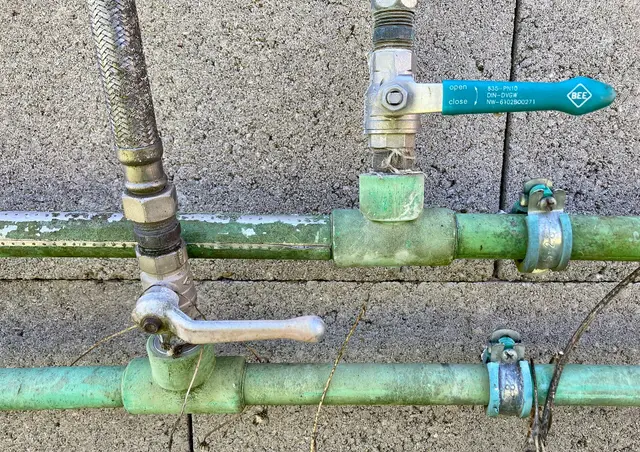
Photo: Shixart1985 / Wikimedia Commons, CC BY 2.0
Three levels of restriction and how serious they are
The ad account holds campaigns, budgets and the payment method. A restriction at this level stops only that account; other ad accounts in the same Business Manager can keep running. If the personal account (the Facebook profile of the admin) is restricted from advertising, you cannot run ads anywhere, even if you are added to another Business Manager. If the Business Manager itself (now called a business portfolio, managed through Meta Business Suite) is restricted, every ad account, Page and Pixel inside it is affected — this is the most serious level.
Why you must know the level before doing anything
If only the ad account is disabled, you appeal for that account and temporarily run ads from another ad account that already exists and is clean in the same Business Manager. If your personal profile is restricted, every account you manage is at risk of being affected; appeal for the profile first. Opening a new account to keep running the content that was just blocked is treated as circumventing the system, and can get both your profile and your Business Manager banned permanently.
4 common groups of causes
Meta rarely explains in detail, but the notice always belongs to a particular group. The table below collects the reasons most often seen by online shops in Vietnam in 2026 and the warning signs.
| Group of causes | Common examples | Warning signs before the restriction | Chance of a successful appeal |
|---|---|---|---|
| Ad policy violations | Promising "lose 10 kg in 7 days", before-and-after photos, supplements claiming to cure disease, counterfeit branded goods | Several ads rejected in a row | Fair if there were only a few violations and the content has been fixed |
| Suspicious activity, security | Logins from unfamiliar places, account taken over and ads run by a scammer, mass changes to details | Emails about new logins, unknown admins appearing | Good if you can prove you are the owner |
| Payment | Card declined repeatedly, unpaid balance, card not in the name of the account manager | "Payment failed" notices | Good once the balance is paid in full |
| Circumventing systems | Rented accounts, cloaking links that hide the real landing page, new accounts re-running banned content | Usually no warning | Low, often a permanent ban |
Ad policy violations
This is the number one cause for cosmetics, dietary supplements, weight loss and finance. A single rejected ad does not disable the account right away, but when the rejection rate is high, the system rates the account as risky. Vietnam also has its own rules: health supplements must not be advertised as if they were medicines, and cosmetics must not claim to "treat" anything. The lesson on Meta advertising policies and product category rules at step 1 of the roadmap explains this in detail.
Suspicious activity and account takeover
A familiar scenario: a staff member clicks a fake "Page copyright appeal" link in a message, enters their password, and a few hours later the ad account has spent a few million VND (a few hundred US dollars) promoting a stranger's Page. Meta detects the unusual spending and disables the account — in this case the restriction is there to protect you. Figure 3 offers an easy image to remember: an ad account needs a "padlock and chain", just like a laptop left in a public place.
Payment failures
A card that has hit its limit, a bank blocking international transactions, or a card belonging to someone other than the account manager can all make payments fail. A few failures in a row with an outstanding balance is the easiest restriction to lift — pay the balance in full, switch to a valid card and request a review.
Circumventing systems
Renting "aged accounts", using landing pages that show reviewers something different from real visitors, or opening a new account to re-run an ad that was just banned are all punished very heavily by Meta. A serious specialist does not take on projects like these.
Reading the reason in Account Quality
Every restriction appears on the Account Quality page — reachable from Meta Business Suite or from Ads Manager. Do not rely on a screenshot a colleague sent you over a chat app; go and look yourself, because this page tells you the level that was restricted, the reason, and the "Request review" button (if a review is still allowed).
Three pieces of information to copy down
- What was restricted: the name and ID of the ad account, profile or Business Manager.
- The reason, word for word, for example "does not comply with our Advertising Standards on health and wellness products and services".
- Status: is the "Request review" button still there, has an appeal already been filed, and what was the previous result?
When the notice is too vague
Many notices only say "violated our Advertising Standards". Filter ads with the status "Rejected" over the last 30 days and look at the account's activity history (who logged in, who changed the card, who created ads). The clue is usually a specific ad set or an unknown admin.
Check links to Pages and other assets
A Business Manager is usually connected to a Facebook Page, an Instagram account and a WhatsApp Business number (Figure 2). If the Page is restricted for violating Community Standards, ads running from that Page are affected too. Check the Page's status in Account Quality as well before concluding that the problem lies with the ad account.

Photo: Facebook Inc. / Wikimedia Commons, Public domain
How to appeal a disabled ad account
An appeal (a request for review) is the official and only reliable way to get an account reinstated. Response times are not fixed: some cases take a few hours, others a few days to a few weeks, and Meta makes no promises. What you can control is submitting a complete, accurately targeted request the first time — because the number of appeals allowed for one decision is usually limited.
Prepare 5 things before you press the button
- The root cause is fixed: delete or edit violating ads, fix the landing page, remove unknown admins, pay any outstanding balance.
- The admin's ID document (in Vietnam, the CCCD citizen ID card) if Meta asks you to confirm your identity — the name must match the name on the profile.
- Business documents (business registration for a household business or a company) if the Business Manager is, or needs to be, verified.
- Industry permits if you sell restricted products: the cosmetic product notification receipt, the approval of advertising content for health supplements, and so on.
- A short explanation of 4–6 sentences: who you are, what you sell, what happened, what you fixed, and your commitment to comply.
Steps to submit a review request
- Go to Account Quality and select exactly the asset that was restricted.
- Click "Request review" (or "Submit an appeal") and complete the verification steps: a code sent to your phone or email, and possibly a photo of a document or a video selfie.
- Paste your explanation; write directly and politely, without blaming Meta or telling a long story.
- Take a screenshot of the "In review" status and note the date and time in your log.
- Wait for the notice in Account Quality and by email; do not submit duplicate requests, and do not open a new account to re-run the old content.
Sample explanation
For a cosmetics shop: "I am the owner of household business X, selling facial cleansers and sunscreens that have valid product notifications. On 3 November, three ads using the phrase 'cures acne at the root' were rejected, after which the ad account was disabled. I have deleted these three ads, rewritten all content as 'helps cleanse oily skin' and reviewed the landing page. The product notification is attached. I kindly ask Meta to review the decision." Every sentence carries information; there are no wasted sentences.
When the appeal is rejected
If the result is a "final decision", that account can be considered permanently unusable. Continue with another ad account that already exists in a valid Business Manager, with content that now complies with the policies; if you need further help, use Meta's official business support channels, never an intermediary.
Scam warning: groups, Pages or messages offering "100% guaranteed ad account unlock", "I have a contact at Meta", or "selling aged BMs or accounts" are not Meta channels. Four common types: asking for your password and two-factor code; sending a fake "appeal" link to hijack your account; taking payment upfront and disappearing; selling rented accounts that get you banned even more severely. Meta does not charge for appeals. Never send your password, 2FA code or a photo of your ID card to a stranger.
Setting up a secure Business Manager to avoid restrictions
Most restrictions can be prevented at setup. A "clean" Business Manager is like a shop with locks on the doors, an accounts book and a stock-checking procedure: it does not guarantee nothing will ever go wrong, but when something does, you can deal with it quickly and you have evidence.

Photo: Richard Nowell / Wikimedia Commons, CC BY-SA 4.0
Security: two-factor authentication for everyone
Turn on two-factor authentication (2FA — on top of the password you also need a code from an authenticator app or a security key) for every profile with access to the Business Manager, and make 2FA mandatory in the business security settings. Use an authenticator app instead of SMS where possible. Figure 4 illustrates a way of signing in that does not rely on the password alone; the idea is the same: a scammer who has your password still cannot get in.
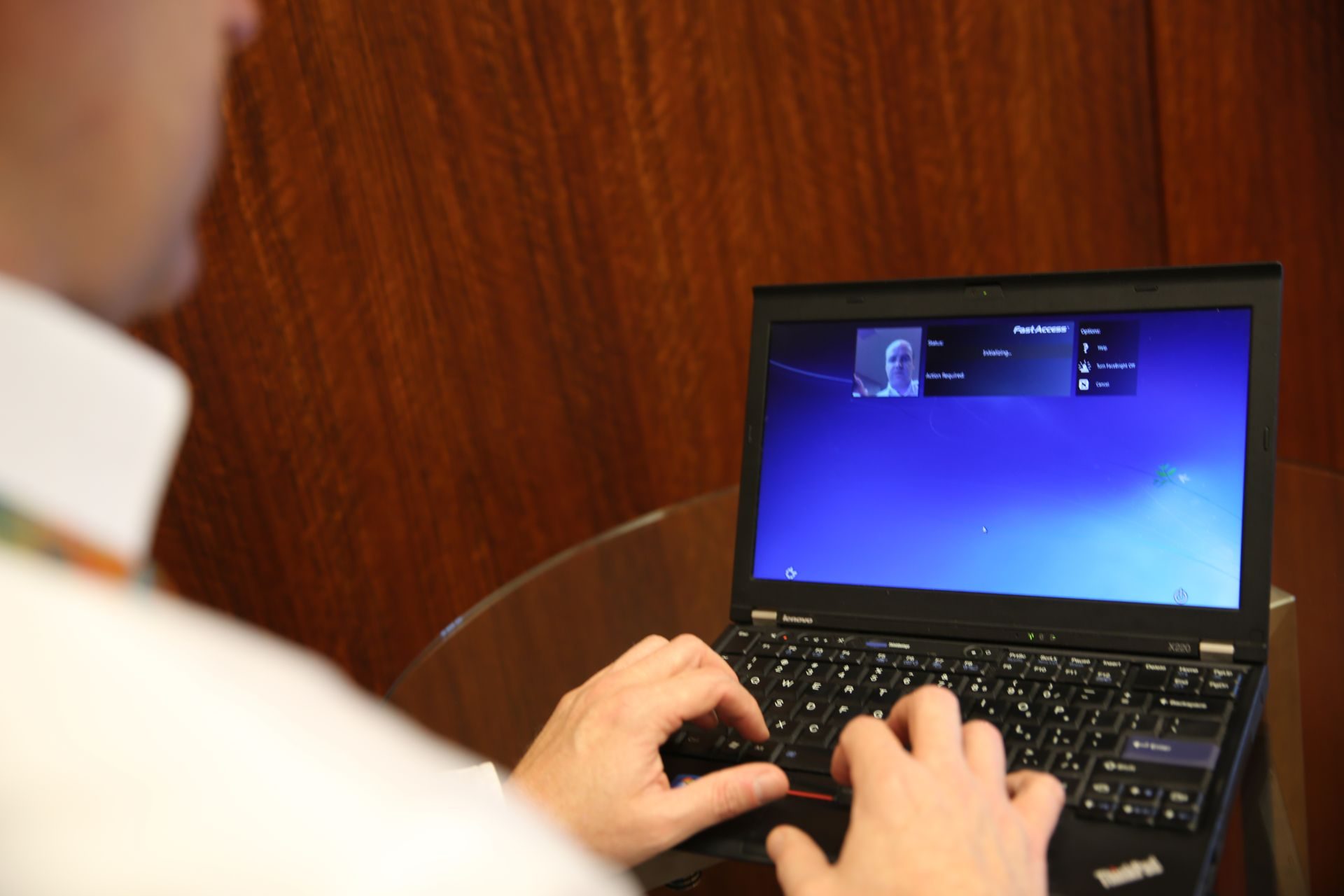
Photo: Intel Free Press / Wikimedia Commons, CC BY-SA 2.0
Permissions: the right role for each person
The shop owner keeps full admin control, plus one trusted backup person who is also an admin (so that someone can still get in if the owner's profile is restricted). Staff who run ads or an agency should only get employee access to specific ad accounts, not admin control of the business. When an employee leaves, remove their access the same day. Review the list of people and partners with access every month.
Payment: one card, the right name, enough limit
Use a card in the business owner's name or a company card with online international payments enabled (Figure 5). Set an account spending limit to avoid runaway spending if something goes wrong, and check the card limit before scaling up the budget. Do not use one card for many ad accounts belonging to different owners — this pattern is easily treated as suspicious.

Photo: Shixart1985 / Wikimedia Commons, CC BY 2.0
Business verification and pre-publishing content checks
Verifying your business with a business registration, a website domain and a phone number that all match gives the account more credibility and unlocks extra features. At the same time, build a list of banned words for your industry ("treat", "cured for good", "100% guaranteed", before-and-after photos) and check every ad against it before publishing. Finally, keep a simple change log in Google Sheets: date, who did it, what changed — when you have to appeal, this is your most valuable evidence.
Worked example: a cosmetics shop disabled and reinstated after 4 days
Ms Lan runs an online cosmetics shop in Da Nang, spending about 500,000 VND a day (roughly 20 US dollars) on message ads, with an average of 12 orders a day. On Monday morning she receives a notice that her ad account has been disabled. The figures below are an illustrative example using 2026 references.
Steps 1–2: identify the level and the reason
In Account Quality: only the ad account is disabled; the profile and the Business Manager are fine. Reason: does not comply with the Advertising Standards. Filtering rejected ads over 30 days reveals 4 ads using before-and-after photos and the words "acne gone in 7 days". The activity history shows no unknown admins — ruling out a hack.
Steps 3–4: fix the root cause and submit the appeal
- Delete the 4 violating ads and edit the product page to remove before-and-after photos (takes 2 hours).
- Prepare the cosmetic product notification and the household business registration.
- Write a 5-sentence explanation following the sample above and submit the review request at 2 p.m. on Monday.
- While waiting, switch to the backup ad account already in the Business Manager, running 2 new ads checked against the banned-word list, with the budget cut to 300,000 VND a day.
Outcome and cost of the damage
On Friday the account is reinstated — 4 days in total. During those 4 days the backup account brings in an average of 7 orders a day instead of 12, a shortfall of 5 × 4 = 20 orders. With a gross profit of about 80,000 VND per order, the loss is about 20 × 80,000 = 1,600,000 VND. Without a backup account, she would have lost all 12 × 4 = 48 orders, about 3,840,000 VND. Ms Lan's lesson: always have a clean backup ad account, and keep the banned-word list taped next to the screen.
Common mistakes when dealing with a restricted account
Opening a new account to re-run the same ads
Sign: the new account is also disabled within a few hours, then the whole profile is restricted. Cause: the system recognises the same content, the same landing page and the same card — and treats it as circumvention. Fix: fix the content first, only run on valid existing accounts, and appeal in parallel.
Appealing before fixing the problem
Sign: rejected quickly, sometimes with a final decision. Cause: the reviewer can still see violating ads or a violating landing page. Fix: only submit once everything is fixed; for payment problems, pay the balance first.
Handing your password to an "unlock service"
Sign: you lose admin access completely, and your Page gets renamed. Cause: believing promises of "a contact at Meta". Fix: change your password, log out of all sessions, recover the account through Facebook's official help pages, and tell customers via another channel if the Page has been hijacked.
Frequently asked questions
How long until a disabled Facebook ad account is reinstated?
There is no fixed time. For payment or security problems that have been clearly resolved, many accounts are reinstated within a few hours to a few days; policy violations can take longer. After a "final decision", the account will not be reinstated.
Do I lose prepaid funds or still owe money when the account is disabled?
Spending that has already occurred must still be paid. For prepaid accounts with a remaining balance, check the refund instructions in the account's payment settings; policies can change, so read the official help pages.
Should I buy an "aged" ad account or BM to keep running?
No. It breaks the terms of service, risks losing money and drags your real accounts into restriction. A reputable ads specialist only works on assets owned by the client.
How do I know an account is about to be restricted?
Early signs: many ads rejected in a week, failed payments, emails about unfamiliar logins, unknown admins. Opening Account Quality once a week is a habit worth having.
Practice exercise: a Business Manager security audit
- Open Account Quality and record the status of every ad account, Page and admin profile.
- List every person and partner with access; note each one's role and remove unnecessary access.
- Check 2FA for every admin; make 2FA mandatory for the business.
- Record the payment card details (cardholder name, expiry, limit) and the current account spending limit.
- Write a list of 15 banned words and phrases for the product category you advertise, and review your 10 most recent ads against it.
- Draft a 4–6 sentence sample appeal explanation for your shop.
Self-assessment criteria
- Pass: at least 2 admins, both with 2FA turned on; nobody has unnecessary access; the card is in the manager's name and a spending limit is set.
- Pass: the banned-word list has at least 15 entries, 10 ads have been reviewed and every violation fixed; the sample appeal covers all 5 points (who, what you sell, what happened, what you fixed, commitment).
- Not yet: only one person has admin access, there are admins nobody can identify, or the backup plan is "buy another account".
Once your Business Manager is secure, the next step of the roadmap is Pixel, Conversions API and conversion tracking — giving your account "eyes" so you know which ads really bring in orders. This week's lesson on installing the Facebook Pixel is part of the 8-step Facebook Ads Specialist roadmap, where you can also see all the remaining steps.