Linux basics for DevOps are the skills that let you log into an unfamiliar server and answer four questions: who can do what (users, permissions), what is running (processes, systemd, logs), how much is left (CPU, RAM, disk), and how this machine talks to the outside world (IPs, ports, DNS, load balancers, TLS). Alongside them comes DevOps culture: no manual changes on production, and every change has a way back. This is step 1 of the DevOps and cloud engineer roadmap; Docker, Kubernetes and Terraform in later steps all run on this foundation, so gaps in Linux make container debugging guesswork.
By the end of this lesson, you will be able to:
- Read and set file and directory permissions at the minimum needed level, and log into servers with SSH keys instead of passwords.
- Inspect processes, manage services with systemd and read logs with journalctl.
- Spot a full disk or exhausted RAM and narrow down the culprit with a few basic commands.
- Check DNS, ports and TLS certificates, and explain what a load balancer does.
- Apply DevOps and SRE principles: change through code and process, have a rollback plan, and write blameless postmortems.
Learning DevOps properly? Linux, networking and DevOps culture are the first of 9 steps on the roadmap, before scripting, CI/CD, Docker, Kubernetes and cloud. See the DevOps and cloud engineer roadmap to learn in the right order.
Why must DevOps engineers master Linux and networking first?
Most web servers, containers and Kubernetes nodes in the cloud run Linux. When a service dies at midnight, even the best tooling only tells you that "something is wrong"; finding out what is still a matter of typing commands on a specific Linux machine.
Linux is the operating system of the cloud
Virtual machines on AWS, Google Cloud or local Vietnamese providers usually run distributions such as Ubuntu, Debian, Rocky Linux or Amazon Linux. Docker containers share the host's Linux kernel. So understanding Linux processes, permissions and networking means understanding how containers and Kubernetes work underneath.
Networking is where most "mysterious" incidents begin
"The website is down" can mean DNS pointing to the wrong place, a firewall blocking a port, a load balancer marking servers unhealthy, an expired TLS certificate or an application not listening on the right port. A DevOps engineer must be able to separate these layers in minutes.
Step 1 knowledge map
| Area | What to understand | Common commands |
|---|---|---|
| Users and permissions | owner, group, rwx, sudo, SSH keys | id, ls -l, chmod, chown, sudo |
| Processes and services | PIDs, signals, systemd units, logs | ps, top, kill, systemctl, journalctl |
| Resources | CPU, RAM, swap, disks, inodes | uptime, free -h, df -h, du -sh, lsblk |
| Networking | IPs, routes, ports, DNS, TLS | ip a, ss -tlnp, dig, curl -v, openssl s_client |
| Culture | automation, rollback, SLOs, postmortems | Process, not commands |
Users, permissions and SSH: the way into a server
Most security incidents on small servers start with permissions set too wide or password logins with weak passwords. Get this right from your very first machine.
Reading rwx permissions
The command ls -l prints lines like -rw-r----- 1 app app 512 config.env. The three groups of characters are the permissions of the owner, the group and everyone else: r is read (4), w is write (2), x is execute or enter a directory (1). So rw-r----- is 640: the owner reads and writes, the group only reads, and others get nothing.
- Config files containing passwords: 600 or 640, owned by the user that runs the application.
- Application directories: usually 750 or 755.
- Never use
chmod -R 777as a "quick fix" for permission denied: it throws the files open to every process on the machine.
sudo and least privilege
Do not do daily work as root. Each person gets their own account and uses sudo only when needed, so the logs record who did what. Applications run as a dedicated user (for example app) with no sudo rights, so if the application is compromised the attacker does not get the whole machine.
SSH keys instead of passwords
- On your own machine:
ssh-keygen -t ed25519, and set a passphrase on the key. - Copy the public key to the server:
ssh-copy-id user@server-ip. - Test logging in with the key in a new window while keeping the old session open.
- Only when you are sure the key works, disable password and root logins in
/etc/ssh/sshd_config(PasswordAuthentication no,PermitRootLogin no), then reload the SSH service.
Step 3 is your "way back": if the configuration is wrong, you still have the old session to fix it instead of locking yourself out.
Processes, systemd and logs
Every running program is a process with a PID. Long-running services such as web servers, APIs and databases on modern Linux are usually managed by systemd: started at boot, restarted when they crash, with logs collected in one place.
Seeing what is running
ps aux --sort=-%mem | head: the 10 processes using the most RAM.toporhtop: live CPU and RAM;uptimeshows the 1, 5 and 15 minute load averages.ss -tlnp: which process is listening on which TCP port.kill PIDsends a polite stop signal (SIGTERM) so the application can clean up;kill -9(SIGKILL) is only for processes that are completely hung, because it gives the application no chance to finish writing data.
Managing services with systemctl
Everyday commands: systemctl status myapi (running or failed, plus recent log lines), systemctl restart myapi, systemctl enable --now myapi (start at boot and start now). A minimal unit file for a Node.js API:
[Unit]
Description=My API
After=network.target

[Service]
User=app
WorkingDirectory=/opt/myapi
ExecStart=/usr/bin/node server.js
Restart=on-failure
EnvironmentFile=/opt/myapi/config.env

[Install]
WantedBy=multi-user.target
Save it as /etc/systemd/system/myapi.service, run systemctl daemon-reload, then enable it. User=app and Restart=on-failure are the two lines beginners forget: without the first the application runs as root, without the second a crash stays a crash.
Reading logs with journalctl
journalctl -u myapi --since "15 min ago" shows the service's last 15 minutes of logs; add -f to follow live. Many applications also write their own logs to /var/log. A good habit: read the logs first, guess later.
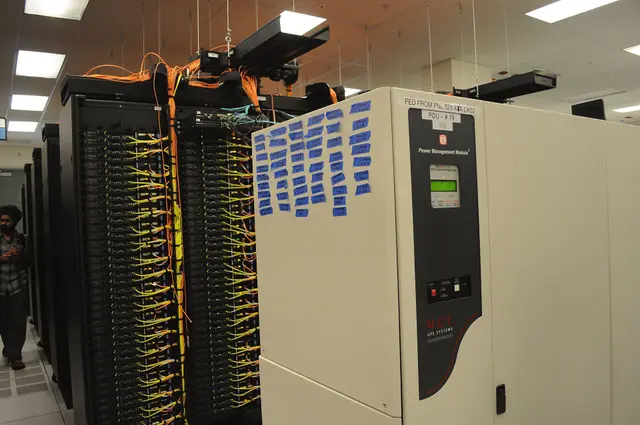
Photo: Derrick Coetzee from Berkeley, CA, USA / Wikimedia Commons, CC0
Disks, RAM and resources
A full disk is one of the most common incident causes and one of the easiest to prevent. Logs that are never rotated, old backups never deleted and temporary files that pile up over months.
Quick checks
df -h: free space on each partition;df -i: inode usage, because running out of inodes stops file creation even with gigabytes free.du -sh /var/log/* | sort -h: which directories take the most space.lsblk: attached disks and partitions.free -h: RAM and swap; look at the available column, not just free.
Log rotation and early alerts
Configure logrotate (or a size limit for journald) so logs are compressed and kept for a set number of days. Alert when a disk passes about 80%; do not wait for 100%. In the "Monitoring, logging, alerting" step you will do this with Prometheus and Grafana; in step 1 you only need to understand why.
Running out of RAM and the OOM killer
When RAM runs out, the Linux kernel may kill the process using the most memory (the OOM killer). Signs: an application shuts down for no obvious reason, and the system log contains "Out of memory". The right response is to find the cause (a memory leak, too many workers configured) or upgrade the machine, not to disable the OOM killer.
Networking for DevOps: IPs, ports, DNS, load balancers and TLS
A request from a browser to your API passes through several layers: DNS resolves the domain name to an IP, the client connects to a load balancer on port 443, TLS completes a handshake, the load balancer forwards to a healthy server, and the server hands it to the process listening on the application port. Network debugging means walking through these layers one by one.
DNS: from names to addresses
dig api.example.com +short shows which IP a name currently points to. An A record maps a name to IPv4, AAAA to IPv6, and a CNAME points a name to another name. TTL is how long other systems may cache the answer; before changing an IP, lower the TTL a few hours in advance so the change spreads quickly and can be reverted quickly.
Ports, firewalls and load balancers
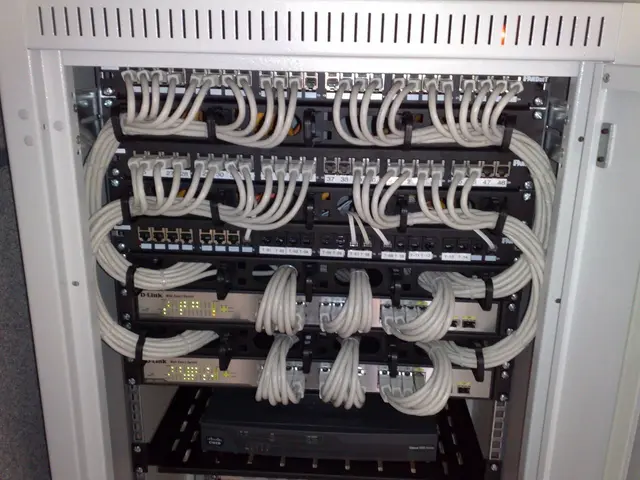
The application must listen on the right address and port (check with ss -tlnp), and the server firewall and the cloud security group must open that port to the right sources. A load balancer spreads requests across several servers and keeps calling a health check; any server that returns errors is taken out of rotation. A layer 4 load balancer only forwards TCP connections; a layer 7 one understands HTTP and can route by path or hostname. In a server room, all of this runs on real switches and cables (Figure 3).
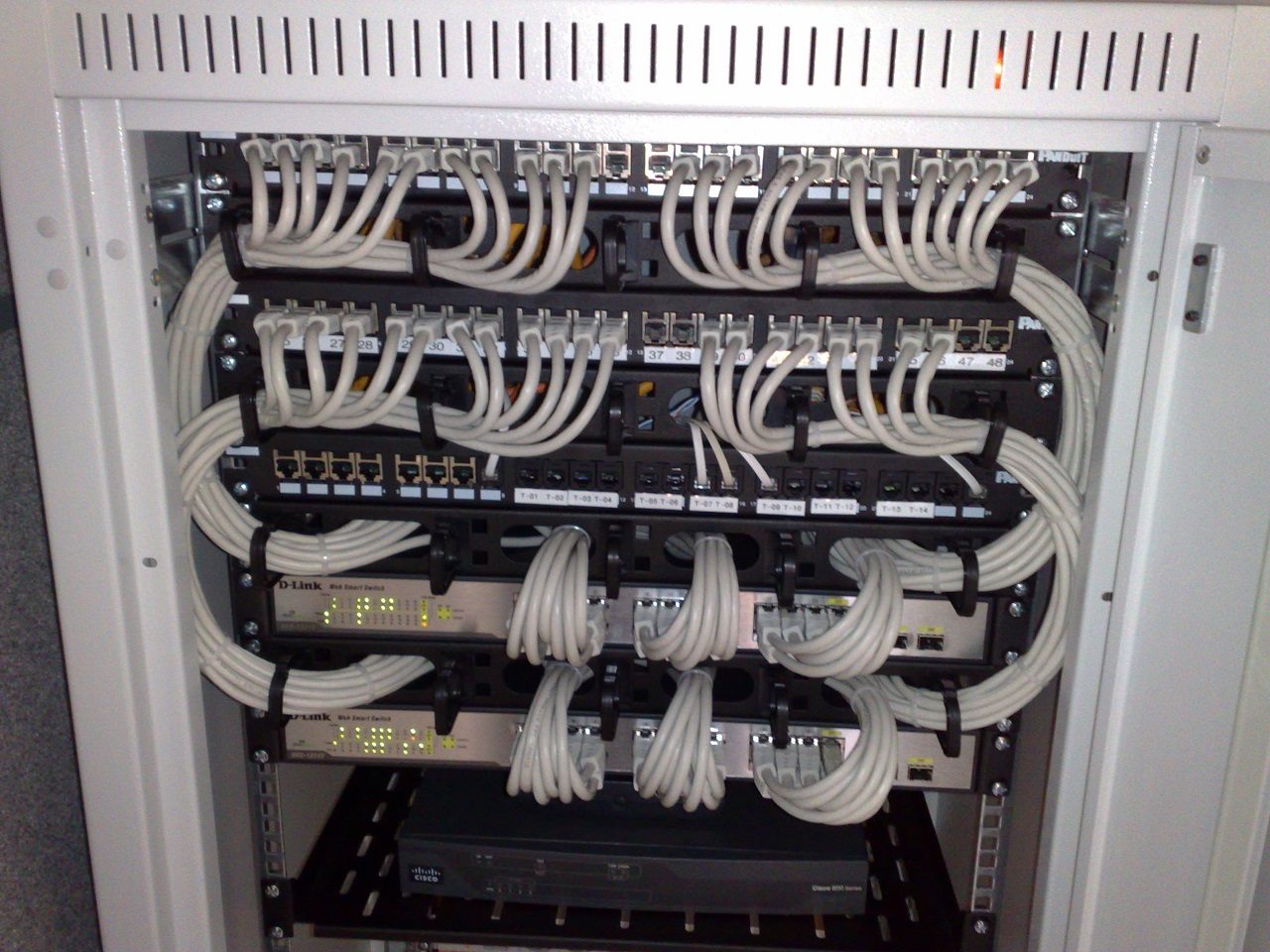
Photo: Dsimic / Wikimedia Commons, CC BY-SA 4.0
TLS and certificates
HTTPS uses TLS to encrypt traffic and prove that the server really is the domain it claims to be. Certificates expire; free certificates such as Let's Encrypt have short lifetimes, so renewal must be automated. Check with curl -vI https://api.example.com or openssl s_client -connect api.example.com:443 to see the expiry date and the certificate chain. An expired certificate is the most embarrassing incident because it is entirely predictable.
DevOps and SRE culture: no manual changes on production
DevOps is not a job title or a tool but a way of working: development and operations share responsibility for running software reliably for users, through automation, measurement and sharing. SRE (Site Reliability Engineering) is how Google and many other companies make this concrete with measurable reliability targets.
Safety warning for production work: Do not run bulk delete or permission commands (rm -rf,chmod -R,chown -R) without reading the path twice and having a backup you have actually restored. Do not change firewall or SSH settings remotely without keeping a spare logged-in session. Do not restart databases, change DNS or renew certificates by hand at peak hours without a rollback plan and a reviewer. Only work on systems you are authorised to access: scanning ports, trying logins or "security testing" someone else's server without permission can be illegal.
Why "no manual changes"
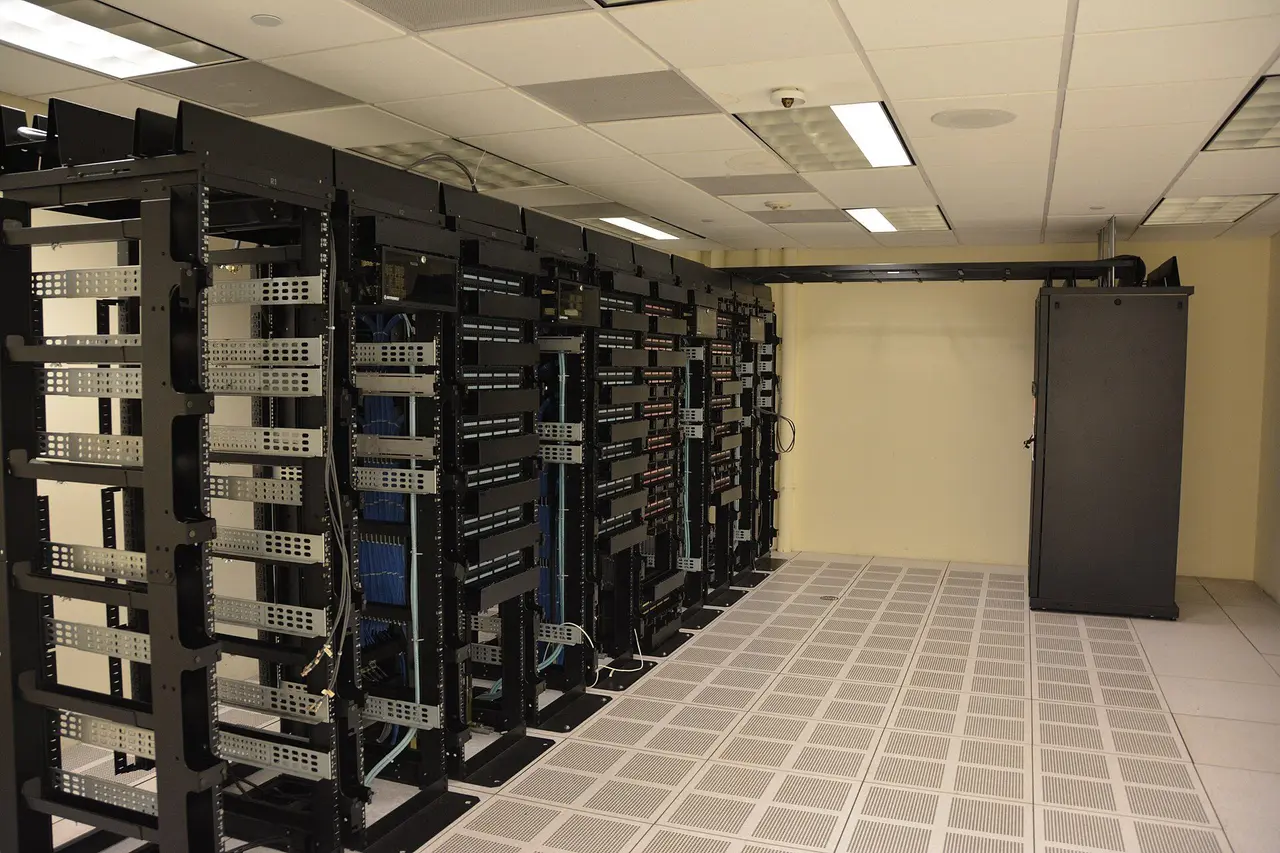
Changes typed by hand have no history, no review, cannot be repeated on another machine and are hard to undo. Over time, hand-patched infrastructure becomes a tangle nobody dares to touch (Figure 4). The DevOps principle: configuration, infrastructure and application versions all change through source code, review and pipelines; manual work is only for emergencies and must be recorded so it can become code afterwards.
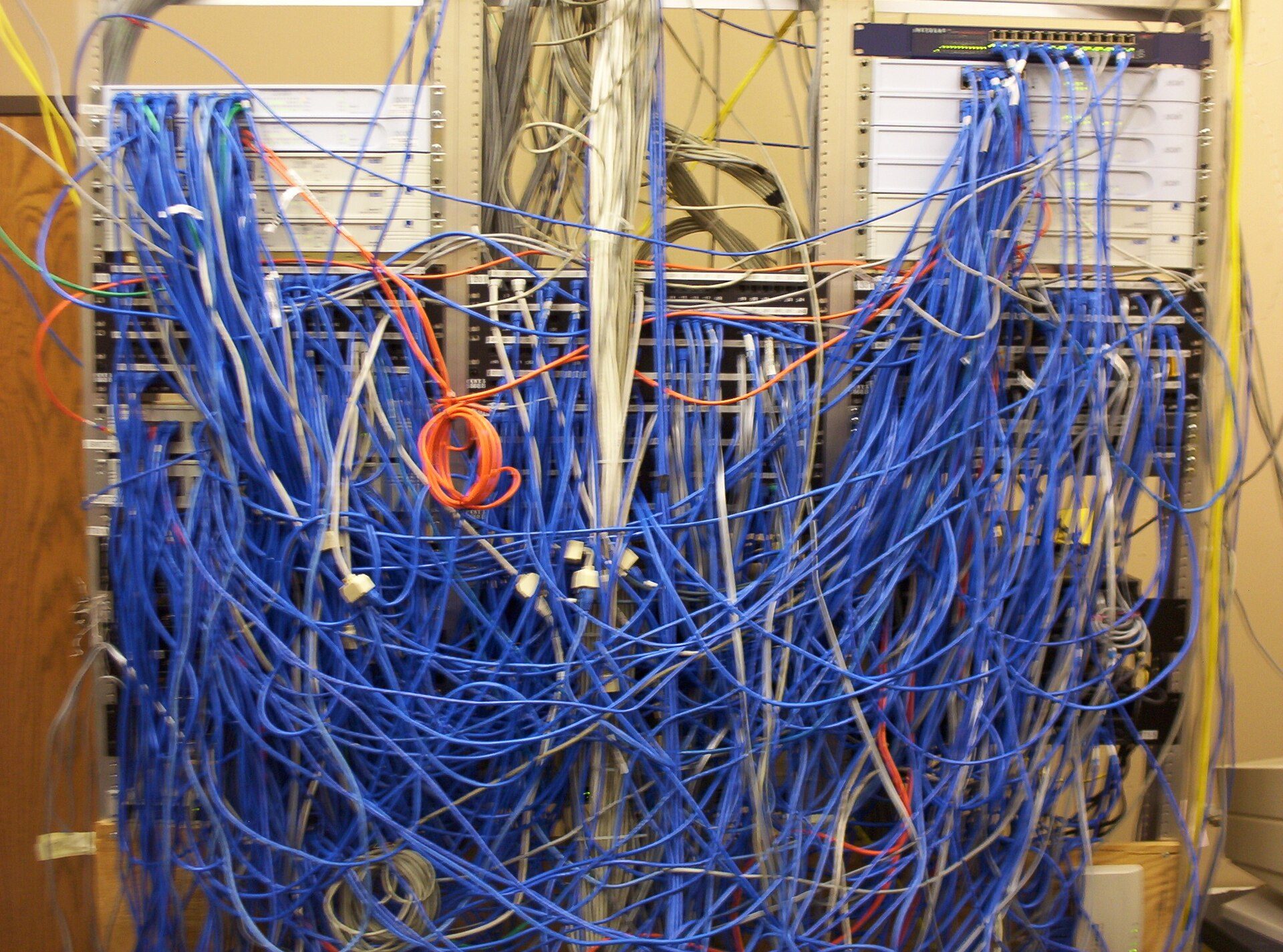
Photo: Không rõ tác giả / Wikimedia Commons, Public domain
Always have a way back
- Before a change: write down what you will do, how you will check success, and how you will roll back and how long it takes.
- Tested backups: a backup that has never been restored is not proven to work.
- Small, gradual changes: change one machine first, watch it, then change the rest.
SLOs, error budgets and blameless postmortems
An SLO is a measurable reliability target, for example 99.9% of requests succeeding over 30 days. The remaining 0.1% is the error budget: while budget remains, the team may ship quickly; when it runs out, stability comes first. After every incident the team writes a postmortem: what happened, why the system allowed it, what to fix so it does not recur, and no blaming individuals, because people who fear punishment hide mistakes.
Worked example: a website returns 502 at 8:50 a.m.
An online shop runs on one VM with 2 vCPUs, 4 GB RAM and a 40 GB disk: Nginx accepts requests on port 443 and forwards them to a Node.js API run by systemd on port 3000, with the database on the same machine. At 8:50 monitoring reports that the home page returns 502. You are on call.
Narrowing it down
| Time | Command / action | Result | Conclusion |
|---|---|---|---|
| 8:52 | curl -vI https://shop.example.vn | TLS handshake fine, 502 from Nginx | DNS and TLS fine; the fault is behind Nginx |
| 8:54 | systemctl status myapi | failed, restarted several times and gave up | The API is dead |
| 8:56 | journalctl -u myapi -n 50 | ENOSPC: no space left on device | Disk full |
| 8:58 | df -h then du -sh /var/log/* | / at 100%; /var/log/myapi uses 17 GB | Application logs never rotated |
| 9:05 | Compress old logs, move them to archive storage, keep the last 2 days | About 15 GB free | Enough room for the API to write again |
| 9:10 | systemctl restart myapi, check the home page | 200 OK | Service restored |
| 9:14 | Watch logs, CPU and disk for 4 minutes | Stable | Close the incident, write the postmortem |
Disk usage before and after
- Before the incident: operating system 8 GB + application 3 GB + database 12 GB + logs 17 GB = 40 GB, exactly the disk size.
- Logs grow about 1.2 GB per day, so 17 GB is about 14 days of unrotated logs (17 ÷ 1.2 ≈ 14.2).
- With logrotate keeping 7 days and compression to about 10%: 1 uncompressed day at 1.2 GB + 6 compressed days × 0.12 GB = 1.2 + 0.72 = 1.92 GB.
- Long-term disk use: 8 + 3 + 12 + 1.92 = 24.92 GB, about 62% of 40 GB, leaving headroom for database growth.
Downtime and follow-up
From 8:50 to 9:10 the shop could not take orders for 20 minutes, plus 4 minutes of monitoring until 9:14 before closing the incident: 24 minutes in total. The postmortem lists three actions: add the logrotate configuration to the infrastructure code (not by hand on the server), add a disk alert at 80%, and add "check log rotation" to the new service checklist. At 9:05 you compressed and moved logs instead of running rm -rf on the directory: that is your way back if the logs are needed for investigation later.
Common beginner mistakes and how to fix them
chmod 777 to make it work
Sign: the application reports permission denied and the beginner sets the whole directory to 777. Cause: not knowing which user the application runs as. Fix: check the user in the unit file, chown to the correct owner and set 750 or 640 as needed.
Restarting repeatedly without reading logs
Sign: the service dies, is restarted, dies again. Cause: skipping journalctl. Fix: always read the last 50–100 log lines before restarting, and record the error message for the postmortem.
Changing DNS without lowering TTL first
Sign: after an IP change, some users still reach the old server for hours. Cause: a long old TTL. Fix: lower the TTL a few hours before the change and keep the old server running until traffic has moved.
Editing configuration directly on production
Sign: the server works but nobody knows how its configuration differs from the repository. Cause: a "hot fix" that was never recorded. Fix: every change goes into the repository, gets reviewed and is deployed by the pipeline; emergency fixes are recorded and turned into code the same day.
Frequently asked questions
How long does it take to learn Linux basics for DevOps?
If you already code or are comfortable with computers, about 4–8 weeks of steady study at 1–2 hours a day is enough foundation for step 1. Linux is a lifelong skill; what matters is practising on real machines, not just reading commands.
Should I learn Ubuntu or Rocky Linux and RHEL?
Start with Ubuntu or Debian because documentation is plentiful and they are common in the cloud. The main differences from the RHEL family are the package manager (apt versus dnf) and some configuration paths; thinking in processes, permissions, systemd and networking is the same.
Does DevOps require CCNA or deep networking?
Not necessarily. DevOps needs a solid grasp of IPs, subnets, routes, ports, DNS, HTTP, TLS and load balancers. Deeper networking helps when working on hybrid infrastructure or enterprise networks.
What is the difference between DevOps and SRE?
DevOps is a shared culture and set of practices; SRE is one concrete implementation that sets reliability targets with SLOs and error budgets and spends time reducing repetitive manual work. Many companies in Vietnam use the two titles almost interchangeably.
Can I learn Linux for DevOps on a weak computer?
Yes. Use a lightweight virtual machine on your laptop, WSL on Windows, or rent a small VPS. A practice machine does not need much disk or RAM; it needs patience to type commands and read logs.
Practice tasks and self-assessment
- Rent a small VPS or create an Ubuntu VM, create your own user, log in with an SSH key and disable password login without locking yourself out.
- Write a systemd unit for a small web application (Python or Node.js) that runs as a non-root user and restarts automatically when it crashes.
- Point a domain at the machine, check it with dig, install a self-renewing TLS certificate and read its expiry date with openssl.
- Cause an incident on purpose: fill the practice machine's disk with a large file, narrow it down with df and du as in the example, then write a half-page postmortem.
Cost of a self-study lab (2026 reference, varies by provider)
| Item | Quantity × unit price | Total |
|---|---|---|
| VPS with 2 vCPUs, 2 GB RAM | 3 months × 150,000 VND | 450,000 VND |
| .com domain | 1 year × 300,000 VND | 300,000 VND |
| Let's Encrypt TLS certificate | Free | 0 VND |
| Virtual machine on a laptop | Free software | 0 VND |
| Total | 750,000 VND | |
Check: 450,000 + 300,000 + 0 + 0 = 750,000 VND (about 29 USD) for 3 months of study. VPS and domain prices vary by provider, promotions and specification.
Self-assessment criteria
- Pass: login works only with SSH keys, root cannot log in directly, and no file is 777.
- Pass: the service runs as its own user, systemd restarts it when you kill the process, and you can read the error with journalctl.
- Pass: you can explain the path of an HTTPS request from the domain name to the application process.
- Not yet: still logging in as root with a password, fixing permissions with 777, or making changes without knowing how to undo them.
Photo: Derrick Coetzee from Berkeley, CA, USA / Wikimedia Commons, CC0
Once Linux and networking are solid, you will notice yourself typing the same commands again and again. That is the moment to move on to the next roadmap step: Bash & Python scripting for automation, where you turn disk checks, log reading and backups into scripts that run on their own. When you reach containers, the lesson What is Docker? Containers, Dockerfile, images and basic commands builds directly on the processes, ports and disks covered here.
Keep learning DevOps and cloud: after Linux and networking come Bash and Python, Git and CI/CD, Docker, Kubernetes, AWS or Google Cloud with Terraform, monitoring and cost optimisation. See the 9-step DevOps and cloud engineer roadmap.