Zigbee or Wi-Fi: choose Zigbee when the home has many devices (roughly 15–20 or more), several battery-powered sensors or switches without a neutral wire; choose Wi-Fi when there are only about 10–15 devices or fewer, mostly plugs, bulbs and cameras, and the customer does not want an extra hub. Most apartments with two or more bedrooms in Vietnam suit a mix: Zigbee for switches, curtains and sensors; Wi-Fi for cameras, air conditioners and infrared remotes. This lesson explains where the two protocols differ technically, how to avoid 2.4 GHz channel interference, how to choose for each type of device, and walks through a network design for a 70 m² apartment.
By the end of this lesson, you will be able to:
- Explain to a customer how Wi-Fi and Zigbee differ: how devices connect, power use, device count and reliance on the internet.
- Tell coordinator, router and end device roles apart in a Zigbee network and place mains-powered devices so the mesh covers the home.
- Pick Wi-Fi and Zigbee channels that do not overlap in the 2.4 GHz band.
- Choose a protocol for each device type and draw up a network plan for an apartment, counting devices on the router and on the hub correctly.
- Recognise common network faults (dropouts, failed pairing, sensors draining batteries fast) and fix them.
Learning smart home installation properly? Choosing a protocol belongs to the step "Connectivity standards: Wi-Fi, Zigbee, BLE Mesh, Matter" in the roadmap. See the 8-step smart home installer roadmap to learn in the right order, from electrical safety to a complete apartment installation.
How do Zigbee and Wi-Fi differ?
Both are radio links, most commonly in the 2.4 GHz band, but they were designed for different jobs. Wi-Fi was built to move a lot of data (video, web pages). Zigbee was built to send tiny commands ("light on", "door open") using as little power as possible.
Wi-Fi: every device connects straight to the router
A Wi-Fi device connects directly to the router like a phone does, gets an IP address and usually talks to the maker's server over the internet. Pros: no hub, quick setup in an app, enough speed for cameras. Cons: each device takes a connection on the router, Wi-Fi radio is power-hungry so battery devices drain fast, and most devices depend on the internet and the maker's servers.
Zigbee: its own mesh network through a hub
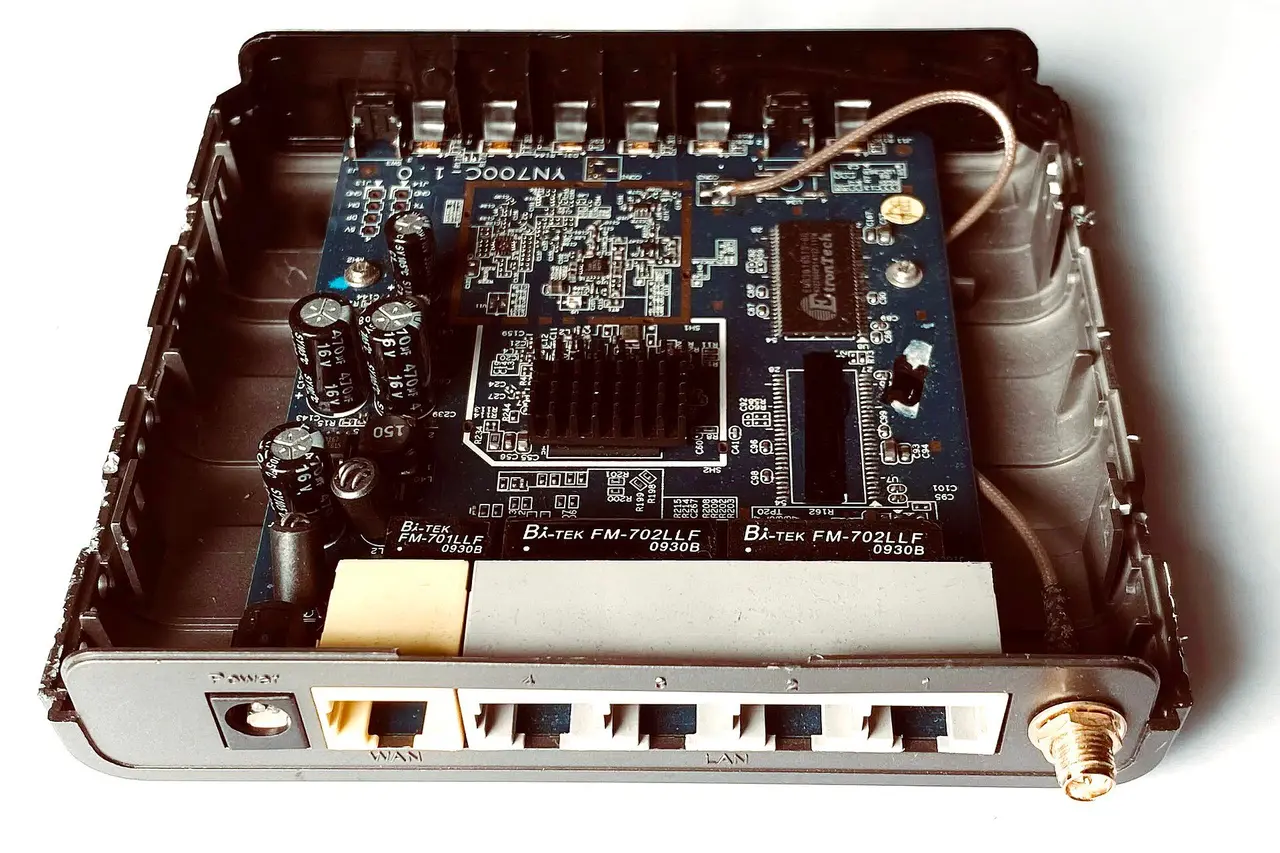
Zigbee runs on the IEEE 802.15.4 radio standard. It manages only about 250 kbps but uses very little power. Zigbee devices do not join the Wi-Fi router; they join a hub (the coordinator), and the hub joins the router. Mains-powered devices relay messages for each other to form a mesh, so the more mains devices a home has, the wider the network reaches. Inside every device is a small radio module like the one on the board in Figure 1.
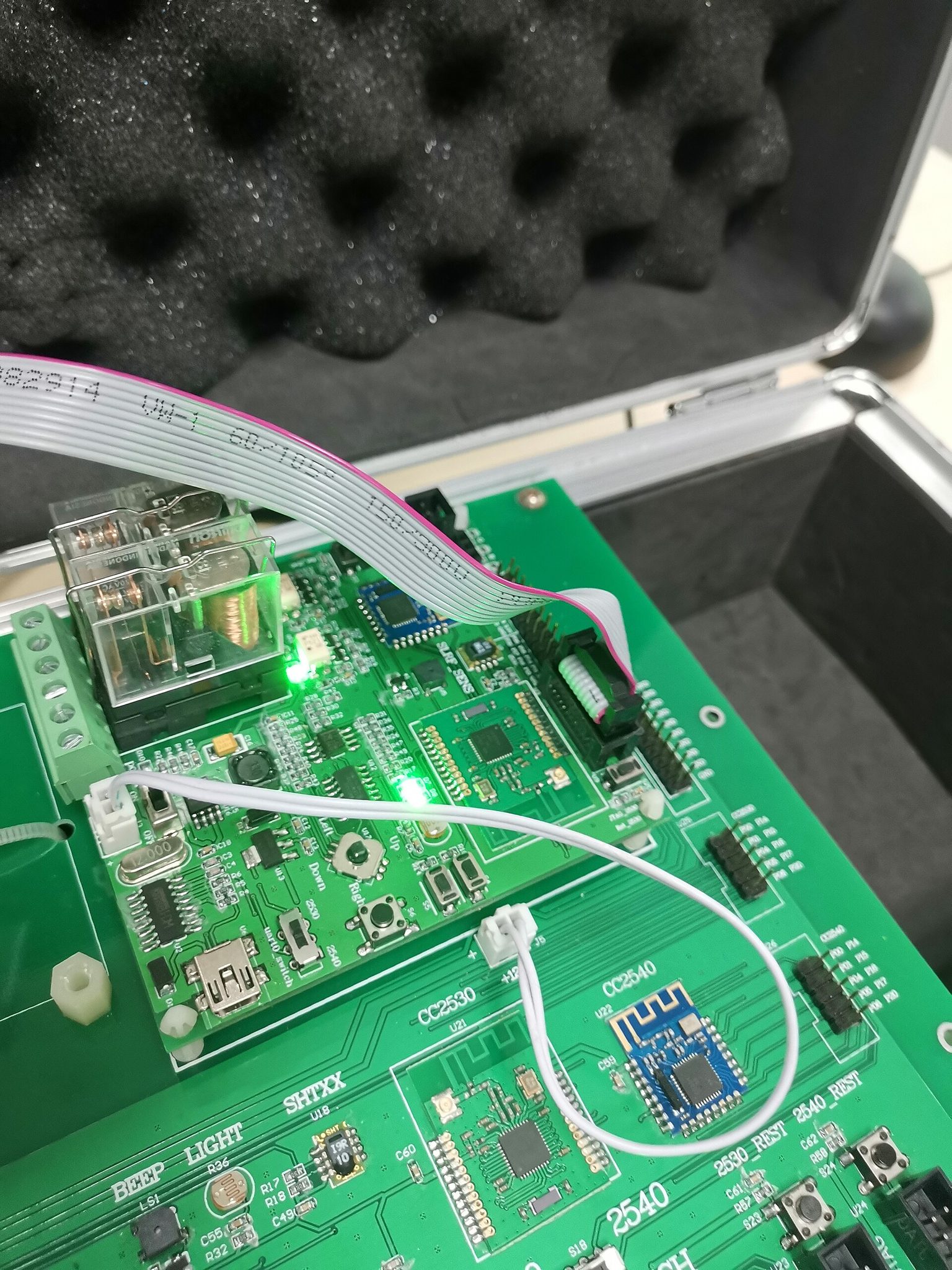
Photo: User1779637 / Wikimedia Commons, CC BY-SA 4.0
Technical comparison
| Criterion | Wi-Fi (2.4 GHz) | Zigbee |
|---|---|---|
| Radio standard | IEEE 802.11 | IEEE 802.15.4 |
| Speed | Tens to hundreds of Mbps | About 250 kbps |
| Topology | Star: every device connects to the router | Mesh: mains devices relay for each other |
| Hub needed | No | Yes |
| Battery devices | Drain fast, few choices | Coin cells often last about 1–2 years (depends on maker and reporting rate) |
| Internet down | Most cannot be controlled from the app, many lose automations | Many hubs still run local automations (depends on maker, must be tested) |
| Load on the router | One connection per device | Only the hub takes a connection |
| Best for | Cameras, air conditioners, TVs, a few plugs | Switches, sensors, curtains, larger systems |
Device roles in a Zigbee network
A Zigbee network has three roles. Understanding them is what separates an app installer from a technician who designs networks.
Coordinator, router and end device
- Coordinator: the hub itself. It forms the network and admits new devices. Each network has exactly one.
- Router: a device that always has mains power (plugs, switches with a neutral wire, curtain motors, bulbs). It does its own job and relays messages for other devices.
- End device: battery devices (door, motion, temperature and humidity sensors) and many no-neutral switches. They sleep most of the time to save power, send messages only through the nearest router or the hub, and relay for nobody.
Why no-neutral switches are usually end devices
A switch that needs no neutral wire powers its electronics by letting a tiny current flow through the load, so its power budget is small and usually not enough to act as a router. If an apartment uses only this type, the Zigbee network will lack routers and distant sensors will drop out. Wiring and common faults for these switches are covered in no-neutral smart switch: wiring it right and fixing common faults.
Range per hop
Indoors, each Zigbee hop typically covers about 10–20 m depending on walls and materials; reinforced concrete, metal doors and switchboards cut it sharply. A message can pass through several routers to reach a distant device, but each hop adds a little delay. Practical rule: every room has at least one router device, and no battery sensor is more than one thick wall away from the nearest router.
2.4 GHz interference: choosing Wi-Fi and Zigbee channels
2.4 GHz Wi-Fi and Zigbee share the same band. Overlapping channels are the top reason Zigbee switches respond slowly or drop off when the whole family is streaming in the evening.
Non-overlapping channels
Each Wi-Fi channel is about 20 MHz wide; each Zigbee channel is only about 2 MHz wide, spaced 5 MHz apart (channels 11 to 26). In Vietnam, 2.4 GHz Wi-Fi usually uses channel 1, 6 or 11 so networks do not overlap.
| Wi-Fi channel in use | Wi-Fi band occupied (approx.) | Zigbee channel to choose | Zigbee centre frequency |
|---|---|---|---|
| 1 | 2,401–2,423 MHz | 20 or 25 | 2,450 / 2,475 MHz |
| 6 | 2,426–2,448 MHz | 15 or 25 | 2,425 / 2,475 MHz |
| 11 | 2,451–2,473 MHz | 15 or 20 | 2,425 / 2,450 MHz |
Zigbee channels 15, 20 and 25 sit in the gaps between or outside Wi-Fi channels 1, 6 and 11. Channel 26 is also quiet, but some older devices do not support it, so check first. Set the Wi-Fi router to a fixed channel rather than "auto", because a router that changes channels on its own can land right on top of the Zigbee channel.
Other sources of interference
- Microwave ovens: radiate strong noise around 2.4–2.5 GHz while running (Figure 2). Do not put the hub in the kitchen next to one.
- USB 3.0 ports and drives: emit noise around 2.4 GHz. A USB-stick hub plugged into a mini PC should go on an extension cable away from USB 3.0 ports.
- A Wi-Fi router right next to the hub: even on a different channel, a strong signal at close range can deafen the receiver. Keep the hub at least about 1 m from the router.
- Metal obstacles: switchboards, fridges, aluminium-and-glass door frames, large mirrors.
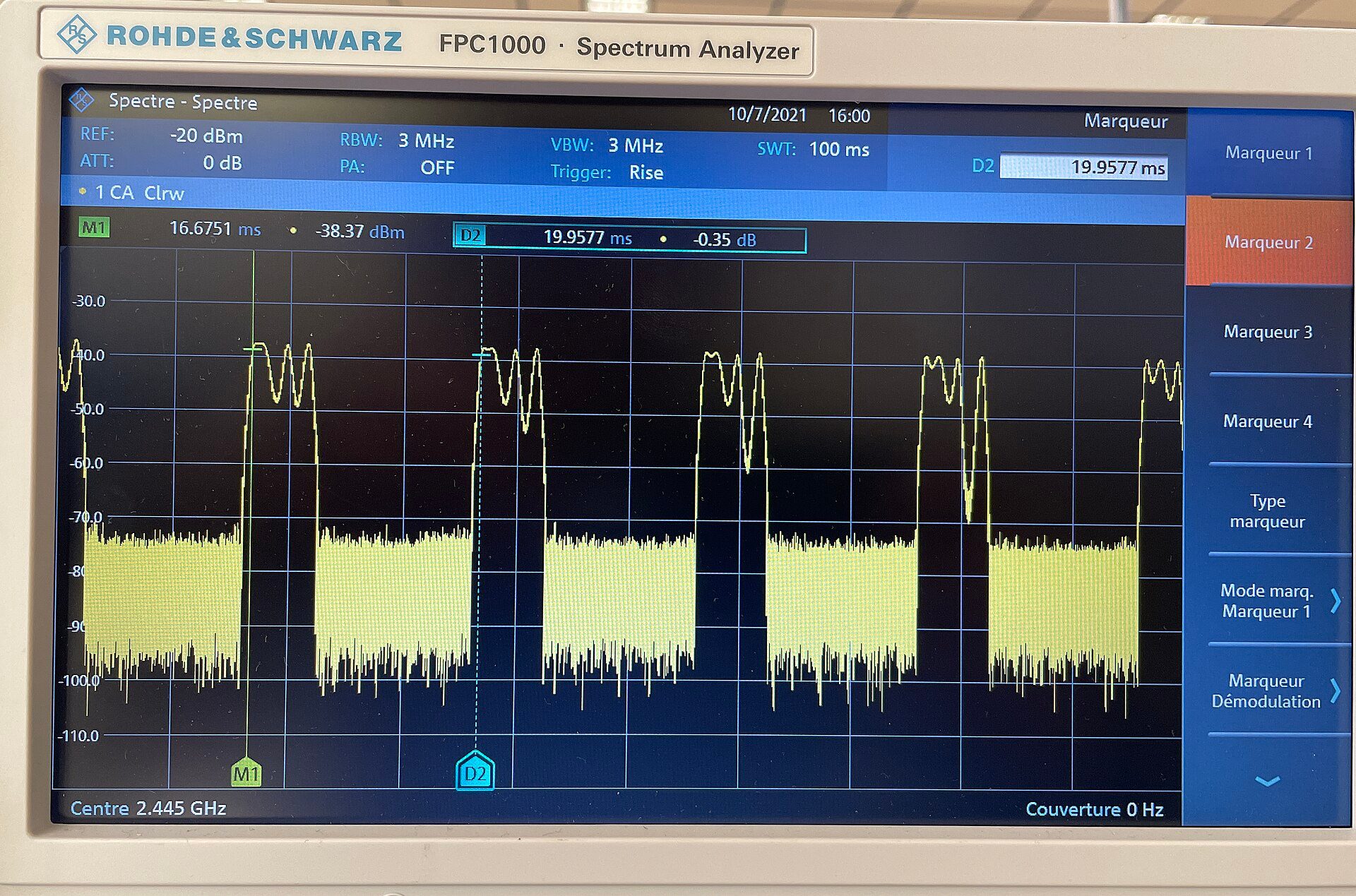
Photo: Fil22plm / Wikimedia Commons, CC BY-SA 4.0
When to change channel
Changing the Zigbee channel often forces many devices to be paired again. Choose correctly from the start: scan nearby Wi-Fi with a signal analyser app, fix the home's Wi-Fi channel, and only then create the Zigbee network.
Choosing a protocol for each type of device
You do not have to go "all Zigbee" or "all Wi-Fi". A good technician chooses per device type, then checks that the whole system works in one control app.
| Device | Use | Why |
|---|---|---|
| Cameras | Wi-Fi or network cable | Video needs high bandwidth that Zigbee cannot carry |
| Door, motion, temperature, leak sensors | Zigbee | Long battery life, compact |
| No-neutral switches | Zigbee | Low power budget; Wi-Fi versions struggle to run reliably |
| Switches with neutral | Zigbee (preferred in larger systems) or Wi-Fi | Zigbee versions act as routers and extend coverage |
| Smart plugs | Either | Zigbee plugs make good routers; Wi-Fi plugs are handy when you need only 1–2 |
| Curtain motors | Zigbee or Wi-Fi | Follow the home's main system |
| Air conditioners, TVs, IR remotes | Wi-Fi | Built-in Wi-Fi or need the maker's cloud |
Quick rules during a survey
- Fewer than about 10–15 smart devices and no battery sensors: Wi-Fi is enough, cheap and simple.
- From about 15–20 devices, or three or more battery sensors, or no-neutral switches: use Zigbee with a hub for controls and sensors.
- Multi-storey homes with thick walls: Zigbee needs enough routers on each floor; Wi-Fi needs a mesh system or cabled access points. For Wi-Fi layout see how to fix weak Wi-Fi: router placement, channels, mesh and cabling.
Ecosystem first, protocol second
Zigbee 3.0 lets devices from many makers pair with one hub, but a maker's special features (curtain modes, custom alerts) may only work fully on that maker's hub. Before committing, pair one sample of each device type with the hub you plan to use.
Matter, Thread and future expansion
Customers who read online often ask "should I wait for Matter?". Answer accurately and do not over-promise.
What Matter is
Matter is a common application standard that lets devices from different makers be controlled from different platforms, running over IP networks such as Wi-Fi, Ethernet or Thread. It does not replace everything at once: Matter devices usually cost a little more, and not every device type has a widely available Matter version in Vietnam yet.
Thread and Zigbee
Thread is also a low-power mesh on the IEEE 802.15.4 standard like Zigbee, but it uses IP addresses and needs a border router. Zigbee is not Matter, but some Zigbee hubs act as a bridge that brings Zigbee devices into a Matter system. This depends on the maker and firmware version, so check the official pages. In your quote, state which standard each device supports and whether the hub has a Matter bridge.
Worked example: network design for a 70 m² two-bedroom apartment
Mr Phuc's family of three lives in a 70 m² apartment in Hanoi, with the ISP router in the switchboard cabinet by the front door. Existing Wi-Fi devices: 3 phones, 2 laptops, 1 TV, 1 tablet and 2 Wi-Fi air conditioners, 9 devices in total. He wants to add 22 smart devices.
Step 1: list the smart devices
- 8 switches (5 switch boxes have a neutral wire, 3 do not).
- 3 smart plugs and 2 curtain motors.
- 6 battery sensors: 2 door, 2 motion, 1 temperature and humidity, 1 water leak.
- 2 cameras and 1 infrared remote controller.
- Total: 8 + 3 + 2 + 6 + 2 + 1 = 22 devices.
Step 2: compare two options
| Item | A: all Wi-Fi | B: Zigbee + Wi-Fi |
|---|---|---|
| Zigbee devices | 0 | 8 switches + 3 plugs + 2 curtains + 6 sensors = 19 |
| New Wi-Fi devices | 22 | 2 cameras + 1 IR remote + 1 hub = 4 |
| Total connections on the router | 9 + 22 = 31 | 9 + 4 = 13 |
| Battery sensors | Drain fast, frequent battery changes | Coin cells, often 1–2 years |
| 3 no-neutral switches | Hard to find a reliable Wi-Fi model | Work normally as end devices |
Option A puts 31 connections on the ISP router, mostly on 2.4 GHz; many ISP routers start to struggle at a few dozen devices. Option B leaves only 13. Check: option B still covers 19 + 2 + 1 = 22 smart devices. You recommend option B. Equipment and labour prices for both kinds of system are in how much does a smart home cost in Vietnam? 2026 package prices.
Step 3: assign roles and place the hub
- Zigbee routers: 5 switches with neutral + 3 plugs + 2 curtain motors = 10 routers.
- End devices: 3 no-neutral switches + 6 sensors = 9 end devices. Check: 10 + 9 = 19 Zigbee devices.
- Put the hub on the TV unit in the living room (the middle of the apartment), about 4 m from the router, not inside the metal switchboard cabinet.
- Fix the Wi-Fi router on channel 1 and create the Zigbee network on channel 25 (per the channel table above).
- Check that each bedroom has at least one Zigbee router (a switch with neutral or a plug), and that the bathroom leak sensor is only one wall from the nearest plug.
Reference time for pairing and testing: hub and channel 20 minutes, 10 routers 40 minutes, 9 end devices 30 minutes, automations and an internet-down test 30 minutes. Total: 20 + 40 + 30 + 30 = 120 minutes, not counting switch wiring.
Building a stable Zigbee network
Pairing order directly affects stability. Follow this sequence on every job.
- Fix the home's Wi-Fi channel, then create the Zigbee network on the hub on a non-overlapping channel.
- Place the hub centrally in the open, away from the router and microwave, never inside a metal cabinet.
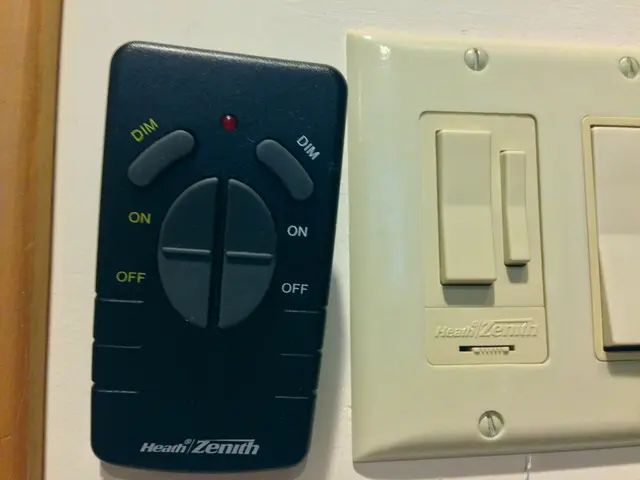
- Pair router devices first, working outward from the hub (switches with neutral, plugs as in Figure 3, curtain motors).
- Pair end devices last, at their real installed position, not on the table before carrying them away.
- Wait about 15–30 minutes for the network to optimise its routes, then test switching from the furthest room.
- Unplug the internet as a test: note which local automations still run and write them in the handover record.
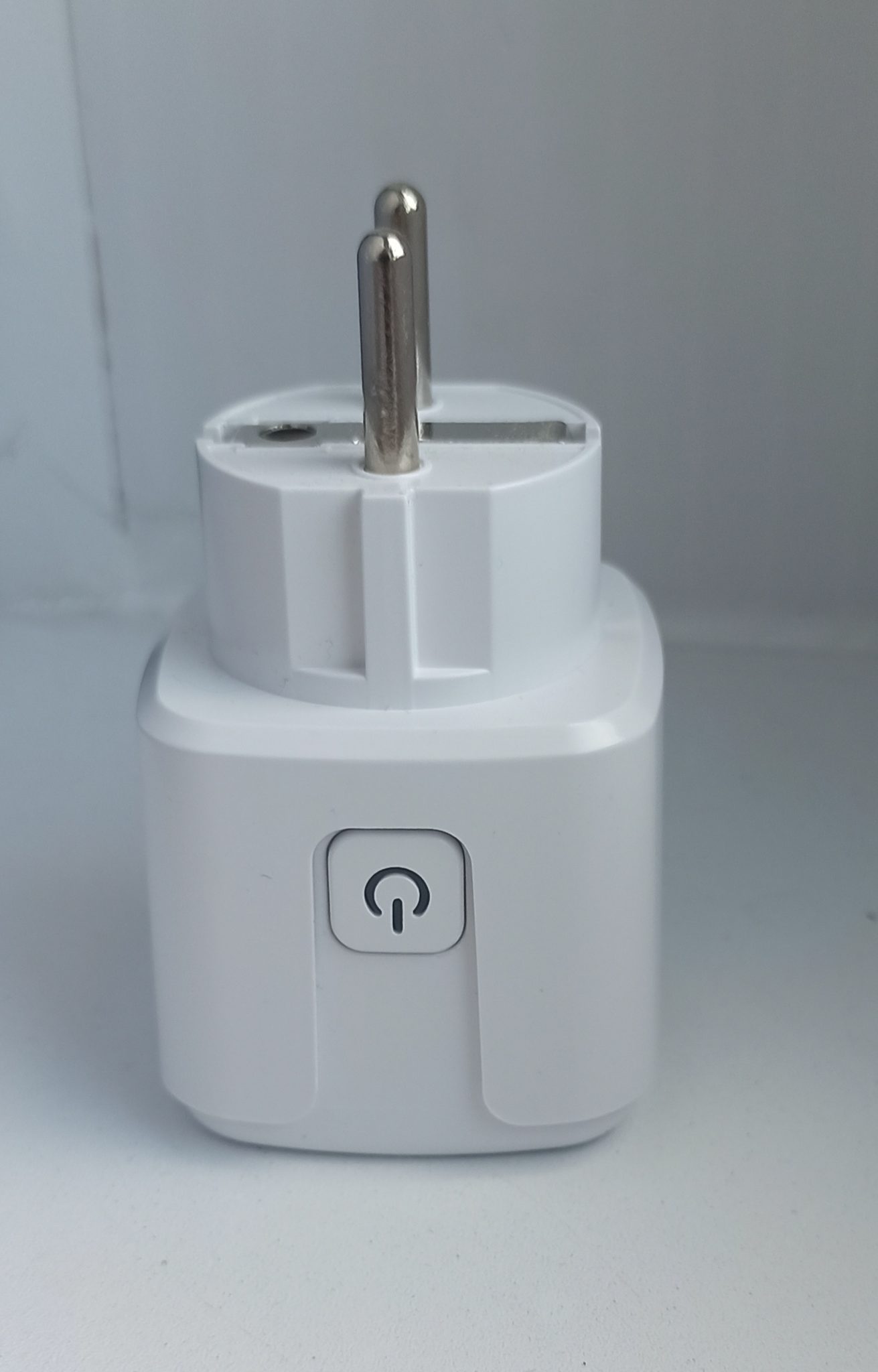
Photo: Sokolikmawwer0 / Wikimedia Commons, CC BY-SA 3.0
Safety warning: Fitting switches and curtain motors means working with 220 V mains: switch off the circuit breaker, confirm the circuit is dead with a voltage tester or multimeter before touching any wire, and hang a "work in progress" tag on the switchboard. Only people trained in electrical safety should do the wiring. Coin cells in sensors are very dangerous if a small child swallows one: fit battery covers securely, store spares out of children's reach, and if you suspect a child has swallowed a battery, go to emergency care immediately. Do not place hubs or smart plugs in damp places or near heat.
Check the customer's Wi-Fi router
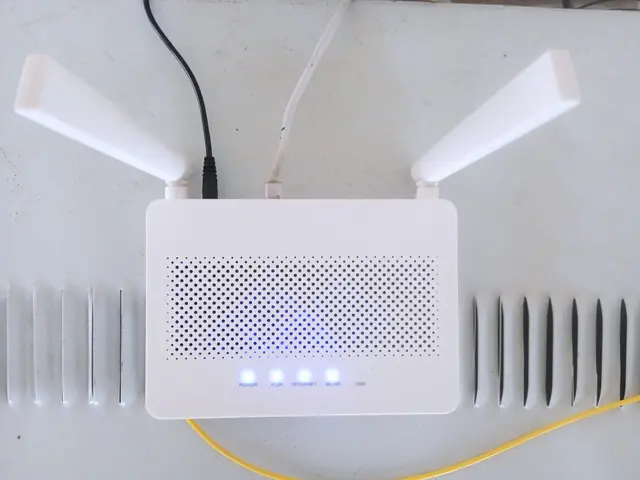
Wi-Fi smart home devices usually support only 2.4 GHz. A router that merges the 2.4 GHz and 5 GHz networks under one name can make pairing fail; split the names or turn off 5 GHz temporarily while pairing. Figure 4 shows the inside of a router: the radio and antennas handle every Wi-Fi connection in the home.
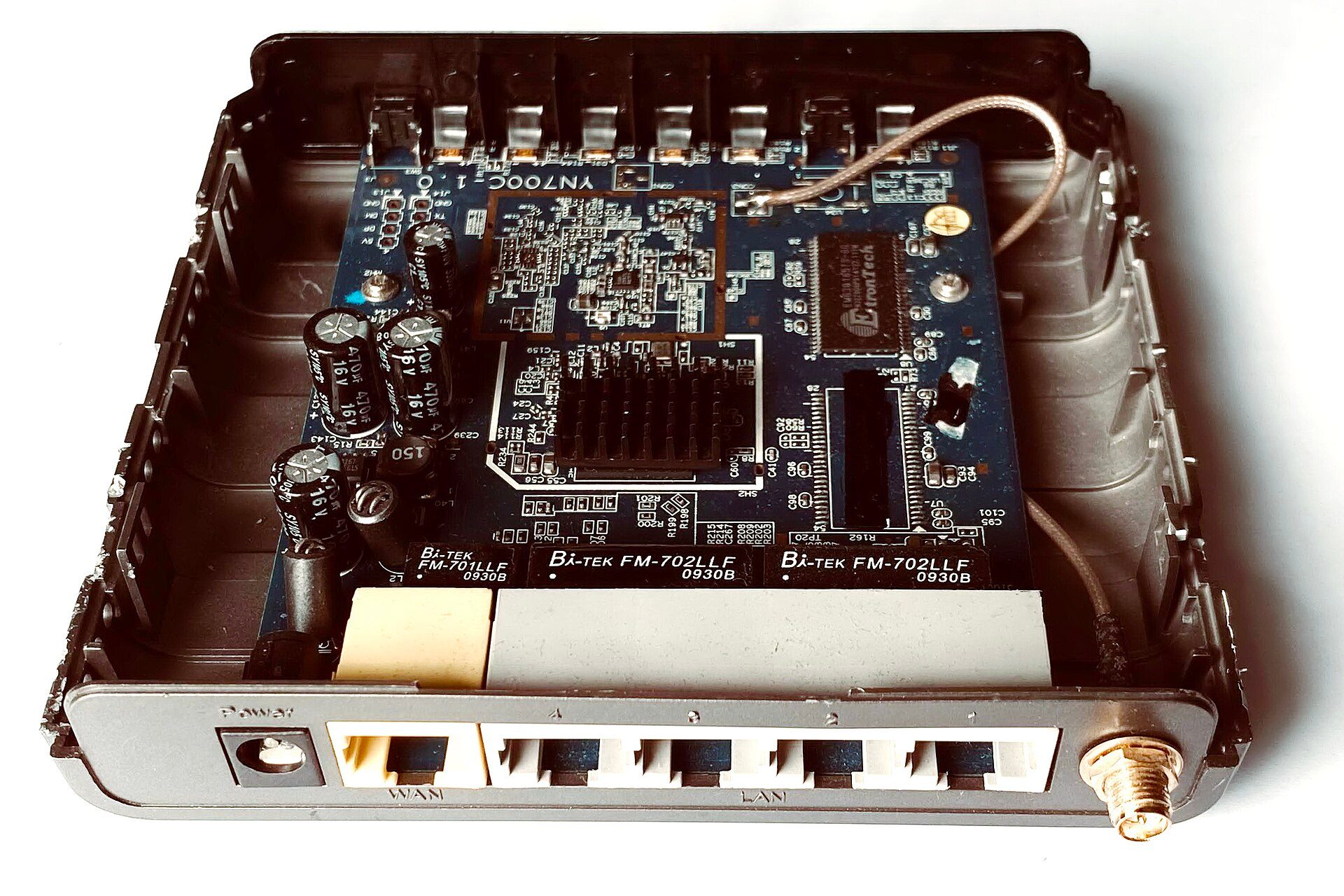
Photo: Mk2010 / Wikimedia Commons, CC BY-SA 4.0
Common mistakes when choosing and building the network
Distant sensors keep dropping out
Sign: the bathroom or balcony sensor reports lost connection. Cause: no Zigbee router nearby, or the home uses only no-neutral switches. Fix: add a Zigbee plug or a switch with neutral nearby and re-pair the sensor in place.
Zigbee switches respond slowly in the evening
Sign: by day the light responds instantly from the app, in the evening when everyone is online it takes a few seconds. Cause: the Zigbee channel overlaps the Wi-Fi channel, or the router is on "auto" channel. Fix: fix the Wi-Fi channel and pick the Zigbee channel from the table.
Wi-Fi devices will not pair
Sign: the app times out when adding a device. Cause: the phone is on 5 GHz, the password contains special characters the device does not accept, or the router has hit its connection limit. Fix: split the bands while pairing and check the device count on the router.
Sensors run flat within weeks
Sign: battery sensors report low battery very early. Cause: battery-powered Wi-Fi sensors, or Zigbee sensors in a weak-signal spot that keep retransmitting. Fix: use Zigbee sensors and add a router nearby.
Frequently asked questions
Should a smart home use Zigbee or Wi-Fi?
Few devices and no battery sensors: Wi-Fi. From about 15–20 devices, or with battery sensors or no-neutral switches: Zigbee for controls and sensors, Wi-Fi for cameras and entertainment devices.
Does Zigbee need the internet?
The Zigbee network between hub and devices does not. Remote control through the app does. Whether automations run locally when the internet is down depends on the hub, so test it at handover.
How many devices can one Zigbee hub handle?
It depends on the maker and model; check the official specifications. A mainstream hub is usually enough for an apartment or a town house.
Will one maker's Zigbee devices work with another maker's hub?
With Zigbee 3.0, basic functions usually pair, but special features may not all work. Always test one sample before buying in quantity.
Practice and self-assessment
- Survey your own home or a sample apartment: count existing Wi-Fi devices and read the Wi-Fi channel with a signal analyser app.
- List smart devices for that home, choose a protocol for each type using the table, and total the router connections for two options.
- Assign router or end device roles to every Zigbee device and draw a floor plan marking the hub and the routers.
- Build a test network of 1 hub, 2 plugs and 2 sensors in the correct pairing order, then test with the internet unplugged.
Self-assessment criteria
- Pass: device totals agree across your list, option table and floor plan.
- Pass: the Zigbee channel does not overlap the Wi-Fi channel, and every room has at least one Zigbee router.
- Pass: you can explain the chosen option to the customer in plain words.
- Not yet: choosing all Wi-Fi for a system of more than 20 devices with battery sensors, or pairing end devices before routers.
With the protocol chosen, move on to the next roadmap step: Installing touch switches, smart plugs and smart lights, where you wire the chosen devices for real and check whether each switch box has a neutral wire.
Keep learning smart home installation: after connectivity standards come switches, curtains, locks, sensors, automations and a full apartment installation. See the 8-step smart home installer roadmap.