The most effective way to fix weak Wi-Fi is to work in order: measure where the signal is weak and whether the problem is the wireless signal or the internet line, move the router to an open spot near the middle of the home at a height of 1.5–2 m, choose a band and channel with less interference, and only then add equipment — first a cabled access point (AP) on each floor, then wireless mesh, with a plug-in repeater as the last resort. Most "weak Wi-Fi" calls in Vietnamese tube houses happen because the router sits inside a cabinet on the ground floor and the signal has to pass through two or three concrete slabs. This lesson follows the way an ISP technician surveys a home, with a signal-level table and a worked example of a four-storey tube house, costs included.
By the end of this lesson, you will be able to:
- Tell weak Wi-Fi apart from a slow internet line using one cabled test and one wireless test.
- Read signal strength in dBm, record a survey table for every room and know which level counts as a pass.
- Choose a router position, a 2.4 GHz channel (1, 6 or 11) and a suitable 5 GHz channel width.
- Decide between cabled APs, wireless mesh and a repeater for a real home, with a cost estimate.
Want to become a network technician properly? Wi-Fi mesh, signal surveys and troubleshooting are step 6 of the roadmap, after fibre drop installation, fibre splicing and office cabling. See the 8-step network and internet installer roadmap to know what to learn first and what comes next.
Why Wi-Fi is weak: understand it before you fix it
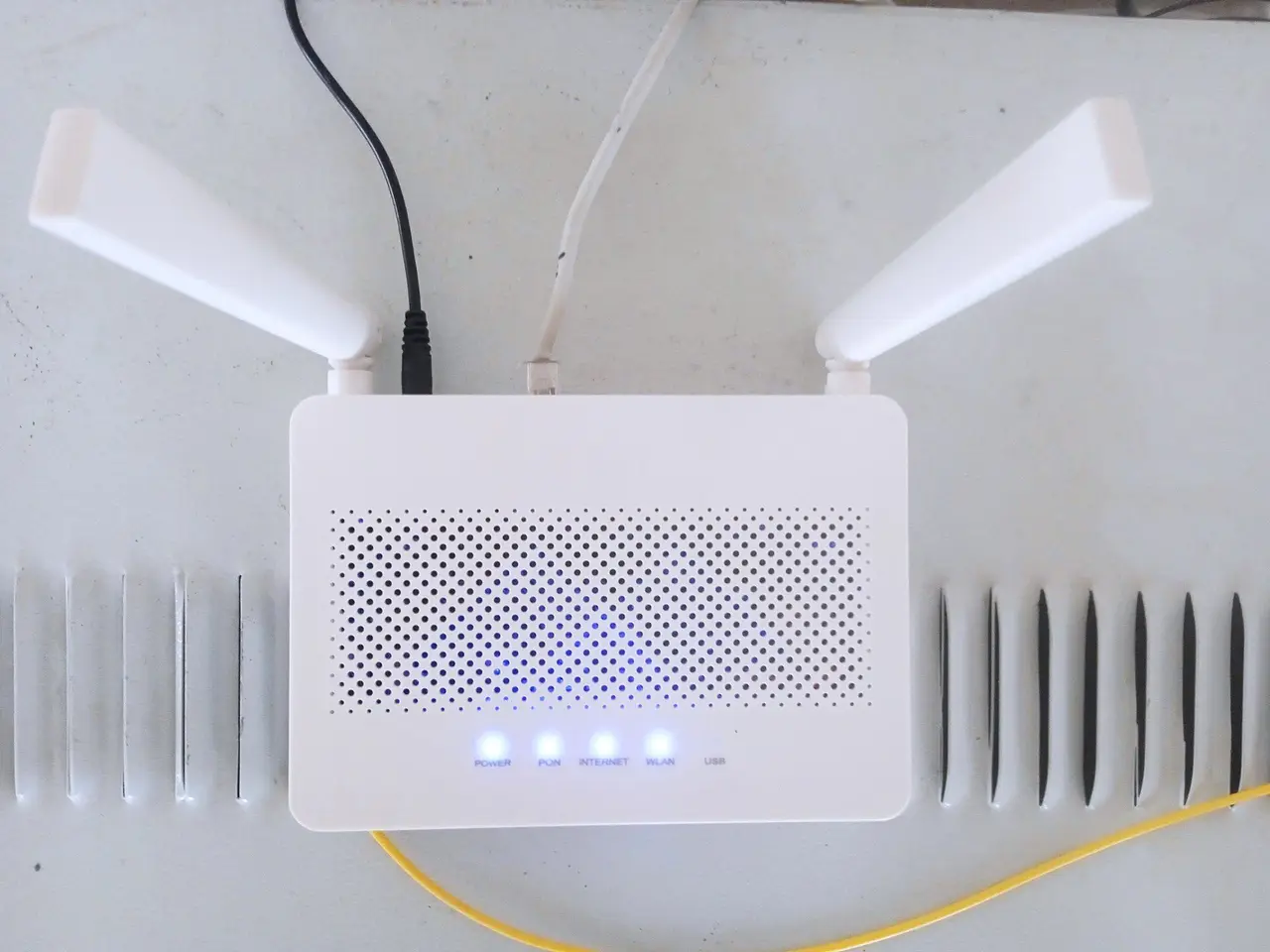
Wi-Fi is a radio signal sent out by a router (which routes traffic and broadcasts Wi-Fi) or by an AP (access point). The signal fades with distance and is blocked strongly by walls, floors, metal and water. Figure 1 shows a typical home Wi-Fi router with external antennas.
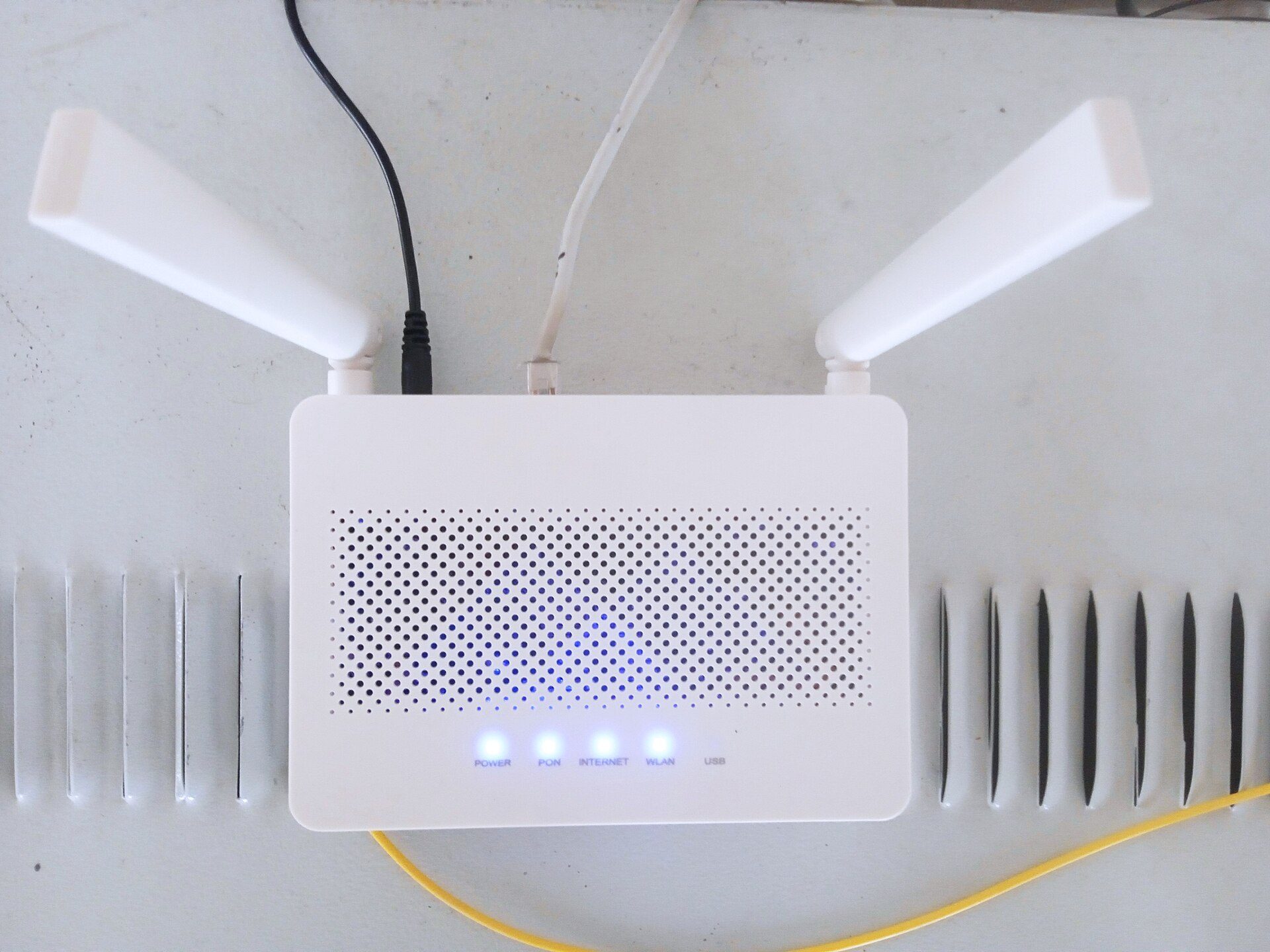
Photo: Solijon Solayev / Wikimedia Commons, CC BY-SA 4.0

The 2.4 GHz and 5 GHz bands
The 2.4 GHz band reaches further and passes through walls better, but it is crowded: it has only three non-overlapping channels (1, 6 and 11) and suffers interference from neighbours, microwave ovens and Bluetooth devices. The 5 GHz band has many channels, higher speed and less interference, but it loses strength quickly through walls. Newer routers (Wi-Fi 6, 6E and 7) also have a 6 GHz band with even shorter range. The practical rule: devices close to the router use 5 GHz; distant devices and smart-home gadgets use 2.4 GHz.
Obstacles in Vietnamese homes
One 110 mm brick wall weakens the signal noticeably; a reinforced concrete floor slab between storeys blocks far more. Mirrors, steel cabinets, fish tanks, water heaters and roller shutters absorb or reflect the signal. A tube house of four or five storeys, 15–20 m deep, with the router in a recessed cabinet next to the ground-floor door, is the classic setup for weak Wi-Fi upstairs and in the back rooms.
Weak Wi-Fi is not the same as a slow line
Customers say "the internet is weak" for everything. There are three possibilities: a weak Wi-Fi signal (few bars, slow far from the router, fast close to it); a slow or faulty ISP line (slow even next to the router and on a cable); or an overloaded router (many cameras and phones, or an old router). Find the real cause before buying any extra equipment.
Measure and survey the signal like a technician
Measure first, fix second. A home survey takes about 30–45 minutes and lets you quote accurately.
Step 1: test the line over a cable
- Plug a laptop into a LAN port on the router with a network cable and turn the laptop's Wi-Fi off.
- Run a speed test two or three times and note download, upload and latency (ping).
- Compare with the plan: about 80% or more means the line is fine. Much lower means you check the ONT (the fibre modem), its optical signal light and contact the ISP first — Wi-Fi is not the culprit yet.
Step 2: measure signal strength in dBm in each room
Use a Wi-Fi analyser app on an Android phone or survey software on a laptop to read the received signal strength (RSSI) in dBm. It is a negative number; the closer to zero, the stronger. Stand in the middle of each room, hold the phone at chest height, wait 10 seconds for the reading to settle and write it down. Read the result against this table.
| Signal (dBm) | Rating | Good enough for |
|---|---|---|
| -30 to -50 | Excellent | Everything, close to full speed |
| -51 to -60 | Good | 4K video, video meetings, gaming |
| -61 to -67 | Acceptable | Video calls, HD streaming — the minimum to reach in rooms people actually use |
| -68 to -75 | Weak | Browsing and messaging; video calls stutter |
| Below -75 | Very weak | Frequent drops, barely usable |
Step 3: check channels and nearby interference
Open the channel graph in the analyser app. In apartment blocks and busy streets the 2.4 GHz band often has 15–30 networks. Note which of channels 1, 6 and 11 is most crowded, which is quieter, and which 5 GHz channels are in use.
Step 4: test speed over Wi-Fi at the weak spots
In the room with the weakest signal, run a speed test over Wi-Fi. If the result is below roughly one third of the cabled result from step 1, the problem is coverage. Record everything on a floor plan for each storey; that plan is the basis for your proposal to the homeowner.
Reposition and configure the router: the cheapest fix
Before selling extra equipment, try the free fixes. Many jobs are solved by moving the router and changing the channel.
Where to put the router
- Place it near the centre of the area to cover, about 1.5–2 m high, not inside a closed wooden cabinet, a metal electrical cabinet or behind the TV.
- Keep it away from microwave ovens, water heaters, large mirrors and fish tanks.
- With external antennas, set one vertical and one tilted or horizontal to cover both the floor above and the same floor.
- If the ONT is on the ground floor and you want the router on the first floor, run a Cat6 network cable up from the ONT; never improvise with fibre.
Channel and channel width
On 2.4 GHz, use only channel 1, 6 or 11 with a 20 MHz width; 40 MHz in a crowded area just adds interference. On 5 GHz, use 80 MHz for homes and 40 MHz for offices with many APs, on the least busy channel from step 3. Automatic channel selection on newer routers works fairly well, but in heavy interference a fixed channel is more stable.
Update and tidy the configuration
Update the router firmware, turn on the 5 GHz band if the customer has disabled it, and set a strong WPA2/WPA3 password so neighbours cannot piggyback. If the ISP router is five to seven years old and supports only 2.4 GHz, recommend a Wi-Fi 6 router instead of trying to tune it.
Extending coverage: cabled APs, mesh or a repeater
When one transmitter cannot cover the whole house, you need more transmitters. Experienced technicians use this order: cable first, mesh second, repeater last.
Cabled APs or mesh nodes (wired backhaul)
Run a Cat5e/Cat6 network cable from the router to each floor and fit an AP or a mesh node there. The link between transmitters (called the backhaul) goes over copper, so no speed is lost and each floor gets a signal as good as standing next to the router. Office APs are usually mounted high on a wall or ceiling (Figure 2), with the cable in trunking or conduit. This is the best option for tube houses and multi-room offices.
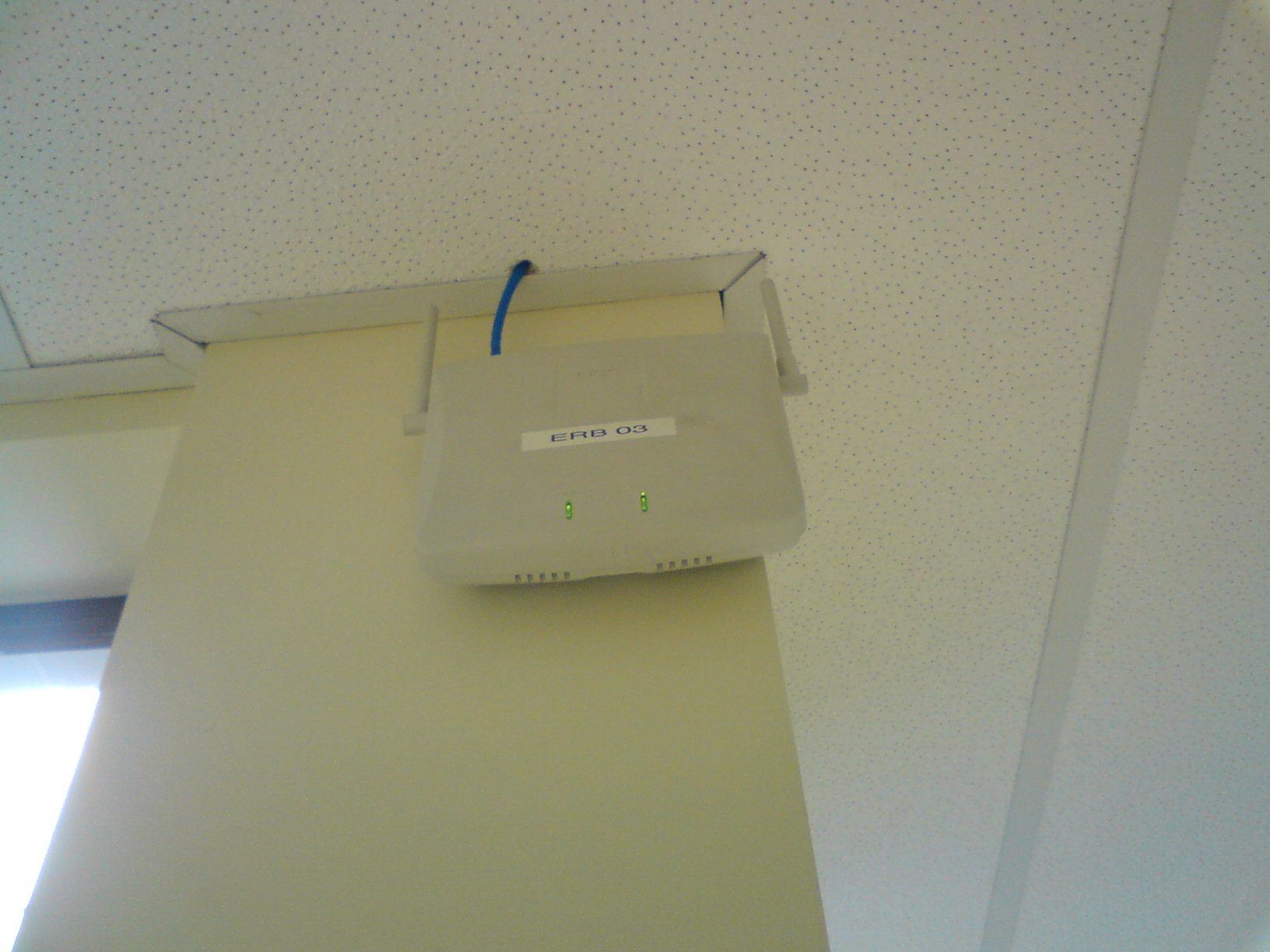
Photo: Rodrigo César / Wikimedia Commons, Public domain

The other end of the cable goes into a LAN port on the router or a switch, as in Figure 3. Crimp the plugs to the T568B standard and check them with a cable tester before mounting the equipment.
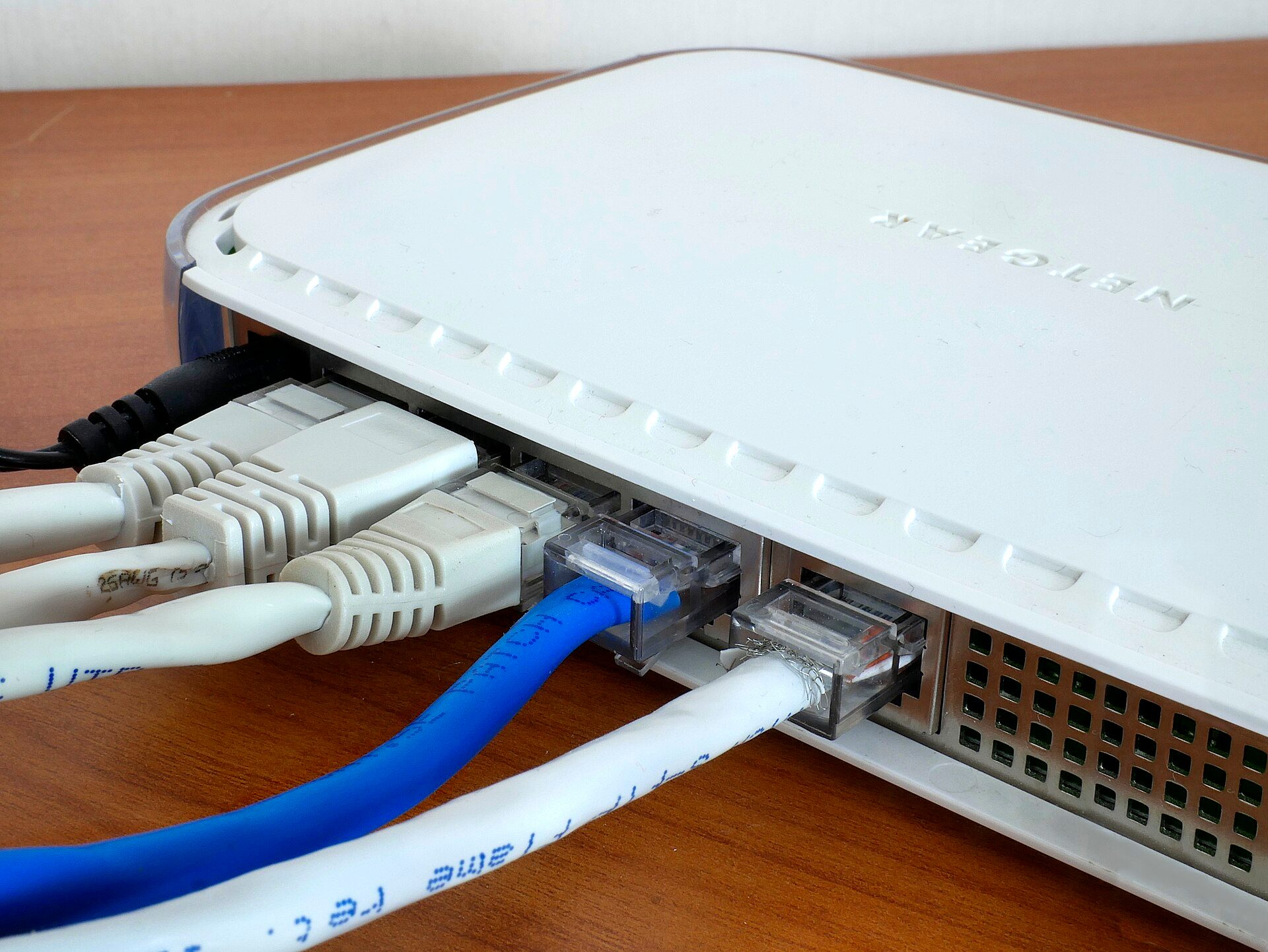
Photo: Santeri Viinamäki / Wikimedia Commons, CC BY-SA 4.0

Wireless mesh
If cabling is impossible (the house is finished and the owner does not want walls cut), use a mesh kit with two or three nodes that link to each other by radio. Place the satellite node where it still receives the main node at about -60 to -65 dBm, usually on the stair landing or in a middle room, never in the dead zone itself. Tri-band mesh kits have a dedicated band for backhaul, so they lose less speed than dual-band kits.
Repeaters
A plug-in repeater (Figure 4) receives the signal and rebroadcasts it. It is cheap and quick, but a single-band model loses about half the speed because it receives and transmits on the same channel, often creates a separate network name, and phones do not switch over smoothly as you walk around. Use one only for a single room with few users.
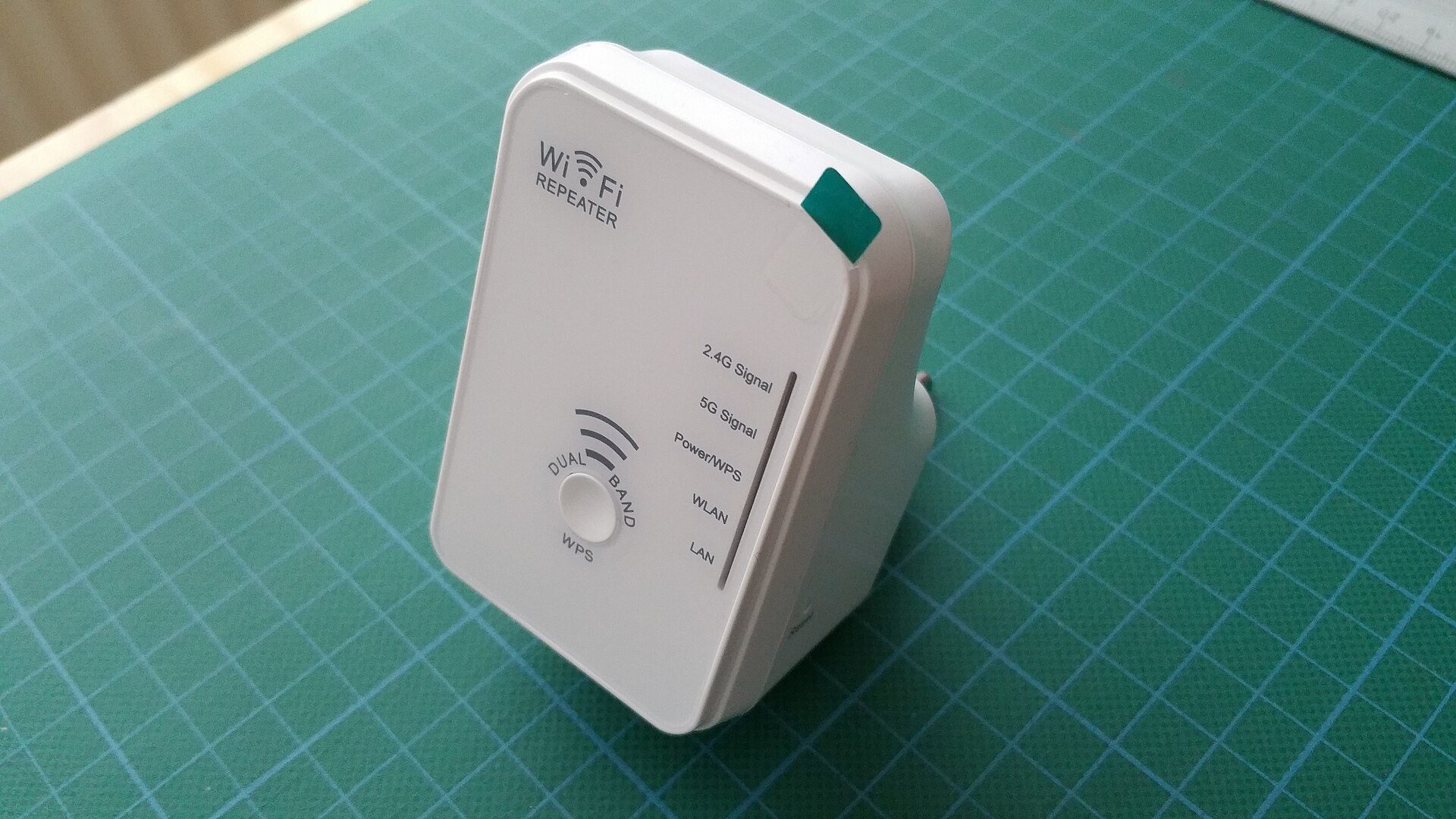
Photo: I G / Wikimedia Commons, CC BY 2.0

Quick comparison
| Option | Speed at the far point | Installation | Reference cost, 2026 | Best for |
|---|---|---|---|---|
| Reposition router, change channel | Moderate improvement | 15–30 minutes | 0 VND (survey fee only) | Single-level flats, small homes |
| Cabled AP/node on each floor | Almost the same as at the router | Half a day to a day | 0.8–2.5 million VND per point plus cable and labour | Tube houses, offices, cafes |
| Wireless mesh, 2–3 nodes | Fair, drops with each hop | 1–2 hours | 2–8 million VND per kit | Finished homes that cannot be cabled |
| Repeater | Low, roughly half | 15 minutes | 250,000–800,000 VND | One room, few devices |
Prices are 2026 reference ranges in Vietnam and vary by region, brand and shop (1 million VND is about 40 USD).
Safety when installing networks indoors
Network work looks light, but it involves ladders, drilling walls and working near cables and electrical boards.
Safety warning: before drilling a wall, scan for buried electrical cables with a detector and ask the owner where power and water lines run; do not drill straight above or below switches and sockets. Use a sturdy A-frame ladder with someone holding it above 2 m, and never stand on the top step. Do not open power adapters or wire an AP straight into 220V mains — use the correct adapter or PoE supply. Do not run network cable in the same conduit as power cables. On roofs, balconies and outdoor poles, keep well clear of medium-voltage lines and stop work in rain and thunderstorms.
Network cable and PoE power
Many APs take power through the network cable itself (PoE, Power over Ethernet) from a PoE switch or a separate injector. Check that the AP's PoE standard (802.3af/at) matches the supply, otherwise the AP will keep rebooting.
Work in an order that keeps the customer online
Save the old router settings (photograph the Wi-Fi name, password and PPPoE settings if any), finish the cabling before you disconnect the router, and keep the same Wi-Fi name and password so every device in the house reconnects by itself.
Common mistakes when fixing weak Wi-Fi
| Mistake | Symptom | Cause | Fix |
|---|---|---|---|
| Added a repeater but still slow | Full bars but low speed | Repeater placed where the signal was already weak; single band halves speed | Move it to a spot receiving -60 to -65 dBm, or replace with a cabled AP |
| Two routers handing out IP addresses | Devices connect on and off, cameras drop out | Second router still in router mode with DHCP on | Switch the second router to AP mode or turn DHCP off |
| Mesh keeps dropping | Satellite node shows red or orange light | Node too far from the main node, two concrete floors away | Move the node closer or cable the nodes together |
| Channel interference | Slow only in the evening, fine in the day | Neighbours on the same 2.4 GHz channel, 40 MHz width | Fix channel 1/6/11 at 20 MHz, push devices to 5 GHz |
| Cable runs at only 100 Mbps | Port light in a different colour, speed stuck near 94 Mbps | Badly crimped plug, one broken pair | Re-crimp and test all 8 wires |
Do not forget the customer's devices
Old phones and laptops that support only 2.4 GHz or Wi-Fi 4 will stay slow even with a strong signal. Wi-Fi cameras and smart plugs often work only on 2.4 GHz; if a combined dual-band network name stops a camera from joining, add a separate 2.4 GHz network name. To help customers view their cameras reliably on a phone, see the lesson on viewing security cameras on a phone (in Vietnamese) from the CCTV installer roadmap.
Worked example: a four-storey tube house with the router on the ground floor
Mr Hung's house in Ha Dong, Hanoi, is 4 m wide, 16 m deep and four storeys high. He has a 300 Mbps fibre plan, with the ONT and ISP router in a recessed cabinet beside the ground-floor door. Five people live there, with two cameras, and video meetings in the third-floor study keep freezing.
Survey results
The cabled test on the ground floor gave 290 Mbps download, matching the plan. Signal readings in the middle of each floor are in the table.
| Location | 5 GHz signal (dBm) | 2.4 GHz signal (dBm) | Speed over Wi-Fi |
|---|---|---|---|
| Ground floor, living room | -48 | -42 | 260 Mbps |
| Floor 2, bedroom | -72 | -63 | 45 Mbps |
| Floor 3, study | No signal | -76 | 6 Mbps |
| Floor 4, drying terrace and altar room | No signal | -84 | Disconnects |
Conclusion: the line is fine; the problem is coverage through three concrete slabs. Wireless mesh would struggle because from floor 2 to floor 3 the signal is already too weak for backhaul. The solution: keep the router on the ground floor and fit one AP (or a mesh node that supports wired backhaul) on floors 2, 3 and 4, each fed by Cat6 cable in conduit up the service shaft beside the stairs, through a 5-port gigabit switch next to the router.
Cost estimate
| Item | Quantity × unit price | Amount |
|---|---|---|
| Wi-Fi 6 wall/ceiling AP | 3 × 1,200,000 VND | 3,600,000 VND |
| Cat6 cable (floor 2: 10 m, floor 3: 15 m, floor 4: 20 m) | 45 m × 8,000 VND | 360,000 VND |
| Plugs, conduit, trunking, wall plugs | Lump sum | 240,000 VND |
| 5-port gigabit switch | 1 × 300,000 VND | 300,000 VND |
| Labour (1 day, 1 technician) | 1 × 600,000 VND | 600,000 VND |
| Total | 5,100,000 VND | |
Check: cable 10 + 15 + 20 = 45 m; money 3,600,000 + 360,000 + 240,000 + 300,000 + 600,000 = 5,100,000 VND (about 200 USD). Unit prices are 2026 references and vary by region and equipment brand.
Handover
After installation, re-measure: floor 2 about -50 dBm and 240 Mbps, floor 3 about -52 dBm and 230 Mbps, floor 4 about -55 dBm and 200 Mbps. All four floors share the old Wi-Fi name and password, and both cameras reconnect automatically. Put the before-and-after table in the handover report so the customer can see the result.
Frequently asked questions
Will an expensive new router cure weak Wi-Fi?
Usually not, if it still sits in the ground-floor cabinet. A stronger router transmits a little further, but the customer's phone still answers back weakly and the concrete floors still block the signal. Multi-storey homes need more transmitters.
What is the difference between mesh and a repeater?
Mesh is a system of several nodes managed together under one network name; phones switch between nodes as you move, and the nodes can be cabled together. A repeater simply receives and rebroadcasts, usually losing more speed and handling roaming poorly.
Should I turn off the 2.4 GHz band?
Do not turn it off completely, because cameras, smart plugs and older printers use only 2.4 GHz. Keep 2.4 GHz at 20 MHz for those devices and let phones and laptops prefer 5 GHz.
Does running cable through floors affect the structure?
Prefer existing service shafts, electrical conduits or trunking along the stairs. Do not drill through beams or load-bearing slabs yourself; if needed, ask the owner and the designer.
How often should the router be restarted?
A healthy router does not need regular restarts. If it only works after a restart every few days, it is overloaded, overheating or has a firmware bug — update or replace it.
Practice exercises and self-assessment
- Survey your own home: run the cabled test, measure 5 GHz and 2.4 GHz in the middle of every room, and draw a floor plan with the dBm readings.
- Look at the channel graph, choose a 2.4 GHz channel from 1, 6 and 11, and explain why.
- Propose one coverage solution with a cost estimate in which every line adds up.
Self-assessment criteria
- Pass: you separate line problems from coverage problems using measurements; every main room reaches -67 dBm or better after the fix.
- Pass: cables you crimp test all 8 wires and run at 1 Gbps; your estimate adds up correctly.
- Not yet: you recommend buying equipment before measuring, place a repeater where the signal is below -75 dBm, or drill a wall without scanning for cables.
Once you can survey and fix home Wi-Fi confidently, move on to the next step of the roadmap: network installation for a 20-person office — segmenting the network, cabling a rack, ceiling APs and a handover with measured results.
Keep learning the network technician trade: after Wi-Fi mesh and signal surveys come office network installation, a skills assessment and applying for ISP jobs. See the 8-step network and internet installer roadmap to track your progress.