The networking basics a network installer must know come in three layers: every device in a home gets an IP address from DHCP, and the whole household reaches the internet through one ISP address thanks to NAT on the router; the fibre ONT turns light into an electrical signal, the router hands out addresses and routes traffic, a switch adds more cabled ports and an access point broadcasts Wi-Fi; and real speed always equals the slowest link along the path, so a 500 Mbps plan can still deliver only 40 Mbps to an old phone. This lesson explains each concept using real equipment, with a worked example.
By the end of this lesson, you will be able to:
- Read a device's IP address, subnet mask, gateway and DNS, and tell a private IP from an address caused by a DHCP failure.
- Explain DHCP, NAT and VLANs to a customer in plain words, and know when they cause faults.
- Tell apart the roles of the ONT, router, switch and access point, and draw a home network diagram in five minutes.
- Compare the 2.4 GHz and 5 GHz bands and Wi-Fi 4, 5, 6, 6E and 7 by realistic link speed.
- Find the bottleneck when "the plan is fast but Wi-Fi is slow" using three measurements, and draw up an IP plan for a home network whose numbers add up.
Learning to become a network and internet installer? Networking basics are step 2 of the roadmap, right after pole, power-line and laser safety. See the 8-step network and internet installer roadmap to learn in the right order, from the fundamentals to fibre installation and office fit-outs.
What an IP address is and how to read it
An IP address is the "house number" of each device on a network. A packet can travel from a phone to a video server and back because each end has a clear address. This lesson uses IPv4, the kind you meet every day in home and office networks.
IPv4 structure: four numbers from 0 to 255
An IPv4 address such as 192.168.1.25 has four numbers (called octets), each from 0 to 255, 32 bits in total. It always comes with a subnet mask, most often 255.255.255.0 (written /24). This mask says the first three numbers, 192.168.1, are the shared "street name" and the last number is each device's own "house number". A /24 network has 256 addresses; take away the network address (.0) and the broadcast address (.255) and 254 addresses remain for devices. To split networks into smaller pieces, see the lesson on IPv4 subnetting from the network administrator roadmap; an installer only needs to read /24 fluently.
Private IPs, public IPs and the error address
Three private IP ranges are reserved for internal networks and are not routed directly on the internet: 10.0.0.0/8, 172.16.0.0/12 and 192.168.0.0/16. ISP modems usually use 192.168.1.x or 192.168.0.x. The public address is the one the ISP assigns to the router's WAN port, shared by the whole household. A device showing 169.254.x.x could not get an address from DHCP and gave itself a temporary one, usually because of a faulty cable or port, or a router that is not handing out addresses.
Gateway and DNS: two lines you must always check
The gateway (default gateway) is the router's address, where a device sends every packet bound outside the local network, typically 192.168.1.1. DNS is the "phone book" server that turns a domain name such as nambin.com into an IP address. If you can ping the gateway but cannot open websites by name, suspect DNS. On Windows type ipconfig /all; on a phone, tap the connected Wi-Fi name to see all these lines.
DHCP, NAT and VLANs: three mechanisms running behind every network
Customers never see these three mechanisms, but many "connected to Wi-Fi but no internet" calls come down to them.
DHCP: automatic addressing
DHCP is the service on a router that automatically gives new devices an IP address, mask, gateway and DNS. It takes four steps: the device asks whether anyone can give it an address (Discover), the router proposes one (Offer), the device asks to take it (Request) and the router confirms (Acknowledge). For cameras, video recorders and printers, set a DHCP reservation by MAC address so the device always receives the same IP and the camera viewing app does not lose it.
A classic fault is two devices running DHCP in the same network, for example the ISP modem and a customer's own router plugged in through a LAN port. Devices get an address from one, then from the other, and the network becomes flaky.
NAT: the whole home shares one internet address
NAT (network address translation) means the router replaces each device's private address with its own WAN address when packets go out, and keeps a table so replies return to the right device. Thanks to NAT, 30 devices need only one ISP address; the downside is that nothing from outside can reach a device inside on its own, which requires port forwarding.
You will meet two situations. First, a customer's own router running in router mode behind an ISP modem that is also routing creates double NAT: games and video calls sometimes suffer and port forwarding fails. Second, if the WAN address on the modem is in the 100.64.0.0/10 range, the ISP is doing another layer of NAT on its side (CGNAT); port forwarding on the customer's router will not work, so ask the ISP about a public IP address or use the camera maker's cloud remote-viewing service.
VLANs: splitting one cable into several separate networks
A VLAN (virtual LAN, IEEE 802.1Q) adds a "tag" numbered from 1 to 4094 to each packet, so one cable and one switch can carry several separate networks. You meet VLANs in two places. On the fibre into the home, ISPs usually separate internet, IPTV and voice into different VLANs; the VLAN numbers are set by the ISP and vary by area, so take them from the ISP's configuration sheet or technician and never guess. In offices, staff, guest and camera networks are split into their own VLANs; this needs a managed switch and a router or access point that supports VLANs.
ONT, router, switch, access point: which box does what
Customers call all of them "the modem". You must know what each box does, because each has its own lights, ports and typical failures.
The fibre ONT: where the fibre ends
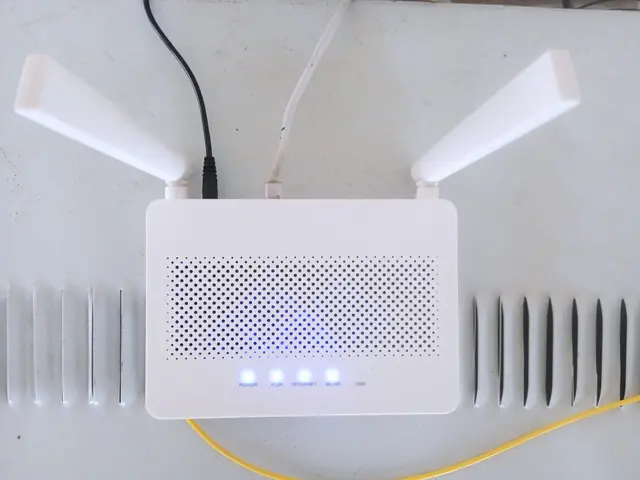
The ONT (optical network terminal) receives the fibre from the splitter box outside and converts the light signal into an electrical signal on a copper network port (Figure 1). ONTs supplied by ISPs usually combine a router and Wi-Fi in one box, which is why people call them a "Wi-Fi modem". An ONT has an optical signal light (usually marked PON or LOS); a red or blinking LOS light means loss of optical signal, so the fault is on the fibre side, not the Wi-Fi.
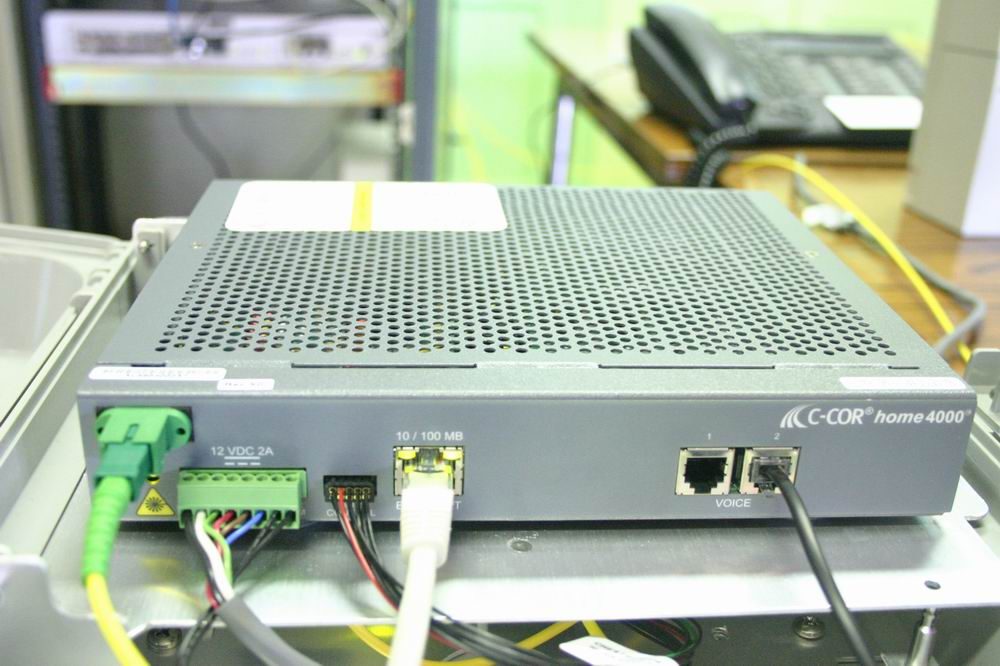
Photo: The original uploader was L archi at French Wikipedia . / Wikimedia Commons, CC BY 1.0
Notice the 10/100 marking on the port in Figure 1: this port tops out at 100 Mbps and will cap the speed even on a much faster plan.
The router: addressing and routing
The router connects the home network to the ISP's network. It runs DHCP, NAT and a firewall, and dials PPPoE with the ISP account when needed. On the back there is one WAN port (usually a different colour) facing outwards and several LAN ports for devices in the home (Figure 2).
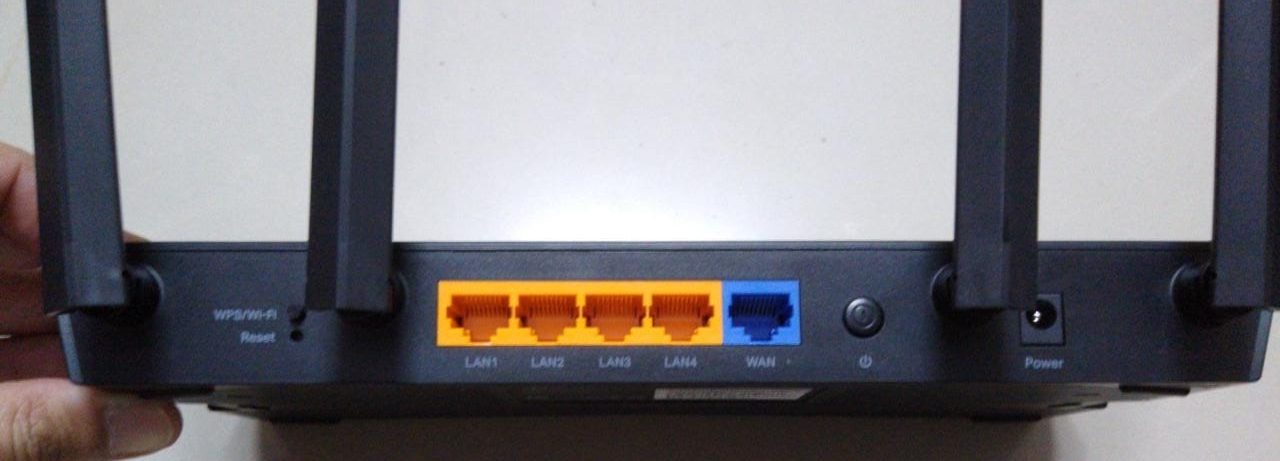
Photo: Abhi25t / Wikimedia Commons, CC BY-SA 4.0
Routers have two common modes: router mode (runs its own DHCP and NAT) and access point mode (DHCP and NAT off, only broadcasting Wi-Fi). An ONT can also run in bridge mode so the router behind it dials PPPoE; this usually needs the ISP to configure or allow it.
The switch: more cabled ports in the same network
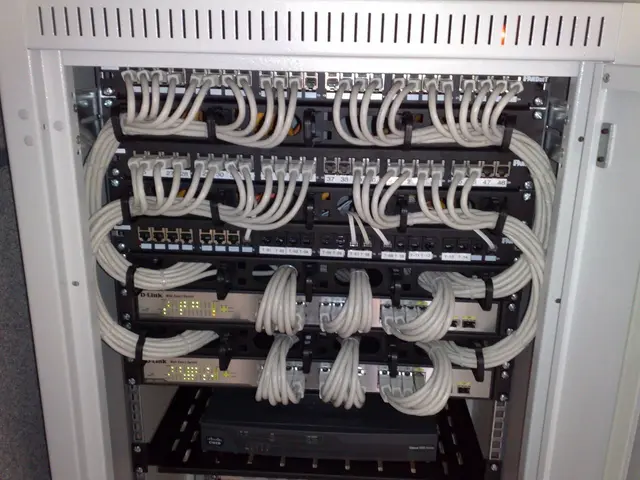
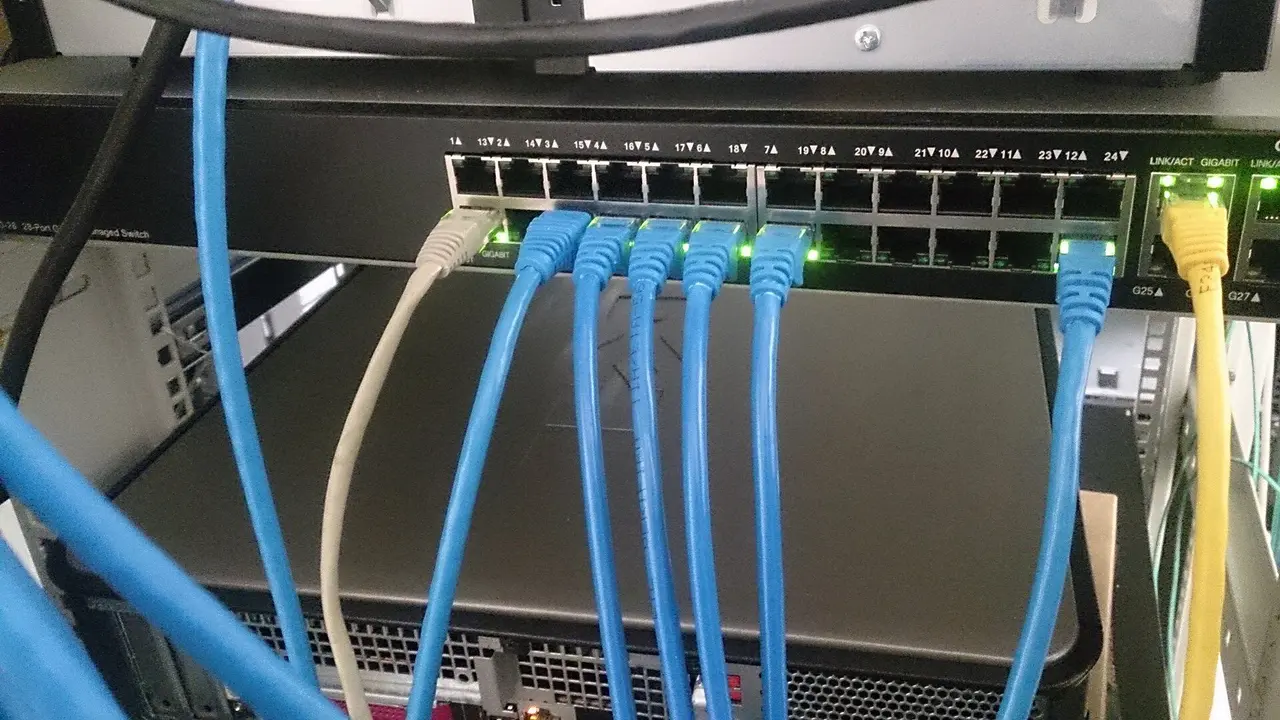
A switch connects many cabled devices within one network. It learns the MAC address on each port so it can send packets to the right place. A switch does not hand out IP addresses and cannot reach the internet unless it is connected to a router. An ordinary switch is plug-and-play; a managed switch lets you configure VLANs and check errors on each port. Figure 3 shows a switch in a network cabinet with patch cords plugged in and green link lights.
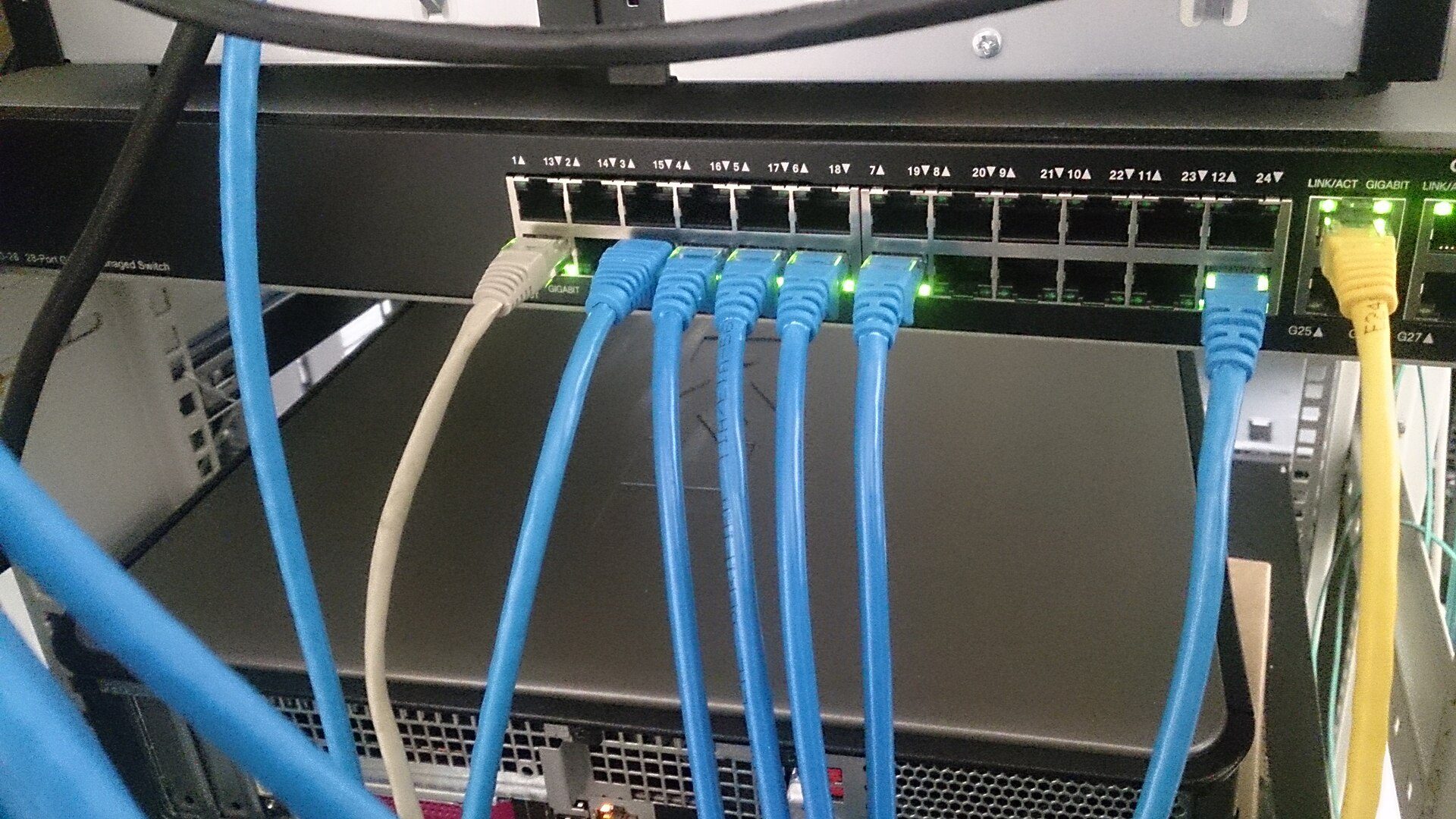
Photo: ProjectManhattan / Wikimedia Commons, CC BY-SA 3.0
The access point: Wi-Fi from a cabled point
An access point (AP) does one job: it turns the cabled network into a Wi-Fi signal. APs are usually mounted high on a wall or ceiling and receive both data and power over a single network cable (PoE), as in Figure 4.
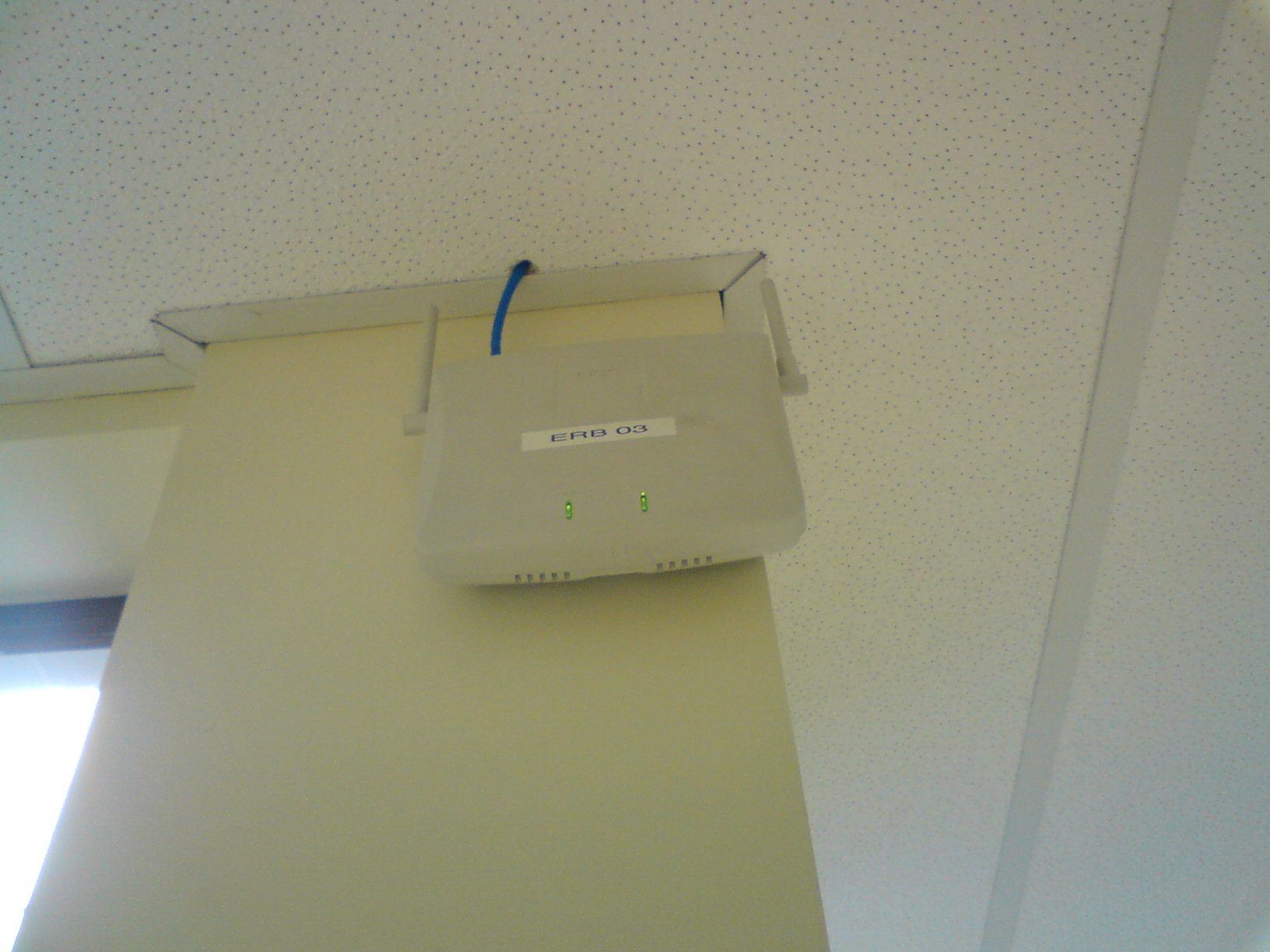
Photo: Rodrigo César / Wikimedia Commons, Public domain
Summary of device roles
| Device | Main job | Ports and lights to check | Common failures |
|---|---|---|---|
| ONT (fibre modem) | Converts light to electrical signal, often also router and Wi-Fi | Green optical port, PON/LOS light, LAN ports | Red LOS from a broken or kinked fibre; 100 Mbps ports |
| Router | DHCP, NAT, PPPoE, firewall, routing | WAN port, LAN ports, Internet light | Two DHCP servers in one network, double NAT, overload |
| Switch | Adds cabled ports, VLANs if managed | Per-port lights, 100/1000 speed | Old 10/100 switch, cable loops |
| Access point | Broadcasts Wi-Fi from the cabled network | LAN/PoE port, status light | DHCP left on by mistake, wrong PoE standard |
The 2.4 and 5 GHz bands and Wi-Fi generations
Wi-Fi is the last link and also where speed drops the most. Separate the band (the path the signal takes) from the Wi-Fi generation (the technology in the device). Measuring signal in dBm, choosing channels and placing the router are covered in the lesson on how to fix weak Wi-Fi; here we focus on the principles.
2.4 GHz goes further, 5 GHz goes faster
The 2.4 GHz band has a longer wavelength so it passes through walls better, but it is crowded: only three non-overlapping channels (1, 6 and 11). The 5 GHz band has more channels and can use wide 80 MHz channels for high speed, but it weakens quickly through walls and floors. Most Wi-Fi cameras, smart plugs and older printers only run on 2.4 GHz, so never switch that band off.
Wi-Fi generations and link speed
The number printed on a router box (AX3000, BE5000 and so on) is the total maximum of all bands added together, not what one phone receives. Link speed depends on the weaker device, the channel width and the number of antenna streams. The table below gives the theoretical link speed for two-stream (2×2) devices, common in phones and laptops.
| Generation | Standard | Bands | Typical 2×2 link speed |
|---|---|---|---|
| Wi-Fi 4 | 802.11n | 2.4 and 5 GHz | 144 Mbps (20 MHz channel), 300 Mbps (40 MHz) |
| Wi-Fi 5 | 802.11ac | 5 GHz | 867 Mbps (80 MHz) |
| Wi-Fi 6 | 802.11ax | 2.4 and 5 GHz | 1,201 Mbps (80 MHz), 2,402 Mbps (160 MHz) |
| Wi-Fi 6E | 802.11ax | Adds 6 GHz | Same as Wi-Fi 6, 160 MHz channels easier to use |
| Wi-Fi 7 | 802.11be | 2.4, 5 and 6 GHz | 2,882 Mbps (160 MHz), up to 5,765 Mbps (320 MHz) |
Real download speed measured with an app is usually only about 50–70% of the link speed, because Wi-Fi spends time waiting for its turn to transmit and acknowledging packets. The 6 GHz band only works when both router and device support it and when the frequency is permitted under the spectrum rules currently in force in Vietnam; check official information before advising a customer to buy 6E or 7 equipment for the sake of the 6 GHz band.
What Wi-Fi 6 changes in a busy home
Wi-Fi 6 shares airtime more efficiently between many devices at once (OFDMA). But both router and device must be Wi-Fi 6; a Wi-Fi 4 phone on a Wi-Fi 6 router still runs at Wi-Fi 4 speed.
Why Wi-Fi is slow despite a fast plan: the speed chain
The speed a customer measures is the speed of the slowest link along the path: the fibre line and plan, the ONT port, router, switch, cables, Wi-Fi signal, the device's Wi-Fi chip and even the test server.
Six common bottlenecks
- 100 Mbps ports on old ONTs, old switches, TVs and set-top boxes: a cabled test stops at about 90–94 Mbps.
- A damaged pair or bad termination: gigabit needs all four pairs; a broken pair on pins 4, 5, 7 or 8 drops the link to 100 Mbps (see the lesson on how to crimp an RJ45 network cable).
- Old devices: a Wi-Fi 4 phone with only 2.4 GHz and one antenna stream links at 72 Mbps at most.
- Weak signal, interference or falling back to 2.4 GHz: through two concrete floors, on the same channel as neighbours, or a 5 GHz-capable device pushed onto 2.4 GHz.
- An overloaded router or double NAT: an old router cannot handle high speeds, or two routers are stacked.
- Testing the wrong way: testing while the family streams video, through a VPN, or against an overseas server.
The three-step test to narrow it down
Test 1: a laptop with a gigabit port cabled straight into the ONT, Wi-Fi off on the laptop, a domestic test server. About 80–95% of the plan speed means the ISP line is fine. Test 2: the same laptop cabled through the switch or a wall outlet, to check the in-home cabling. Test 3: over Wi-Fi with the customer's own problem device, 2–3 m from the router, noting the band and link speed. Compare the three numbers; the bottleneck is where the speed drops sharply.
Explaining it to customers in plain words
Think of water pipes: a big pipe reaches the door, but if one short section inside is narrow (a 100 Mbps switch), the tap only delivers what the narrowest section allows. Show the customer the numbers before and after.
Worked example: a three-storey house on a 500 Mbps plan that still feels slow
Ms Hanh's house in Bien Hoa has three storeys and a 500 Mbps fibre plan. The ISP's ONT on the ground floor broadcasts Wi-Fi. A family member added a Wi-Fi 6 router on the first floor, with its WAN port plugged into a LAN port on the ONT; next to the ONT an old five-port switch connects the TV and the camera recorder. She complains that 4K video on the TV keeps pausing, her mother's phone only gets a few dozen Mbps, and the camera app connects only sometimes.
Draw the diagram and read the addresses
You draw it: fibre → ONT (router mode, DHCP, network 192.168.1.x) → two branches: the old switch → TV and recorder; and the first-floor router (router mode, DHCP, network 192.168.0.x). Phones on the first floor get 192.168.0.x addresses while the recorder sits at 192.168.1.x: two different networks behind two layers of NAT, which is why the camera app's local search finds the recorder only sometimes.
Test results
| Test | Conditions | Result | Conclusion |
|---|---|---|---|
| Test 1 | Laptop cabled straight into the ONT | 470 Mbps | Line is fine (94% of the plan) |
| Test 2 | Laptop cabled through the old switch | 94 Mbps | The switch only has 10/100 ports |
| Test 3a | Wi-Fi 6 phone, 5 GHz, next to the first-floor router | 430 Mbps | Wi-Fi is good, close to the plan |
| Test 3b | Mother's phone, Wi-Fi 4, 2.4 GHz only, 72 Mbps link | 38 Mbps | Limit of the phone, not a network fault |
Check: 470 / 500 = 0.94, that is 94% of the plan; 38 / 72 ≈ 0.53, about 53% of the link speed, within the normal 50–70% range for Wi-Fi.
Fixes and the IP plan
Three jobs: replace the old switch with a gigabit switch; switch the first-floor router to access point mode (DHCP and NAT off) so the whole house shares one 192.168.1.x network; reserve IPs for the recorder and TV. The 254 usable addresses of 192.168.1.0/24 are split as follows (if the ONT does not let you change the DHCP range, just record the default range and the reserved addresses):
| Address range | Used for | Addresses |
|---|---|---|
| 192.168.1.1 | Gateway (ONT) | 1 |
| 192.168.1.2 – .19 | Network gear: first-floor router in AP mode, a future managed switch | 18 |
| 192.168.1.20 – .49 | Fixed devices: recorder, cameras, TV, printer | 30 |
| 192.168.1.50 – .249 | DHCP pool for phones and laptops | 200 |
| 192.168.1.250 – .254 | Spare | 5 |
| Total | 254 | |
Check: 1 + 18 + 30 + 200 + 5 = 254, exactly the number of usable addresses in a /24. Costs (2026 reference, varies by region): a five-port gigabit switch 250,000 VND, two Cat6 patch cords × 30,000 VND = 60,000 VND, testing and configuration labour 300,000 VND; total 250,000 + 60,000 + 300,000 = 610,000 VND (about 24 USD). Retest after the fixes: the TV cabled through the new switch reaches about 460 Mbps and the camera app finds the recorder reliably. The mother's phone still gets about 38 Mbps: that is the phone's limit, and it is still enough for video calls.
Common diagnosis mistakes and how to avoid them
Beginners often fix things by feel; these two mistakes are the most common.
Resetting the ISP modem "to see if it helps"
Sign: after holding the Reset button, the Internet light goes out completely. Cause: a reset wipes the PPPoE account, VLAN numbers and ISP settings. How to avoid it: never reset an ONT without the configuration details or the ISP's permission; restarting with the power button is enough in most cases.
Blaming Wi-Fi when a device shows 169.254.x.x
Sign: the device says "no internet" and has a 169.254.x.x address. Cause: no DHCP response because of the cable, the switch port, or DHCP being turned off on the router. Fix: try another port and cable, and check that DHCP is on in the main router and still has free addresses.
Safety and responsibility warning: do not unplug the fibre from the ONT and look into the port or the fibre end; the infrared light in optical fibre is invisible but can harm your eyes (review the lesson on telecom field safety). Do not open ONT or adapter cases, and never wire 220V mains to a router or AP yourself; use only the correct adapter or PoE supply. ISP equipment belongs to the ISP: changing modes, updating firmware or resetting must follow their rules. Admin passwords, Wi-Fi passwords and customer data are private: do not photograph or keep them after handover.
Frequently asked questions
What is the difference between a modem and a router?
A modem (an ONT for fibre) converts the line signal into a cabled network signal. A router hands out IP addresses, runs NAT and routes traffic for devices in the home. ISP modems now usually combine router and Wi-Fi in one box, so customers use the two words interchangeably.
How is a router different from a switch?
A router connects your home network to the internet and hands out IPs. A switch only adds ports within the same network and does not hand out IPs.
What is the IP address 192.168.1.1?
It is usually the gateway, the router or ONT in the home. Typing it into a browser opens the device's admin page. Some brands use 192.168.0.1; checking the gateway line on the device is the surest way.
Does a 1 Gbps plan need a Wi-Fi 6 router?
For newer devices to reach several hundred Mbps over Wi-Fi, use a router and devices with Wi-Fi 6 or newer. To get close to 1 Gbps, use a cable on a gigabit port; real tests usually top out around 940 Mbps.
Practice tasks and self-assessment
- Record the IP, subnet mask, gateway and DNS of your computer and phone, and name the private IP range each belongs to.
- Draw your home network diagram and mark which device runs DHCP.
- Run the three-step test with two devices and work out the ratio of measured speed to link speed.
- Draw up an IP plan for your home /24 network following the example; the address count must total 254.
Self-assessment criteria
- Pass: you correctly identify the gateway and DNS, and can tell private IPs, public IPs and 169.254.x.x apart.
- Pass: your diagram has exactly one device handing out DHCP; you can explain each box's role in two minutes.
- Pass: you locate the speed bottleneck with measurements, and your ratios and IP plan add up.
- Not yet: you conclude "the line is slow" from one Wi-Fi test, reset the ISP modem to experiment, or leave two routers handing out IPs.
Once you are confident with IP, DHCP, NAT, VLANs and the role of each device, move on to the next step of the roadmap: FTTH drop cable & ONT installation, where you run the fibre into the home, measure optical power and configure the ONT, PPPoE and Wi-Fi for the customer.
Keep learning the network installer trade: after networking basics come FTTH drop cable and ONT installation, fibre splicing, office cabling, mesh Wi-Fi and troubleshooting. See the 8-step network and internet installer roadmap to track your progress.