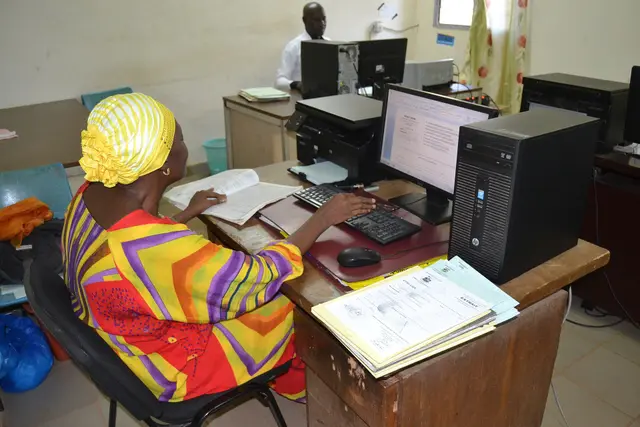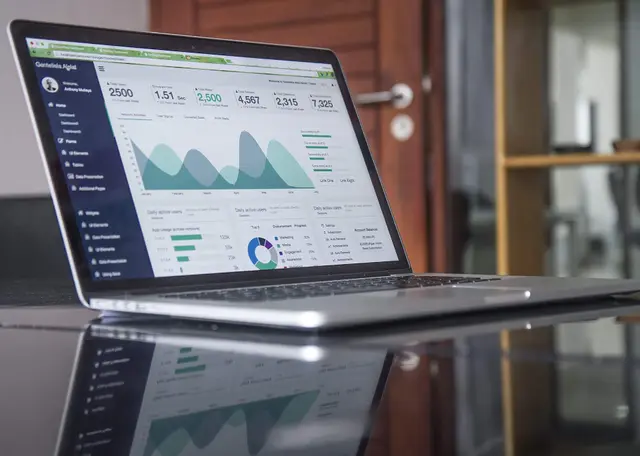
Organising files on your computer well comes down to three habits: name files with one fixed pattern (date, project, content, version), keep folders no more than 3–4 levels deep by year and type of work, and save to OneDrive or Google Drive so you have a copy and version history. Alongside that come about 15 everyday keyboard shortcuts and a few information security rules: strong passwords, spotting phishing emails, not opening unknown attachments and not sharing public links carelessly. This is the first lesson of the office computing roadmap, written for people starting their first office job or using a computer for work for the first time.
By the end of this lesson, you will be able to:
- Name files with the pattern Date_Project_Content_Version so you can find them again in seconds.
- Build a 3-level work folder tree and clean up your Downloads and Desktop in 30 minutes.
- Save, sync, restore older versions and share with the right permissions on OneDrive or Google Drive.
- Use 15 basic shortcuts confidently on Windows (and their Mac equivalents).
- Create strong passwords, turn on two-step verification, and recognise phishing emails and dangerous attachments.
New to office computing? File management, shortcuts and information security are step 1 of the roadmap, before Word, Excel and PowerPoint. See the 8-step office computing roadmap (Excel, Word) to learn in the right order.
Why is file management the first skill to learn?
New office workers often think office computing means Excel and Word. But the mistakes managers complain about most are sending an old version by mistake, losing files when a laptop dies, and spending half a morning hunting for a contract.
Three common problems for new staff
- Duplicate names, no idea which version is newest: "Quote.xlsx", "Quote new.xlsx", "Quote final 2.xlsx".
- Everything lives on the Desktop and in Downloads: a screen full of icons where nobody can find anything.
- Only one copy, on the laptop: a failed drive, theft or malware and everything is gone.
What good file management does for you
You can find documents in seconds with the search box, send the right version to customers, and hand work over to a colleague when you are on leave without long explanations. It is also the foundation for later steps: clearly named Excel files make reporting, lookups and summaries much easier.
File naming rules: easy to find, no version mix-ups
A good file name answers three questions without opening the file: what job it belongs to, what date it is from, and which version it is.
The recommended naming pattern
Use the pattern YearMonthDay_Project_Content_vNumber, for example 2026-11-24_ShopAnNhien_Quote_v02.xlsx. Write the date as year-month-day so that sorting by name puts files in date order automatically. Use two-digit version numbers (v01, v02… v10) so v10 does not sort before v02.
Things to avoid
- Words like "final", "newest", "last version": a "final" file always gets edited again.
- Characters Windows does not allow in file names:
\ / : * ? " < > |. - Very long names and deeply nested folders: long paths can cause errors when syncing or unzipping.
- Vietnamese diacritics and spaces in files you send out or upload to other systems: some software and websites misread them; the safest choice is plain letters joined with underscores or hyphens.
Before-and-after renaming table
| Old name | New name by the rule | Why it is better |
|---|---|---|
| Quote final 2.xlsx | 2026-11-24_ShopAnNhien_Quote_v02.xlsx | Shows customer, date and version |
| Scan0001.pdf | 2026-11-20_Supplier-MinhAnh_Contract_Signed.pdf | Shows document type and partner |
| New picture.jpg | 2026-11-18_SP-A102_ProductPhoto_01.jpg | Searchable by product code |
| Monthly report!!.docx | 2026-10_SalesReport_v01.docx | Sorts correctly by month |
The partner name in the second example is only an illustration. Agree on one naming pattern with your team or company; if the company already has its own rule, follow that.
Organising folders and saving to OneDrive or Google Drive
Folders are like a filing cabinet: a few drawers, each for one kind of work. Too many levels means endless clicking; too few means one folder holding thousands of files.
A 3-level folder tree
An easy layout for office staff and small shops:
Work
├── 00_ToProcess      (newly received files; move them once handled)
├── 2026
│   ├── 01_Sales
│   │   ├── Quotes
│   │   └── Invoices
│   ├── 02_Stock
│   └── 03_HR
├── Templates         (contract and quote templates to reuse)
└── 99_Archive        (finished projects)
Numbers at the start of folder names keep a fixed order when sorted. The Desktop is for shortcuts only, not working files. Clear out Downloads once a week: rename and move files you need into the right folder, delete the rest.
Saving to OneDrive or Google Drive
Put the Work folder inside your OneDrive or Google Drive folder on the computer so files sync to the cloud automatically. The benefits: files survive a dead laptop, you can open them on your phone, and version history lets you recover an older version after an accidental overwrite. Free plans have limited storage (Google shares it across Gmail, Drive and Photos), so check the current allowance on the official page. Use your company account for company data and do not mix it into a personal account.
Backing up with the 3-2-1 rule
Important documents should have 3 copies, on 2 different kinds of storage, with 1 copy away from the workplace (usually the cloud copy). Syncing is not a complete backup: delete a file on the computer and the cloud copy is deleted too, staying only in the recycle bin for a limited time. For critical files, keep an extra copy on an external drive stored somewhere safe.
The 15 most useful office shortcuts
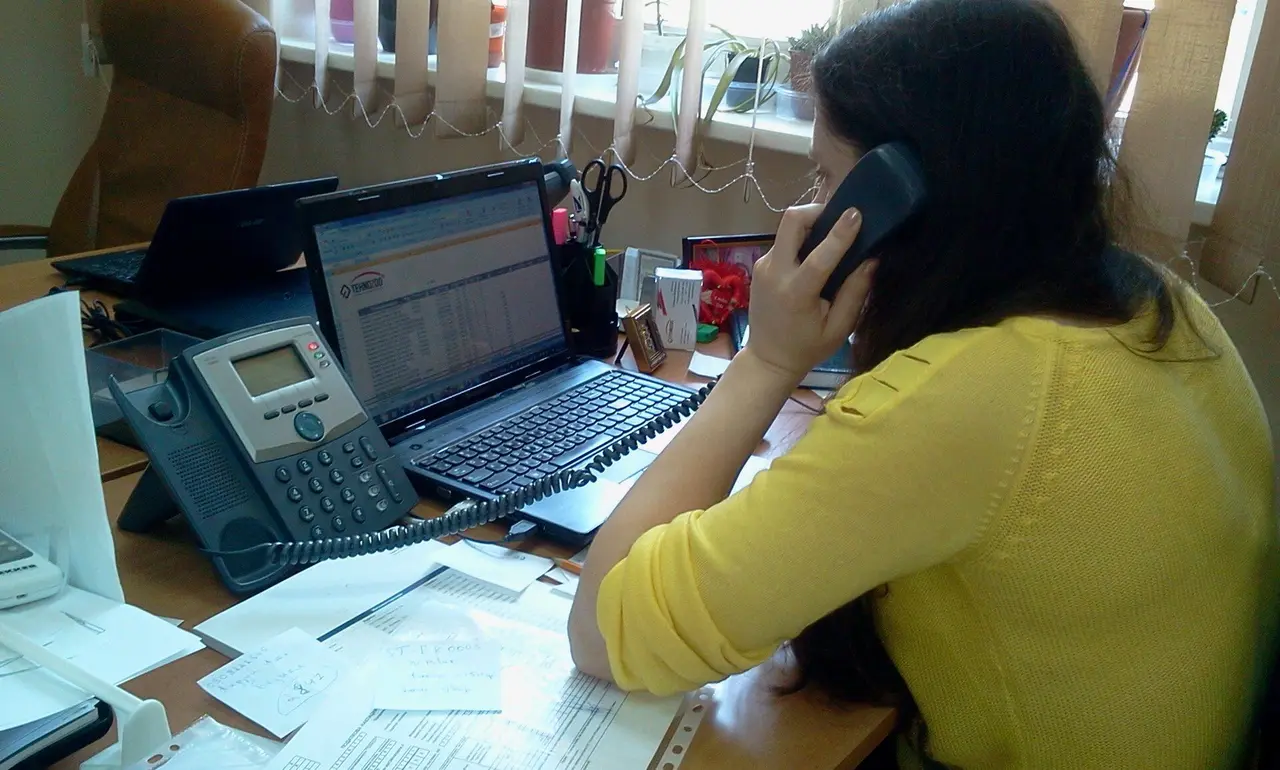
Shortcuts make you faster and spare your wrist from constantly reaching for the mouse (Figure 1). Most Windows shortcuts start with the Ctrl key (Figure 2); on a Mac, Ctrl is replaced by Cmd (⌘).

Photo: www.Pixel.la Free Stock Photos / Wikimedia Commons, CC0
Basic shortcut table
| Task | Windows | Mac |
|---|---|---|
| Copy / Cut / Paste | Ctrl + C / Ctrl + X / Ctrl + V | Cmd + C / Cmd + X / Cmd + V |
| Undo / Redo | Ctrl + Z / Ctrl + Y | Cmd + Z / Cmd + Shift + Z |
| Save the file | Ctrl + S | Cmd + S |
| Find in a file or web page | Ctrl + F | Cmd + F |
| Select all | Ctrl + A | Cmd + A |
| Switch between windows | Alt + Tab | Cmd + Tab |
| Open the file manager | Windows + E | Cmd + Option + Space (opens a Finder window) |
| Rename the selected file | F2 | Enter (Return) |
| Create a new folder | Ctrl + Shift + N (in File Explorer) | Cmd + Shift + N (in Finder) |
| Capture part of the screen | Windows + Shift + S | Cmd + Shift + 4 |
| Lock the computer when you leave | Windows + L | Ctrl + Cmd + Q |
| Reopen a just-closed browser tab | Ctrl + Shift + T | Cmd + Shift + T |
How to learn shortcuts and keep them
Each week, pick 3 shortcuts, stick a note next to the screen and force yourself to use them instead of the mouse. Start with Ctrl + S (save often), Windows + L (lock the computer) and F2 (rename), because these three tie directly to file management and security.
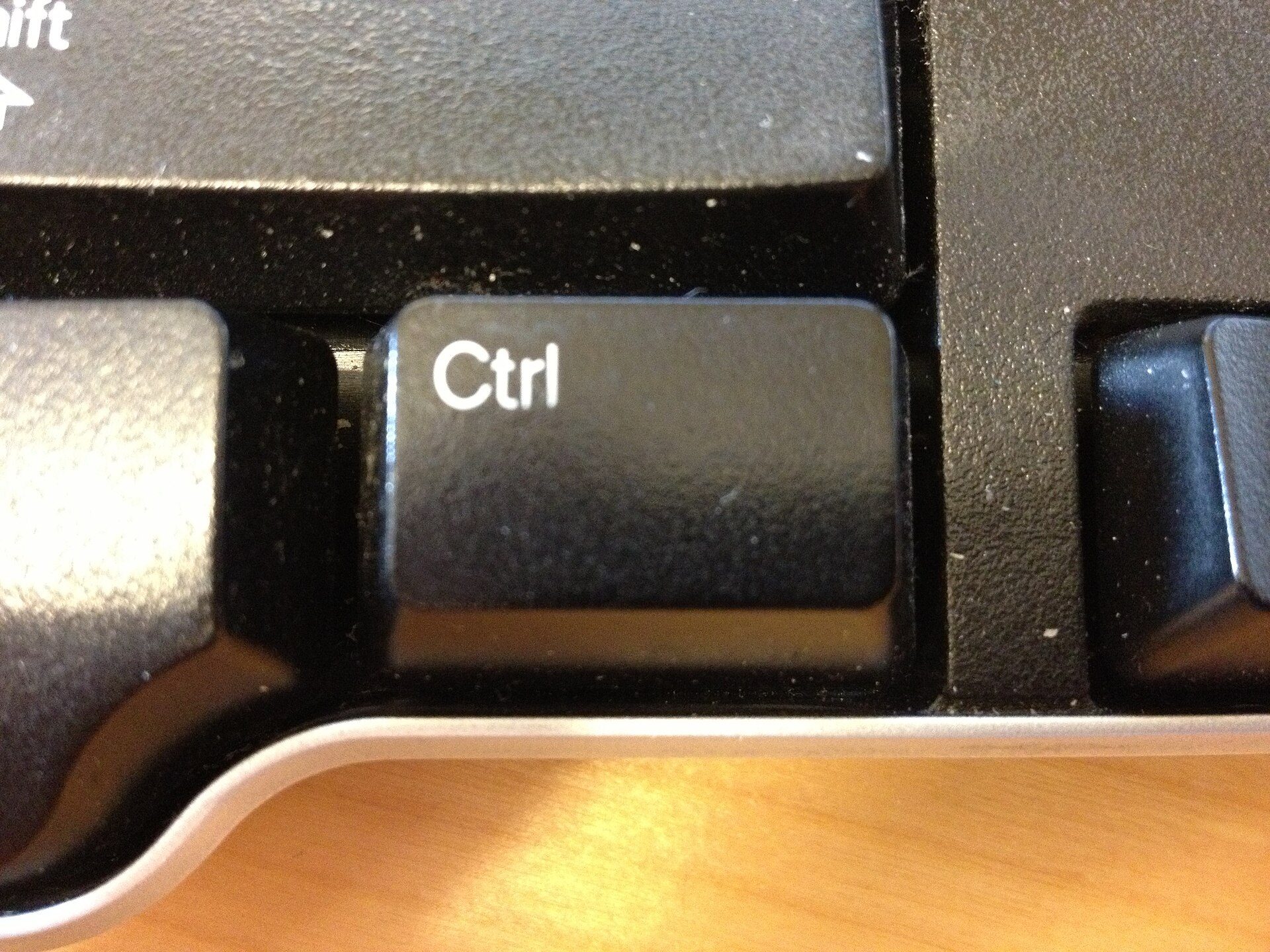
Photo: User:zerblatt007 / Wikimedia Commons, CC BY-SA 3.0
Word and Excel shortcuts
Word and Excel have many more shortcuts of their own, such as bold, inserting rows and jumping around a spreadsheet. You will learn them in the Word and Excel steps of the roadmap; at this step you only need the shortcuts shared by all programs.
Information security: passwords, phishing, attachments
Office staff hold valuable data: customer lists, payroll, contracts, company bank accounts. Criminals usually do not "hack" the computer; they trick the person using it.
Strong passwords and two-step verification
- Use a long passphrase that is easy for you to remember but hard to guess, for example 4–5 unrelated words plus numbers, instead of a birthday or "123456".
- Use a different password for every service, with a password manager so you do not need to remember them all.
- Turn on two-step verification (2FA) for email, Drive and banking; prefer an authenticator app over SMS where possible.
- Never stick passwords on the screen or send them by chat.
Spotting phishing emails
Phishing emails often pretend to come from a bank, your boss, a partner, the IT department or a delivery company. Common signs: the sender's address is a few characters off the real domain; an urgent tone ("your account will be locked in 24 hours"); a request to click a link to log in or to transfer money quickly; a generic greeting; a link that shows a strange address when you hover over it. If in doubt, do not click; call the sender back on a number you already knew, never the one in the email.
Malicious attachments
Be careful with .exe, .scr and .js files, unexpected archives (especially password-protected archives with the password in the email), .html files asking you to log in, and Word or Excel files that ask you to click "Enable Content" or "Enable Macros". Malware can encrypt all your data and demand a ransom. Never plug a found or unknown USB stick into a work computer.
Security warning: If you clicked a strange link, typed your password into a fake page or opened a suspicious attachment: disconnect that computer from the network (unplug the cable or turn off Wi-Fi), tell IT or your manager immediately, change the affected passwords from another device and turn on two-step verification. If you gave out card or bank details, call your bank's hotline at once to block them. Do not hide it for fear of blame: reporting a few minutes earlier can save the whole company's data.
Sharing links and locking your screen
When sharing on Drive or OneDrive, choose "only people added" and the right permission (view, comment, edit). Never set "anyone with the link" on files containing personal data such as ID numbers, customer phone numbers or payroll. Set an expiry and remove access when the work is done. Whenever you leave your desk, even for 2 minutes, press Windows + L to lock the screen (Figure 3 makes the point with a joke: you do not need to chain the laptop, just lock the screen and use a good password). Personal data of customers and colleagues is protected by law in Vietnam; follow your company's rules and the current regulations.
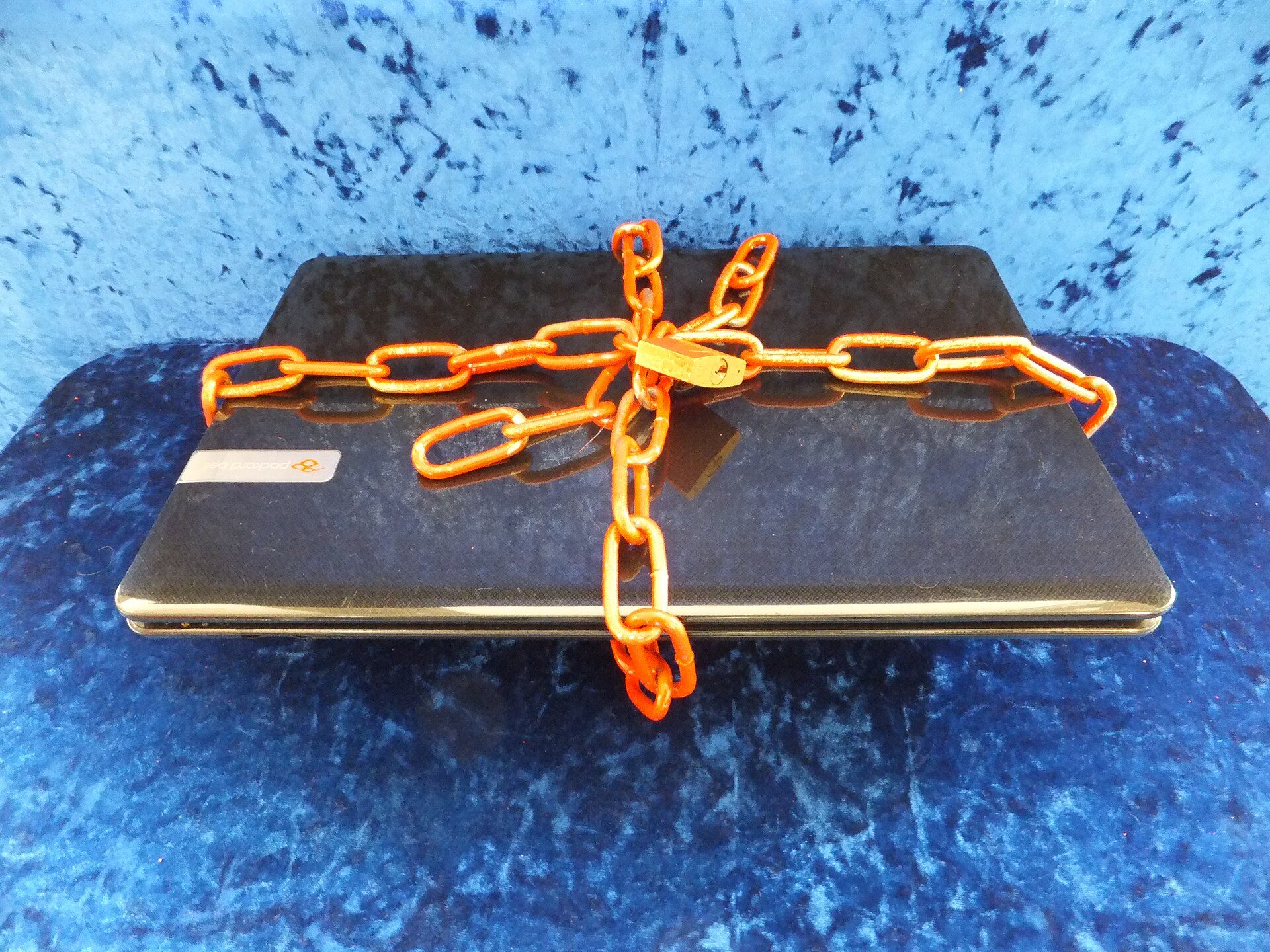
Photo: Richard Nowell / Wikimedia Commons, CC BY-SA 4.0
Worked example: tidying 120 files on a new employee's laptop
Linh has just started as a sales assistant at an online shop. After 2 months, her Downloads folder holds 120 messy files, and every time a customer asks about an old quote she spends several minutes searching.
Step 1: sort the 120 files
| File type | Files | Estimated size | Action |
|---|---|---|---|
| PDF invoices | 45 | 45 × 0.2 MB = 9 MB | Rename, move to 2026/01_Sales/Invoices |
| Product photos | 30 | 30 × 4 MB = 120 MB | Rename by product code, move to a photo folder |
| Excel quotes | 25 | 25 × 0.5 MB = 12.5 MB | Keep the latest per customer, rename with v01, v02 |
| Scanned contracts | 12 | 12 × 1 MB = 12 MB | Rename by partner, move to a contracts folder |
| Installers and duplicates | 8 | 8 × 2.5 MB = 20 MB | Delete |
| Total | 120 | 173.5 MB | Keep 112 files, 153.5 MB |
Check: 45 + 30 + 25 + 12 + 8 = 120 files; 9 + 120 + 12.5 + 12 + 20 = 173.5 MB; removing the 8 junk files leaves 112 files and 173.5 − 20 = 153.5 MB, which syncs to Drive comfortably within the free allowance.
Step 2: work out the time saved
- Before: each search takes about 3 minutes, 15 searches a day: 3 × 15 = 45 minutes a day.
- After tidying and consistent naming: searching with the search box takes about 0.5 minutes: 0.5 × 15 = 7.5 minutes a day.
- Saved: 45 − 7.5 = 37.5 minutes a day; over 22 working days: 37.5 × 22 = 825 minutes, about 13.75 hours a month.
Step 3: habits that keep it tidy
Linh sets a reminder for 4 pm every Friday to spend 10 minutes clearing Downloads, saves new files straight into 00_ToProcess, and sends customers quotes as properly named PDF files instead of a Drive link open to everyone.
Common mistakes and how to avoid them
Editing an attachment directly inside the email
Sign: after editing you cannot find the file. Cause: it was opened from a temporary folder. Prevention: download it, rename it, save it to the right folder and only then edit.
Overwriting the old version
Sign: you need the previous version but it is gone. Cause: always saving over the top. Prevention: for big changes, "Save As" a new version number; use version history on OneDrive or Google Drive when you slip up.
One password for every account
Sign: one website leaks its data and criminals get into your work email. Cause: reusing a password. Prevention: a unique password per account, a password manager and 2FA.
Sharing internal files with "anyone can view"
Sign: the link is forwarded outside the company. Cause: picking the quickest sharing option. Prevention: share by recipient email, with the minimum permission needed, and remove access when done.
Frequently asked questions
Should I save files on drive C or drive D?
Having a copy matters more than which drive. Save inside a synced OneDrive or Google Drive folder and back up important files to one more place. If your work computer has a rule about where to save, follow IT's instructions.
Can I use Vietnamese diacritics in file names?
On your own computer it is usually fine, but when files are emailed, uploaded or unzipped on another machine, the names can come out garbled. For files you send outside, use names without diacritics.
How can I tell if an email is a phishing attempt?
Check the sender's address, hover over links to see the real address, and be wary of urgent requests to log in or transfer money. If in doubt, verify by phoning a number you already knew and report it to IT.
Where should I start with office keyboard shortcuts?
Start with copy, paste, undo, save, find, switching windows and locking the computer. Add 3 shortcuts a week, and after a month they will be second nature.
Practice tasks and self-assessment
- Create the 3-level Work folder tree inside your OneDrive or Google Drive folder.
- Clear out Downloads: rename at least 20 files with the naming pattern, move them to the right folders and delete the rest.
- Use 12 shortcuts from the table during one working day and tick off each one you used.
- Turn on two-step verification for your main email and review the sharing settings of 5 files on Drive.
Self-assessment criteria
- Pass: you can find any file within 10 seconds using the search box or the folder tree.
- Pass: no working files left on the Desktop; file names include a date and version.
- Pass: 2FA is on for your email; no internal file is set to "anyone with the link".
- Not yet: files still called "final" or "newest", a shared password across accounts, or leaving your desk without locking the screen.
Once your computer is tidy and secure, move on to the next step of the roadmap: Professional Word documents, where you learn styles, automatic tables of contents, page numbering and correct margins for administrative documents. The Excel lessons later in the roadmap, such as VLOOKUP in Excel and Excel Pivot Tables, become much easier once your data files are named and organised properly.
Keep learning office computing: after file management come Word documents, Excel basics, lookups and data cleaning, pivots, PowerPoint, Google Workspace and certificate exams. See the 8-step office computing roadmap (Excel, Word).