Bash and Python scripting for automation means turning the operations work you type by hand every day (reading logs for errors, backing up a database, checking that services are alive, cleaning up unused cloud resources) into code that runs the same way every time, runs on a schedule with cron and tells you when something breaks. Bash is the right tool for chaining Linux commands; Python is better for calling cloud APIs and handling JSON. This is step 2 of the DevOps and cloud engineer roadmap, right after Linux and networking. The two beginner mistakes that cause the most damage are scripts that keep running after an error and passwords written into source code; this lesson shows how to block both from the very first line.
By the end of this lesson, you will be able to:
- Write Bash scripts from a safe template: stop on errors, log with timestamps, clean up temporary files and pass shellcheck.
- Write three core operations scripts: count 5xx errors in Nginx logs, back up a database with rotation, and health-check services with retries.
- Write a Python script that calls a cloud API with timeouts, pagination and a dry-run mode before deleting anything.
- Schedule jobs with cron in the right time zone, without overlapping runs, with logs you can read when something fails.
- Keep passwords and tokens out of source code, and know what to do if you accidentally commit a secret to Git.
Learning DevOps properly? Bash and Python scripting is step 2 of the 9-step roadmap, after Linux and networking and before Git and CI/CD, Docker, Kubernetes and cloud. See the DevOps and cloud engineer roadmap to learn in the right order.
When to write a script, and Bash or Python?
In step 1 you got used to df, journalctl, systemctl and curl. Typing them once is quick, but typing them every morning on five servers wastes hours and invites mistakes. A script is an operations procedure written as code: whoever runs it gets the same result.
The "third time, write a script" rule
Do a task by hand the first time to understand it, the second time to confirm the steps, and the third time write a script. The exception is dangerous tasks you rarely do, such as restoring a database: the rarer they are, the more you should script them in advance, because during an incident nobody remembers every step.
Bash or Python: a quick chooser
| Situation | Use | Why |
|---|---|---|
| Chaining Linux commands: tar, gzip, rsync, find, systemctl | Bash | Available on every Linux machine, nothing to install |
| Filtering, counting and sorting text logs | Bash + awk, grep, sort | One command line handles millions of log lines |
| Calling APIs that return JSON, pagination, retries | Python | requests and boto3; clear JSON and exception handling |
| Branch-heavy logic that needs tests | Python | Easy to split into functions and test |
| A Bash script growing past roughly 100–150 lines | Move to Python | Long Bash is hard to maintain and prone to quoting bugs |
Scripts are code: put them in Git
Collect your scripts in one repository (for example ops-scripts), each file with a comment explaining its purpose, how to run it and which environment variables it needs. Changes get a history and a reviewer, and at the CI/CD step a pipeline will check the scripts automatically before they reach a server.
A safe Bash script template
By default Bash has three dangerous habits: when a command fails it carries on with the next one, an unset variable silently becomes an empty string, and a failure in the first command of a pipe goes unnoticed. Figure 1 shows a familiar scene for operations people, typing commands and reading output in a terminal, so every line in a script must be as trustworthy as a command you would type yourself.

Photo: Jemimus / Wikimedia Commons, CC BY 2.0
The first line: set -euo pipefail
#!/usr/bin/env bash
# backup-db.sh: back up the shop database, keep copies for 7 days
set -Eeuo pipefail

BACKUP_DIR="${BACKUP_DIR:-/var/backups/shop}"
KEEP_DAYS="${KEEP_DAYS:-7}"
LOG_FILE="/var/log/ops/backup-db.log"

log() { echo "$(date '+%F %T') [$1] $2" | tee -a "$LOG_FILE"; }
cleanup() { rm -f "${TMP_FILE:-}"; }
trap cleanup EXIT
trap 'log ERROR "Failed at line $LINENO, stopping"' ERR-e: any command that returns a non-zero exit code stops the script immediately.-u: using an unset variable is an error, an important safeguard for delete commands.-o pipefail: inpg_dump shop | gzip, if pg_dump fails the whole pipe fails. Without it, gzip still "succeeds" and you get an empty backup file.-E: makes theERRtrap fire for errors inside functions too.${BACKUP_DIR:-...}: use the environment variable if set, otherwise the default.
trap: clean up and report the failing line
trap cleanup EXIT runs the cleanup function whenever the script ends, success or failure, so no half-written temporary files are left behind. trap ... ERR writes the failing line number to the log, so the next morning you can see exactly where it broke.
Three small habits that prevent big mistakes
- Quote your variables:
"$BACKUP_DIR"; a path with a space and no quotes gets split in two. - Check inputs first: does the directory exist, is the tool installed (
command -v pg_dump); if not, say so clearly and exit non-zero. - Run shellcheck: this free tool flags unquoted variables and syntax mistakes. Treat its warnings as bugs to fix.
Three Bash scripts every DevOps engineer needs
Script 1: count Nginx 5xx errors per hour
In Nginx's default access log format, the HTTP status is field 9 and the time is field 4 (for example [27/Nov/2026:08:15:32). This counts 5xx errors per hour and also reads compressed rotated logs:
zcat -f /var/log/nginx/access.log* \
  | awk '$9 ~ /^5/ { split($4, t, ":"); hours[t[2]]++ }
         END { for (h in hours) print h "h", hours[h] }' \
  | sort
Add awk '{print $1}' access.log | sort | uniq -c | sort -rn | head -10 to see the ten busiest client IPs. If your log uses a custom format (JSON, extra fields), the field numbers change, so look at a few real log lines before writing the awk.
Script 2: database backup with rotation
main() {
  [[ -d "$BACKUP_DIR" ]] || { log ERROR "Missing $BACKUP_DIR"; exit 1; }
  local stamp
  stamp=$(date +%F_%H%M)
  TMP_FILE="$BACKUP_DIR/.shop_$stamp.sql.gz.part"

  pg_dump --no-owner shop | gzip > "$TMP_FILE"
  gzip -t "$TMP_FILE"
  mv "$TMP_FILE" "$BACKUP_DIR/shop_$stamp.sql.gz"

  find "$BACKUP_DIR" -name 'shop_*.sql.gz' -mtime +"$KEEP_DAYS" -delete
  log INFO "Backup done: shop_$stamp.sql.gz"
}
main "$@"
Three things worth learning: write to a temporary .part file and rename it only at the end, so there is never a file that looks like a backup but was cut off halfway; gzip -t checks that the archive is not corrupt; and find ... -delete removes only files matching the exact name pattern in the exact directory. The database password appears nowhere: pg_dump reads it from the ~/.pgpass file, mode 600, of the user running the script.

Photo: Derrick Coetzee from Berkeley, CA, USA / Wikimedia Commons, CC0
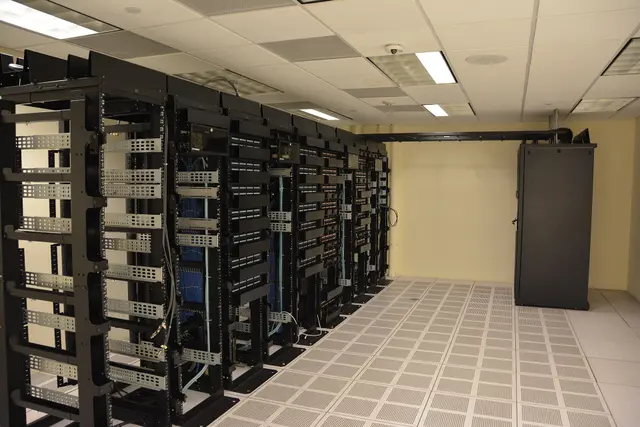
A backup on the same machine as the database is not really a backup: one failed disk and you lose both. The script should also copy each file to object storage or a machine in another location. As Figure 2 suggests, large data centers keep backup storage completely separate from the machines in service.
Script 3: service health check with retries
check_url() {
  local url=$1 code attempt
  for attempt in 1 2 3; do
    code=$(curl -s -o /dev/null -w '%{http_code}' --max-time 5 "$url") || code=000
    if [[ "$code" == "200" ]]; then return 0; fi
    if (( attempt < 3 )); then sleep 5; fi
  done
  log ERROR "$url returned $code after 3 attempts"
  return 1
}

failed=0
check_url "https://shop.example.vn/healthz" || failed=1
systemctl is-active --quiet myapi || { log ERROR "myapi is not running"; failed=1; }
exit "$failed"
--max-time 5 is the key: without it a hung service makes the script wait forever and the next check piles on top of the previous one. Three attempts mean a single network blip does not wake the whole team at 2 a.m. Exiting with code 1 on failure lets cron or your monitoring system know it should alert.
Python for cloud APIs: timeouts, pagination, dry runs
When you need to ask a system something through its API (virtual machines, disks, DNS records) and then decide what to do, Python is much easier to get right than Bash. If requests, status codes and JSON are still fuzzy, read What is a REST API? first.

Photo: Tsinkala / Wikimedia Commons, CC BY-SA 4.0
Calling an API safely with requests
import os
import requests

token = os.environ["DNS_API_TOKEN"]   # read from the environment, never hard-coded
resp = requests.get("https://api.example.com/v1/records",
                    headers={"Authorization": f"Bearer {token}"}, timeout=10)
resp.raise_for_status()
for record in resp.json()["records"]:
    print(record["name"], record["type"])
Always set timeout (requests waits forever by default), always call raise_for_status() so 4xx and 5xx responses become real errors, and read the token with os.environ["..."] so a missing variable stops the script at once with a clear message.
A boto3 example: find disks not attached to any machine
On AWS, an EBS volume detached from its instance and forgotten keeps costing money. This script lists volumes in the available state; by default it only prints, and it deletes only when you add --delete:
import argparse
import boto3

parser = argparse.ArgumentParser()
parser.add_argument("--region", default="ap-southeast-1")
parser.add_argument("--delete", action="store_true")
args = parser.parse_args()

ec2 = boto3.client("ec2", region_name=args.region)
total_gb = 0
filters = [{"Name": "status", "Values": ["available"]}]
for page in ec2.get_paginator("describe_volumes").paginate(Filters=filters):
    for vol in page["Volumes"]:
        total_gb += vol["Size"]
        print(vol["VolumeId"], vol["Size"], "GB")
        if args.delete:
            ec2.delete_volume(VolumeId=vol["VolumeId"])
print("Total unattached:", total_gb, "GB")
The script contains no access keys: boto3 looks for credentials in environment variables, then the AWS CLI configuration files, then the IAM role attached to the machine. On a cloud server, attaching an IAM role with only the permissions needed is the best option; you will study this properly in the AWS or Google Cloud & Terraform step.
Pagination and rate limits
Cloud APIs usually return results one page at a time. Forgetting pagination is a classic bug: with 50 disks the script is correct, with 2,000 it only sees the first page. When you hit rate limits (HTTP 429, throttling errors), back off with increasing waits and retry.
Cron jobs: on time and never overlapping
Cron reads a schedule table (the crontab) and runs commands on time. Each line has five time fields (minute, hour, day of month, month, day of week) followed by the command. Edit it with crontab -e and list it with crontab -l.
Reading the five fields
| Expression | Meaning | Used for |
|---|---|---|
*/5 * * * * | Every 5 minutes | Service health checks |
30 1 * * * | 1:30 a.m. every day | Database backup |
0 7 * * 1-5 | 7 a.m., Monday to Friday | Log report |
0 3 1 * * | 3 a.m. on the 1st of each month | Test restore of a backup |
Cron's environment is not your terminal
"It works by hand but not in cron" happens because cron uses a very short PATH, does not read your shell configuration and starts in a different working directory. Use absolute paths, set PATH at the top of the crontab and redirect output to a log file.
The second trap is the time zone. Check with timedatectl: many cloud servers default to UTC, so 30 1 * * * runs at 8:30 a.m. Vietnam time (UTC+7), right when customers are shopping.
flock to prevent overlapping runs
PATH=/usr/local/bin:/usr/bin:/bin
30 1 * * * flock -n /run/lock/backup.lock /opt/ops-scripts/backup-db.sh >> /var/log/ops/backup.cron.log 2>&1
flock -n holds a lock file: if the previous run has not finished, the next one is skipped, so two backups never write to the same directory at once. >> file 2>&1 sends both normal output and errors to the log. On machines with systemd you can also use a systemd timer, whose output goes to journalctl just like the services covered in Linux basics for DevOps.

Photo: Mike Reyher / Wikimedia Commons, CC BY 2.0
A scheduled script is only useful if its failures reach a person. Large companies route alerts to an operations room like the one in Figure 4; small teams have the script post to a team chat channel through a webhook. Send real failures immediately, but do not repeat the same alert every 5 minutes.
Keep passwords and tokens out of source code
Passwords and tokens written straight into scripts are the most common way beginners leak data. Once committed to Git, the string lives in the repository history, readable by anyone who clones it, even if you delete it in a later commit.
Where passwords leak from
- Source code and Git history: a
DB_PASS="..."line at the top of a script, a config file committed by mistake. - The command line:
mysql -pCHANGE_MEorcurl -u admin:CHANGE_MEshows up inpsfor every user and in shell history. - Logs:
set -xfor debugging prints every command with its variable values, tokens included.
Store secrets in the right place
# /etc/ops/backup.env  (chmod 600, owned by the backup user, NOT committed)
ALERT_WEBHOOK_URL=https://hooks.example.com/CHANGE_ME

# In the script:
set -a; source /etc/ops/backup.env; set +a
The repository holds only a template, backup.env.example, with CHANGE_ME values, and the real file name goes into .gitignore. A step up: a cloud secret manager (AWS Secrets Manager, Google Secret Manager) or Vault, and IAM roles instead of long-lived access keys.
What to do if you committed a secret
- Revoke it and issue a new one immediately, treating it as leaked. Removing it from Git without rotating it is pointless if anyone has cloned the repository.
- Put the new secret in the proper store and confirm the service works again.
- Review access logs for the exposure window, and report to whoever owns security following your company process.
- Install a secret scanner (such as gitleaks) that runs before every commit so it does not happen again.
Safety warning for scripts on real systems: Never run a script with delete operations (rm,find -delete, cloud API deletes) on production before testing it on staging, giving it a list-only mode and having a backup you have actually restored. Never build a delete path from a variable withoutset -uand an explicit non-empty check:rm -rf "$DIR/"with an empty DIR can turn into deleting from the root directory. Backups containing customer data must be access-controlled, encrypted where appropriate and handled in line with current personal data protection rules in Vietnam; if unsure, ask your legal team or security owner. Only run scripts on systems and accounts you are authorized to use.
Worked example: automating operations for an online shop
An online household goods shop runs on one application server (Nginx, a Node.js API) and one PostgreSQL server, with the time zone set to Asia/Ho_Chi_Minh. Every morning you do three tasks by hand. Goal: write the scripts, schedule them and work out how long it takes to win back the time invested.
Step 1: measure the manual work
| Daily manual task | Minutes/day | Replacement script | Hours to write and test |
|---|---|---|---|
| Read Nginx logs for 5xx errors and odd IPs | 10 | log-report.sh | 2 |
| Back up the database and copy it elsewhere | 12 | backup-db.sh | 3 |
| Open pages and check 3 services | 6 | check-services.sh | 2 |
| Set up cron, test restore, write a runbook | 0 | crontab, restore-test.sh | 1 |
| Total | 28 | 8 |
Check: 10 + 12 + 6 + 0 = 28 minutes a day; 2 + 3 + 2 + 1 = 8 hours of scripting. Operations run on weekends too, so 30 days is 28 × 30 = 840 minutes, or 14 hours of manual work. Payback: 8 hours = 480 minutes, divided by 28 minutes a day is about 17.1 days; from day 18 on, every saved minute is profit.
Step 2: schedule and backup storage
- 01:30 daily: backup-db.sh. The dump is about 1.6 GB and compresses to about 0.4 GB (depends on the data). Dump and compress 6 minutes, verify 1 minute, copy to object storage 2 minutes: 6 + 1 + 2 = 9 minutes, done at 01:39.
- Every 5 minutes: check-services.sh, which is 24 × 60 ÷ 5 = 288 runs a day.
- 07:00 Monday to Friday: log-report.sh posts the hourly 5xx table and the ten busiest IPs to the team chat.
- 03:00 on the 1st of each month: restore-test.sh restores the latest backup to staging and counts orders to compare with production.
Storage: the server keeps 7 daily copies, 7 × 0.4 = 2.8 GB; object storage keeps 7 daily and 4 weekly copies, 11 × 0.4 = 4.4 GB. Total 2.8 + 4.4 = 7.2 GB, plus headroom because the database keeps growing. Storing a few GB usually costs only a few tens of thousands of VND a month, roughly 20,000–50,000 VND (~1–2 USD) (2026 reference, varies by provider).
Step 3: time to detect an outage
Worst case, the API dies right after a check, so you wait 5 minutes for the next one. That run tries 3 times, each with a timeout of up to 5 seconds, with 2 pauses of 5 seconds in between: 3 × 5 + 2 × 5 = 25 seconds. In total, 5 minutes 25 seconds until the alert arrives, instead of waiting for customers to call and complain. In the monitoring step you will replace cron with Prometheus for this job.
Common mistakes and how to fix them
The script does not stop on errors
Symptom: the script reports "done" but the backup file is 0 bytes, or cd /var/backups/shop fails and the cleanup command then runs in the current directory. Cause: no set -euo pipefail. Fix: add it to every script, write cd "$DIR" || exit 1 and check the output file size before reporting success.
The set -e trap
Symptom: the script stops on a harmless-looking line like ((count++)). Cause: when count is 0 the expression evaluates to "false" and set -e treats that as a failure. Fix: count=$((count + 1)). Likewise, grep returns 1 when it finds nothing; if that is normal, add || true.
Works by hand, not in cron
Symptom: no output file and no visible error. Cause: short PATH, relative paths, no permission to write the log, wrong time zone. Fix: absolute paths, set PATH, read the log file; test with an empty environment using env -i /bin/bash /opt/ops-scripts/backup-db.sh.
Backups that have never been restored
Symptom: only when you need it do you find the file is corrupt, tables are missing or nobody knows the restore command. Fix: schedule regular test restores to staging as in the example, and record the restore time in the runbook.
Frequently asked questions
What is a shell script, and is it different from a Bash script?
A shell script is a file of commands that a shell runs in order. Bash is the most common shell on Linux; Bash scripts use extra syntax such as [[ ]] and arrays, so the first line must be #!/usr/bin/env bash, not sh.
How long does it take to learn Bash for DevOps?
If you are already comfortable on the Linux command line, about 3–6 weeks at 1–2 hours a day is enough to write scripts like the ones in this lesson. Pick a real task you do by hand, script it, run shellcheck and ask someone experienced to review it.
How much Python does a DevOps engineer need?
Enough to write scripts of a few hundred lines: functions, loops, exception handling, files, JSON, requests and your cloud's SDK (boto3 for AWS). You do not need web frameworks or data science.
My crontab is not running. What should I check first?
Is the cron service running; does the line have exactly five time fields under the right user; is the script executable and called with an absolute path; what does the output log say; what time zone is the server in. Most problems come down to PATH and time zones.
Practice exercises and self-assessment
- On a practice VM or VPS, write
backup-db.shfor a test database, keep 7 days of copies and copy each one somewhere else. - Write
check-services.shwith timeouts and retries; schedule both in cron with flock; stop the service and see whether the alert arrives within 5 minutes 25 seconds. - Write a Python script that calls an API in read-only mode, with a timeout, reading its token from an environment variable.
- Put everything in a Git repository and run
git grep -i -E "pass|token|secret"to make sure no secrets remain.
Self-assessment criteria
- Pass: every Bash script has
set -euo pipefailand passes shellcheck; with a deliberately wrong path the script stops and the log shows the failing line. - Pass: you can restore the latest backup into an empty database and the record counts match.
- Pass: the repository contains no secrets; someone else can clone it and run it by filling in the env file from the template.
- Not yet: a failing script still reports success, cron runs overlap, or any real secret remains in the code or Git history.
Once you have a repository of scripts that run reliably, the next question is: how can every change to a script or an application be tested automatically and shipped to servers without SSHing in to copy files by hand? That is the next step of the roadmap: Git & CI/CD with GitHub Actions, GitLab CI, where your scripts become part of a build, test and deploy pipeline and secrets are managed properly.
Keep learning DevOps and cloud: after scripting come Git and CI/CD, Docker, Kubernetes, AWS or Google Cloud with Terraform, and monitoring and cost optimization. See the 9-step DevOps and cloud engineer roadmap.