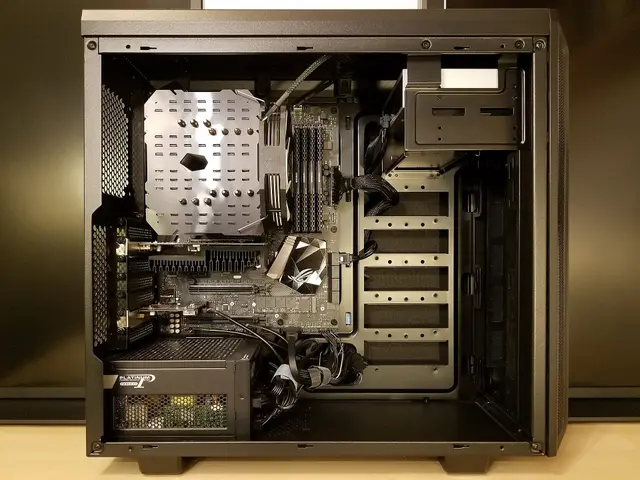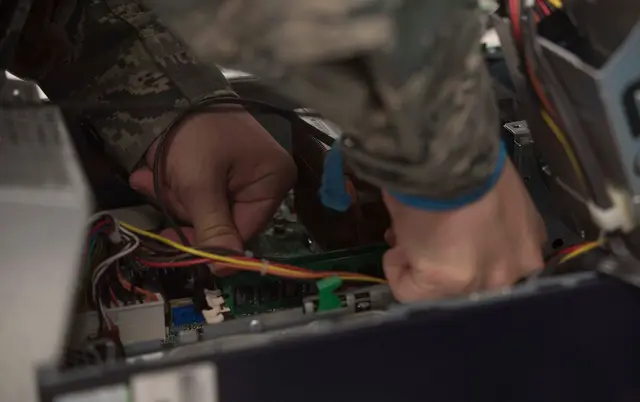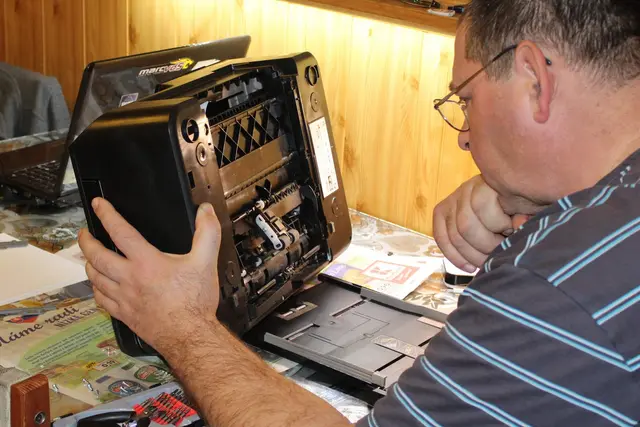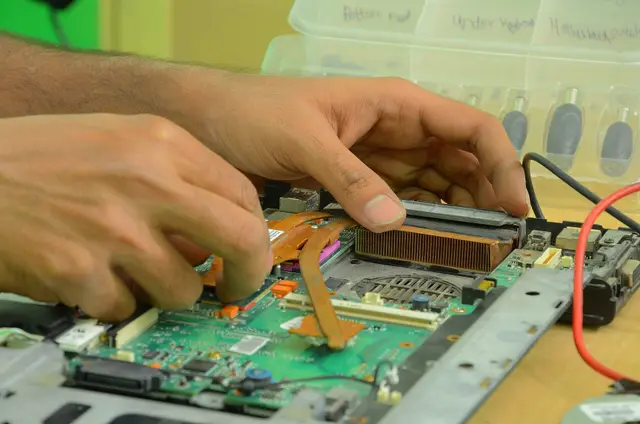
Diagnosing PC hardware faults in an office follows a fixed order: ask about and record the symptoms, back up the data, read the Windows error logs, check the drive with CrystalDiskInfo, test the RAM, measure temperatures, and only then open the machine and replace the suspect part. For helpdesk staff, most "broken computer" tickets fall into four groups: no power, blue screens, shutdowns from overheating, and slowness or freezes from a failing drive. This lesson focuses on finding the faulty part without losing the user's data: reading blue screen stop codes, testing RAM, reading SMART values, deciding when to replace RAM, an SSD or a power supply, and recording the change in the IT asset list.
By the end of this lesson, you will be able to:
- Sort a fault report into one of four symptom groups and pick the right first check.
- Find and read blue screen stop codes in Reliability Monitor and Event Viewer, and tell driver faults from hardware faults.
- Test RAM with Windows Memory Diagnostic and MemTest86+, and find the bad stick in a machine with two sticks.
- Read the Good, Caution and Bad states and four key SMART values in CrystalDiskInfo to decide when to back up and replace a drive.
- Replace RAM, SSDs and power supplies in office PCs the right way: backup, BitLocker key, warranty, ticket.
Learning IT helpdesk? Hardware is step 2 of the roadmap, right after electrical and anti-static safety and before installing Windows, networking, printers and accounts. See the 8-step IT support technician roadmap to learn in the right order.
How helpdesk hardware diagnosis differs from a repair shop
A repair shop technician can spend all day taking a machine apart. Helpdesk is different: the user needs the computer now, the data belongs to the company, and the machine is often still under warranty. Your goal is to find the faulty part, keep the data safe and get the user working again as soon as possible.
The first four questions on every ticket
- When does the fault happen: at power-on, when opening a heavy program, or at random?
- Does it repeat, and how many times this week? Did the user take a photo of the error screen?
- What changed recently: a Windows update, new software or drivers, the PC being moved, a power cut?
- Where is the important data: drive D, the Desktop, already synced to OneDrive or a network drive?
Quick reference: symptoms, suspects and tools
| Symptom | Common suspects | First check |
|---|---|---|
| Pressing the button does nothing | Wall socket, UPS, PSU switch, power supply, laptop adapter | Test the socket with another device, swap the power cable, try a spare PSU |
| Blue screen, automatic restart | Drivers, RAM, drive, heat | Reliability Monitor, Event Viewer, RAM test, CrystalDiskInfo |
| Shuts down while running, fans roaring | Dust, failed fan, dried thermal paste, weak PSU | Temperature software (HWiNFO), open the case and check the fans |
| Very slow, freezes when opening files, clicking noises | Failing HDD or SSD | CrystalDiskInfo, Task Manager (disk at 100%) |
Back up first, repair second
Whenever the drive is a suspect or has to come out, back up the data first: a weak drive can die completely after a few more restarts. Copy Documents, the Desktop and accounting software data to a network share or an external drive before running any long test.
No power: check from the wall socket to the power supply
In an office, "the PC won't turn on" is often caused by something simple outside the case. Work from the outside in, and only open the machine after disconnecting power as described in anti-static precautions and electrical safety for PC repair.
Outside the case
- Plug another device (a phone charger, a desk lamp) into the same socket or UPS to confirm there is power.
- Check that the switch on the back of the power supply is set to I, and try a different power cable.
- If the UPS shows a battery fault or beeps constantly, plug the PC straight into the wall to test.
- Laptops: try another adapter with the same wattage, watch the charging light, and unplug USB devices and docks.
Inside the case
If everything outside is fine, suspect the power supply, the front power button cable and the motherboard. Helpdesk tests with a spare power supply or a PSU tester and never measures inside the power supply. Debug LEDs, beep codes and bench testing are covered in computer won't power on or show a picture: assembly and diagnosis, which also walks through building a desktop in the right order.
When to replace the power supply
Replace it when the PC starts with a spare unit, when the PSU smells burnt, or when the machine cuts out under heavy load even though temperatures are normal. The new unit needs equal or higher wattage, the right connectors (24-pin motherboard, 4+4-pin CPU, graphics card if present) and must fit the case; branded office desktops often use a proprietary PSU, so look up the part number.
Electrical safety warning: Never open a power supply, UPS or laptop adapter: the capacitors inside hold high voltage even after unplugging. Always shut down, switch off the PSU, unplug the cable and hold the power button to drain residual charge before touching components. If you see smoke, smell burning or hear crackling, cut power at the socket if it is safe to do so, do not touch the machine and report it. With a swollen laptop battery: stop charging, do not press it, do not puncture it.
Blue screens: read the stop code and find the pattern
A blue screen (BSOD) is when Windows hits an error serious enough that it has to stop completely. On Windows 10 and 11 the screen shows a sad face, a QR code and a "Stop code" line such as MEMORY_MANAGEMENT (see Figure 1). The stop code is your most important clue; one blue screen tells you little, but three of the same kind point in a clear direction.
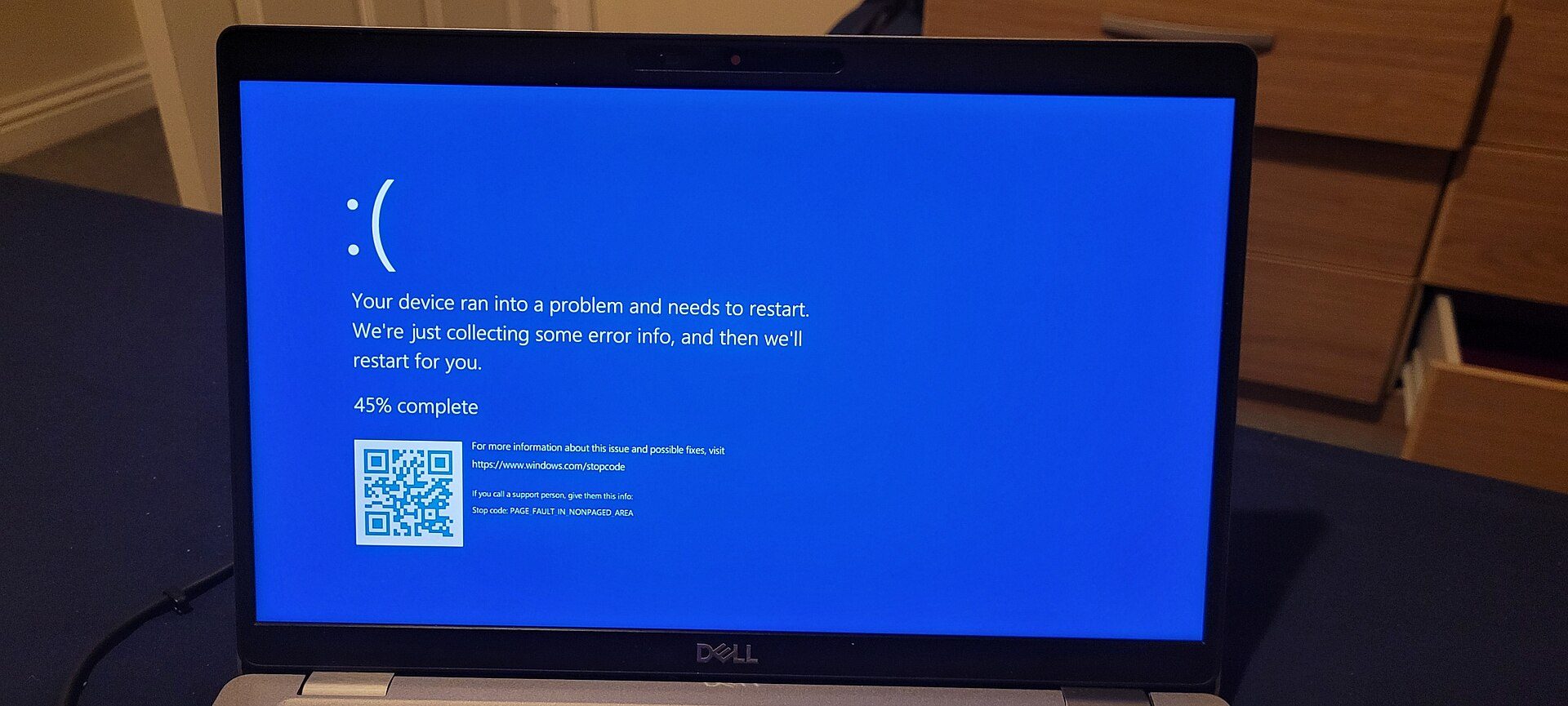
Photo: QueenBarenziah / Wikimedia Commons, CC BY 4.0
Finding the error when the user did not take a photo
- Reliability Monitor: type
perfmon /relin the Run box. The chart is by day, and each red X is a problem; open "Windows was not properly shut down" or "Shut down unexpectedly" to see the BugCheck code. - Event Viewer: open Windows Logs, System. Events from the "BugCheck" source (ID 1001) record the blue screen code; "Kernel-Power" ID 41 means the PC shut down without a clean shutdown, for example after a power cut, a weak PSU or a blue screen.
- Minidump files in
C:\Windows\Minidump: one file per blue screen; copy them into the ticket when you need to escalate.
Common stop codes and where to look first
| Stop code | First suspect | What to do |
|---|---|---|
| MEMORY_MANAGEMENT | RAM, sometimes a driver | Test RAM, try one stick at a time |
| PAGE_FAULT_IN_NONPAGED_AREA | RAM or a newly installed driver | Check recently updated drivers, test RAM |
| IRQL_NOT_LESS_OR_EQUAL, DRIVER_IRQL_NOT_LESS_OR_EQUAL | Drivers (network, graphics, antivirus) | Remove or roll back the driver, update from the vendor site |
| KERNEL_DATA_INPAGE_ERROR | Drive, SATA cable | CrystalDiskInfo, back up now, check the cable |
| INACCESSIBLE_BOOT_DEVICE | Boot drive, drive mode in BIOS, after a drive swap | Check the BIOS sees the drive, CrystalDiskInfo |
| WHEA_UNCORRECTABLE_ERROR | Hardware error: CPU, heat, power, overclocking | Measure temperatures, disable overclocking, try another PSU |
Driver fault or hardware fault?
Look for the pattern. Errors that start right after an update or a software install, always with the same code, point to a driver (reinstalling drivers is the next step of the roadmap). Codes that change each time, on a machine where nothing new was installed, plus files that open corrupted, point to RAM or the drive. Write your reasoning and evidence in the ticket.
Testing RAM: Windows Memory Diagnostic and MemTest86+
Faulty RAM causes confusing symptoms: blue screens with many different codes, programs that close by themselves, files that are saved and then reported as corrupted. RAM tests take time but give a clear answer.
Windows Memory Diagnostic: built in and quick
Type mdsched.exe in the Run box and choose to restart and check now (remind the user to save their files first). The PC boots into the memory test and returns to Windows when it finishes. Read the result in Event Viewer, Windows Logs, System, source "MemoryDiagnostics-Results". An error is enough to conclude the RAM is bad; no error while symptoms keep repeating means you should test more thoroughly.
MemTest86+ from a rescue USB
MemTest86+ is open-source software that runs from a USB stick without Windows and tests more thoroughly, and more slowly. Boot from the rescue USB and let it complete at least one full pass; machines with a lot of RAM can take from half an hour to several hours. When it finds errors, red lines show the failing addresses and the Errors counter goes up (see Figure 2). A single error means the stick cannot be trusted in a work machine.
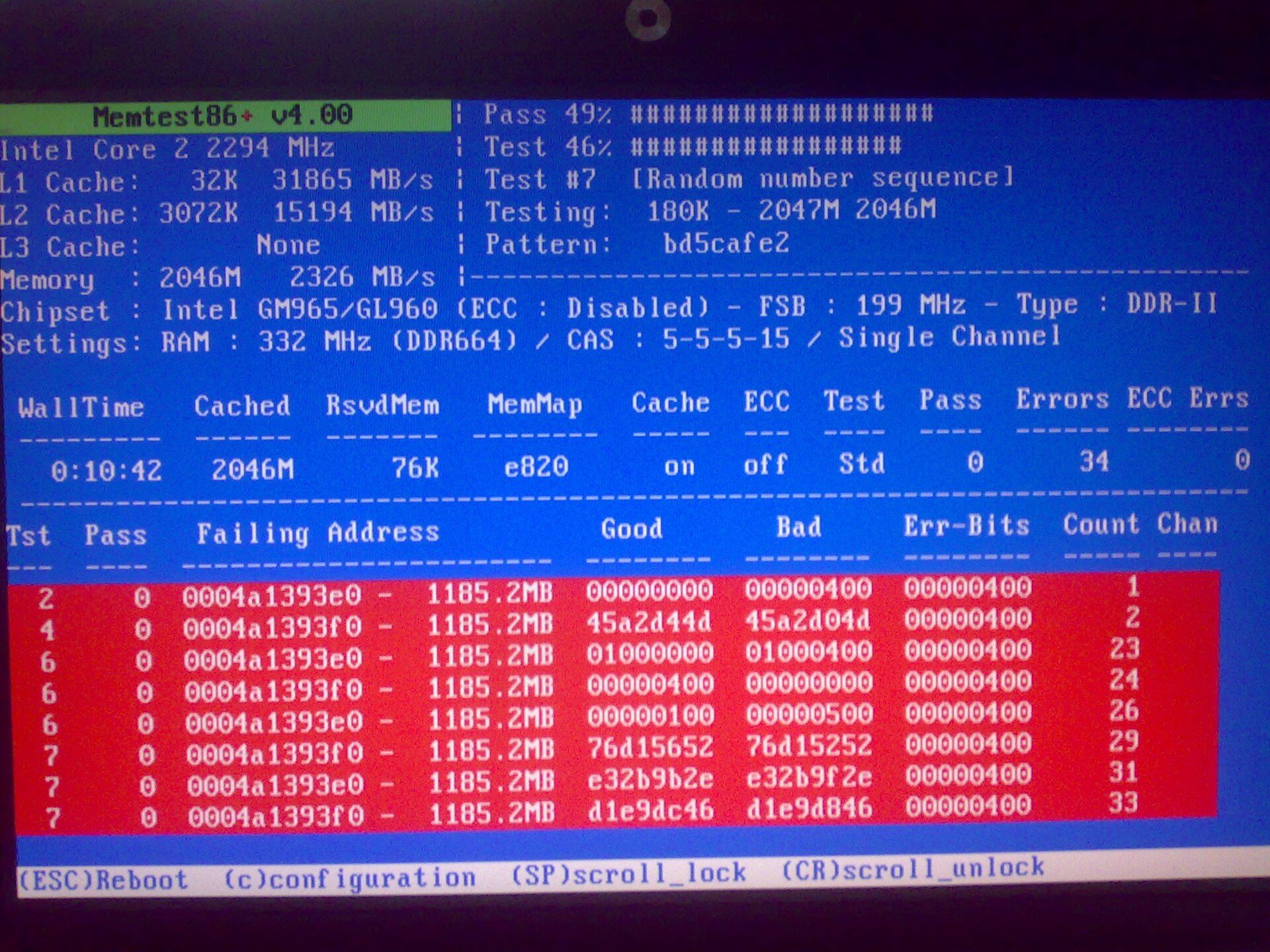
Photo: Samuel Demeulemeester, Chris Brady / Wikimedia Commons, CC0
Finding the bad stick in a machine with two
- Disconnect power, wear an anti-static wrist strap and photograph the RAM layout before removing anything.
- Remove one stick, leave stick A in the first slot recommended by the motherboard manual, and run the test.
- Swap to stick B in the same slot and test again.
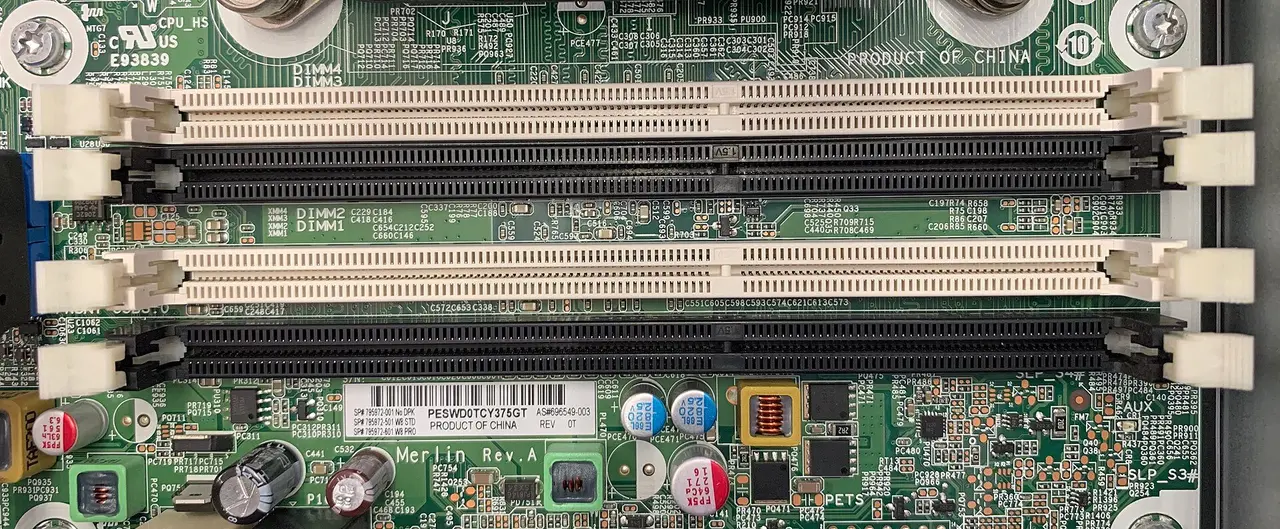
- Label the failing stick "FAULTY" with the date; if both pass on their own, try each stick in a different slot to see whether a slot is the problem (Figure 3).
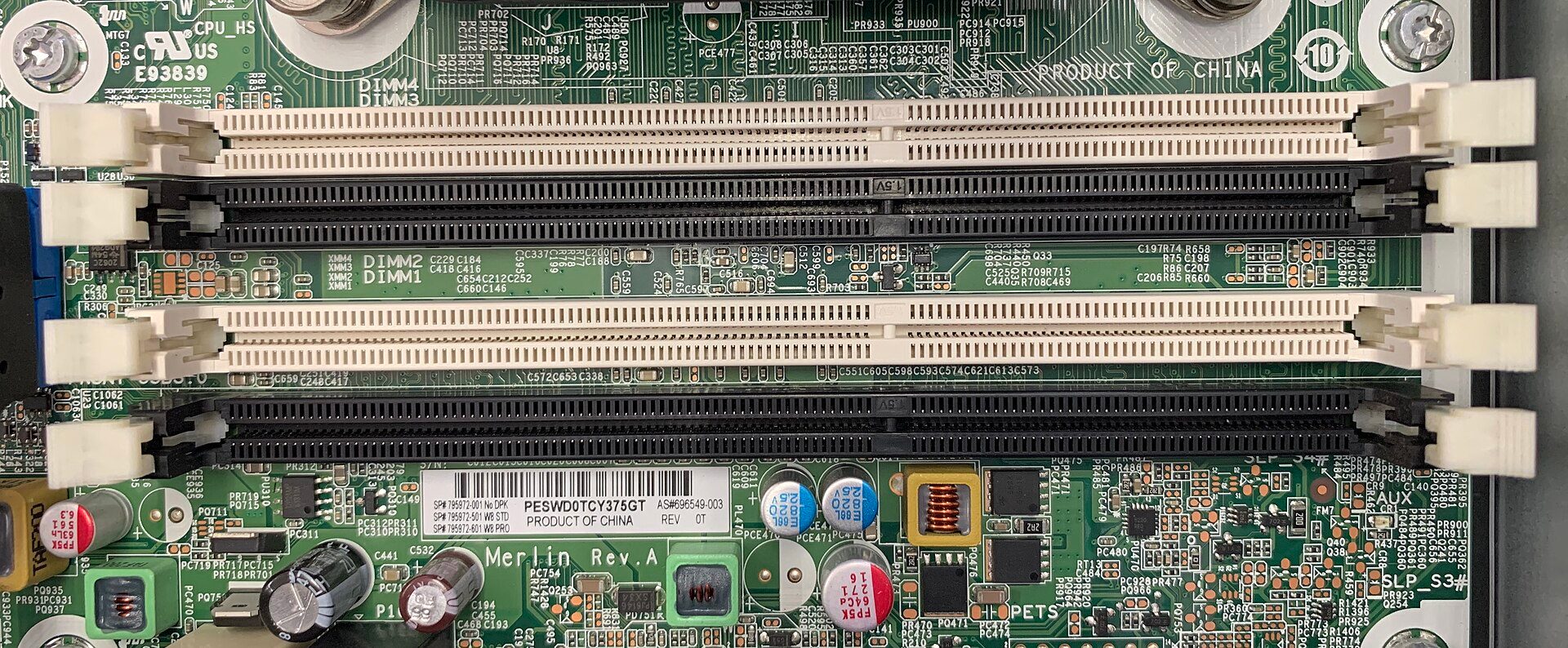
Photo: Project Kei / Wikimedia Commons, CC BY-SA 4.0
Checking drives with CrystalDiskInfo
CrystalDiskInfo is free, open-source software that reads the SMART data HDDs and SSDs record about their own health. Download it from the author's official site (crystalmark.info), not from random download sites. When you open it, you immediately see a health status and temperature for each drive.
Reading the health status
- Good (blue): no warning signs yet. It is not a promise the drive will not fail; regular backups are still needed.
- Caution (yellow): there are reallocated or pending sectors, or the SSD is near the end of its rated life. Back up now and plan a replacement within the next few days.
- Bad (red): the drive is failing. Stop heavy scans, back up the most important data first, replace the drive.
- Unknown (grey): SMART cannot be read, often because the drive is in a USB enclosure or behind a RAID controller; check again with the drive connected directly.
Four SMART values to check on an HDD
| ID | Attribute | Meaning | What helpdesk does |
|---|---|---|---|
| 05 | Reallocated Sectors Count | Bad sectors already replaced with spare area | Above 0 and rising: back up, replace the drive |
| C5 | Current Pending Sector Count | Sectors that failed to read and are waiting to be handled | Above 0: back up now, check daily |
| C6 | Uncorrectable Sector Count | Sectors that cannot be read; data may be lost | Above 0: replace the drive |
| C7 | UltraDMA CRC Error Count | Data transfer errors over the cable | Rising: replace the SATA cable or change port before blaming the drive |
The "Raw Values" column holds the real counts, so read that one. A 2.5-inch laptop HDD (Figure 4) has spinning platters and a mechanical read head that hate being knocked while running, which makes it the prime suspect when an old laptop is slow and freezes.
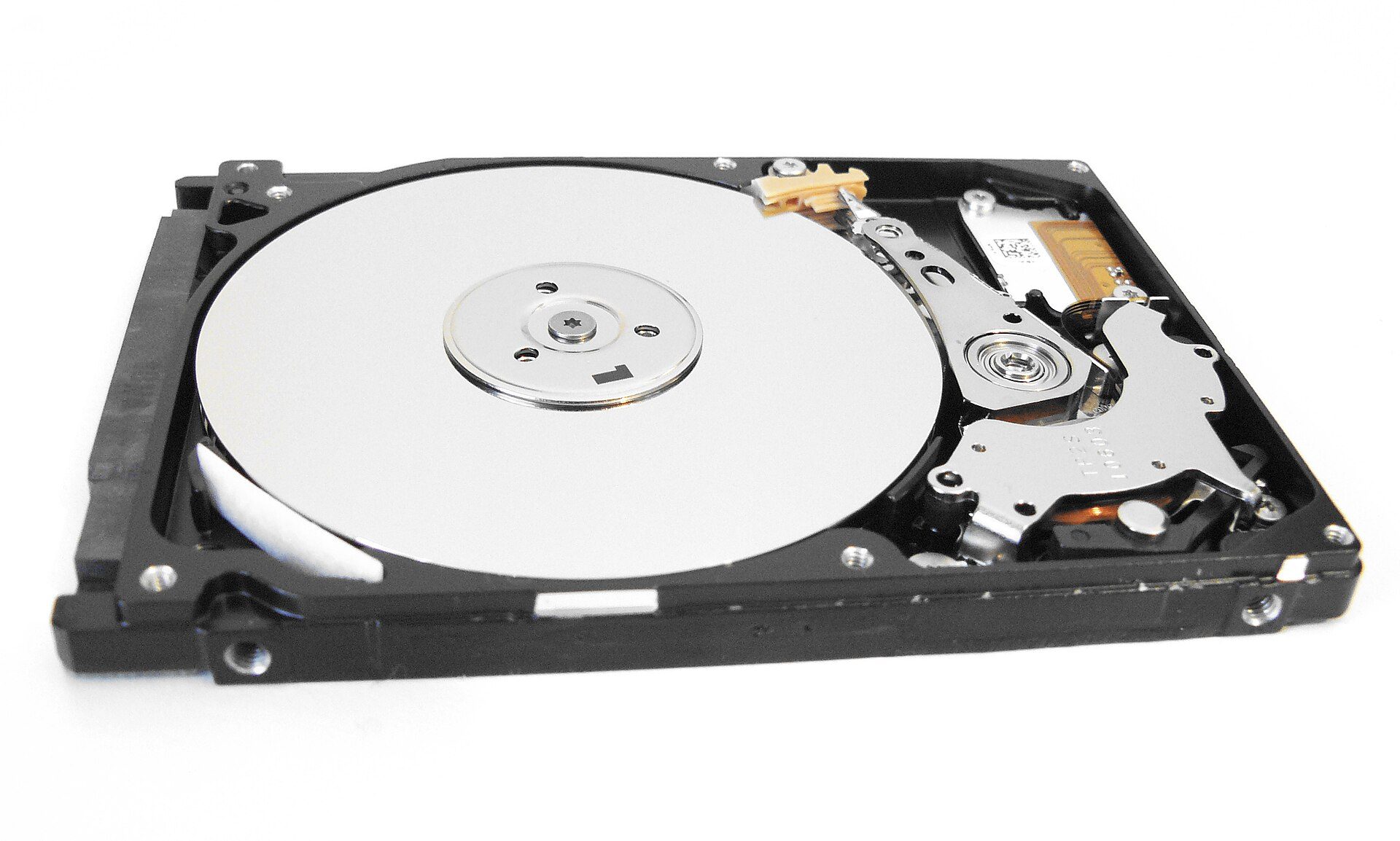
Photo: RetroEditor / Wikimedia Commons, CC BY-SA 4.0
SSDs and NVMe drives
For SSDs, check the Health percentage (100% is new), "Percentage Used" (how much of the rated life is used), "Available Spare" (remaining spare area) and "Media and Data Integrity Errors" (should be 0). If Health drops quickly or data errors appear, back up and replace the drive. HDDs usually run below about 50°C; NVMe SSDs slow themselves down when too hot, at a threshold that depends on the model.
Sudden shutdowns and loud fans: checking for overheating
A PC that switches off without a blue screen, stutters under load and has loud fans: think heat first. An overheating CPU lowers its clock speed and then shuts the machine down to protect itself.
Measuring and reading temperatures
Use free sensor software such as HWiNFO (Sensors mode) and note the temperatures at idle and after 10 minutes of a heavy program. If the CPU is already close to its maximum (many recent CPUs sit around 95–105°C; check the vendor page for the exact model) with only Excel and a browser open, something is wrong.
Causes and what helpdesk does
- Dust blocking the heatsink fins or air intakes: clean with compressed air and keep the PC away from the wall.
- CPU or case fan not spinning or spinning weakly: replace it with the right type.
- Thermal paste dried out after years: reapply it. The laptop procedure is in laptop overheating: cleaning the fan and reapplying thermal paste.
- PC inside a closed cabinet or against a wall: move it somewhere with airflow.
If temperatures are normal but the PC still cuts out under heavy load, and Event Viewer shows Kernel-Power 41 without a BugCheck, suspect a weak power supply or an overloaded UPS and try a spare PSU.
Replacing parts in office PCs: RAM, SSD, power supply
In a company, replacing a part involves three extra tasks: checking the warranty, handling encryption keys and updating the asset list. Skip them and you may void a warranty or lock users out of their data.
Before ordering or sending for warranty
- Look up the model and serial number (label underneath or in the BIOS) and the vendor's maintenance manual: RAM type (DDR4 or DDR5, laptop SO-DIMM or desktop DIMM), maximum capacity, M.2 or 2.5-inch SSD bay.
- Many thin laptops have RAM soldered to the motherboard, with one slot or none for upgrades. Check before promising the user anything.
- Machines under warranty: contact the dealer or vendor first, since opening the machine yourself may void the warranty depending on the vendor.
BitLocker and data when swapping a drive or motherboard
Many Windows 10 and 11 PCs already encrypt the system drive with BitLocker. Replacing the motherboard, updating the BIOS or moving the drive to another PC can trigger a request for the 48-digit recovery key. Before you start, check the BitLocker status and make sure you have the recovery key (stored in the Microsoft account, Microsoft Entra ID or the company's management system). Choosing an SSD and deciding between cloning and a fresh install are covered in upgrading a laptop SSD.
Recording the asset after the swap
Every PC should have a row in the IT asset list: asset tag, serial number, user, configuration, warranty end date. After a part swap, update the configuration and record where the old part went (warranty, spare, disposal). Figure 5 shows serial numbers being checked across a row of desktops; for a small company, a spreadsheet is enough.
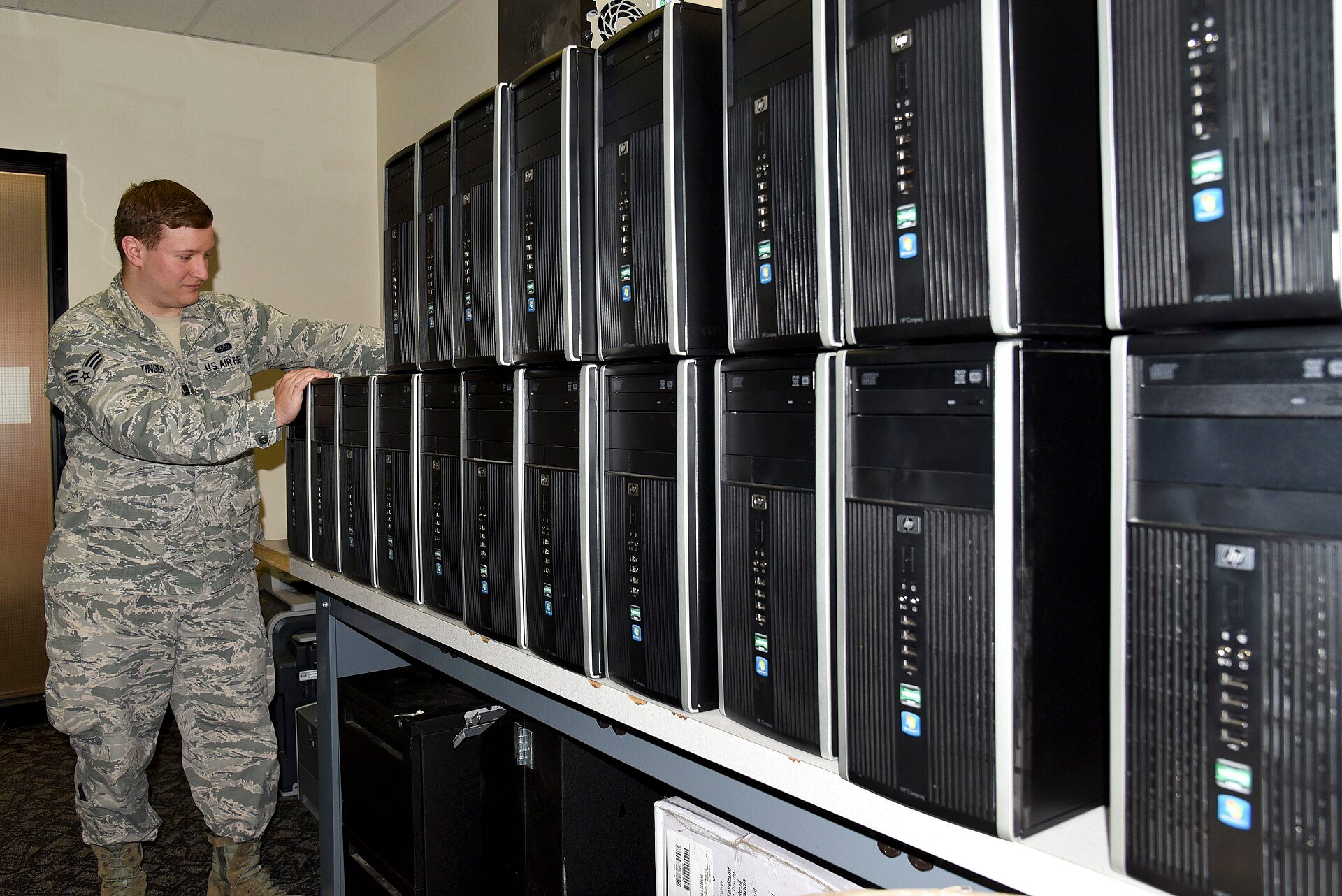
Photo: Airman 1st Class Janelle Patiño / Wikimedia Commons, Public domain
Data note: A drive removed from a company PC still holds accounting, HR and customer data. Do not sell it, give it away or take it home; send it for warranty or disposal following company rules, with a signed record.
Worked example: an accounting PC with three blue screens in a week
Linh works helpdesk at a 25-person trading company in Da Nang. The ticket: Ms Hoa's desktop in accounting has had three blue screens this week, and the last one lost the Excel file she was working on. The PC is four years old, with two 8 GB RAM sticks and a 512 GB SSD, and the RAM is still covered by the dealer's warranty.
Steps and time
| Step | Action and result | Time |
|---|---|---|
| 1 | Ask the four questions, check Ms Hoa's photo: stop code MEMORY_MANAGEMENT; nothing new installed recently | 5 min |
| 2 | Reliability Monitor and Event Viewer: 3 BugChecks in 6 days, 2 MEMORY_MANAGEMENT, 1 PAGE_FAULT_IN_NONPAGED_AREA; changing codes point to hardware | 10 min |
| 3 | CrystalDiskInfo: SSD Good, Health 94%, 38°C; drive ruled out for now | 3 min |
| 4 | Back up Documents, Desktop and accounting software data to the network share | 15 min |
| 5 | Windows Memory Diagnostic: reports a memory hardware problem | 25 min |
| 6 | Power off, run MemTest86+ on each stick, 25 minutes per stick: stick A clean, stick B fails | 50 min |
| 7 | Leave stick A (8 GB) in so Ms Hoa can work, label stick B, contact the dealer for warranty | 10 min |
| 8 | Write up the ticket with photos and test results, update the asset list | 7 min |
| Total | 125 min | |
Check: 5 + 10 + 3 + 15 + 25 + 50 + 10 + 7 = 125 minutes, or 2 hours 5 minutes. While the RAM tests run, Ms Hoa borrows a spare laptop to keep working.
Result and follow-up
A week later the warranty stick arrives. Linh installs both sticks, runs one clean MemTest86+ pass, confirms Windows sees 16 GB, and closes the ticket with the line: "Cause: RAM stick B faulty, confirmed with MemTest86+; replaced under warranty".
Common mistakes of new helpdesk staff
Reinstalling Windows to "fix" blue screens
Sign: a few days after the reinstall, the blue screens are back. Cause: the fault is in the RAM or the drive, so reinstalling only wastes time and risks data. Fix: read the stop code and test RAM and the drive first; reinstall only once the hardware is clean.
Running heavy drive scans on a drive marked Bad
Sign: the drive dies completely mid-scan and the data cannot be recovered. Cause: a full surface scan makes a weak drive work for hours. Fix: back up the most important folders first; for critical data, use a professional data recovery service.
Declaring a RAM stick dead when it was only dirty or loose
Sign: the "dead" stick works fine in another PC. Cause: not fully seated, clips not locked, dirty contacts or a faulty slot. Fix: reseat firmly, try another slot and retest before sending it for warranty.
Frequently asked questions
Is a blue screen a hardware or a software problem?
It can be either. Errors that appear right after installing a driver or new software, always with the same code, are usually software. Codes that change each time on an unchanged machine, along with corrupted files, suggest RAM or the drive; test the RAM and check CrystalDiskInfo.
How do I check for faulty RAM in Windows?
Run mdsched.exe (Windows Memory Diagnostic) for a quick check and read the result in Event Viewer. For more certainty, boot MemTest86+ from USB and run at least one full pass, testing each stick separately if there are several.
Is a CrystalDiskInfo "Caution" status serious?
Caution means the drive is showing signs of wear, such as reallocated or pending sectors. It may keep working for a while, but you cannot predict how long; back up now and plan a replacement.
What should I check before upgrading laptop RAM?
Look up the exact RAM type (DDR4 or DDR5, SO-DIMM), free slots and maximum capacity for the model; many thin laptops have soldered RAM that cannot be upgraded. Ask about warranty before opening a machine that is still covered, and confirm Windows sees the full capacity afterwards.
Practice and self-assessment
- On your own PC, open Reliability Monitor and Event Viewer, find the latest Kernel-Power 41 or BugCheck event (if any), and note the date, time and code.
- Install CrystalDiskInfo from the official site and record the status, temperature and the 05, C5, C6 and C7 values (or the SSD values) for each drive.
- On an old desktop: remove one RAM stick, run the PC on each stick in turn, and reinstall them in the correct slots per the motherboard manual.
- Write a sample ticket for a blue screen case: symptoms, evidence, cause, actions, result.
Self-assessment criteria
- Pass: you can find a blue screen code in the Windows logs without the user's photo.
- Pass: you read CrystalDiskInfo statuses correctly and can say what to do for each.
- Pass: you back up data before any work involving the drive, and change only one part at a time.
- Not yet: reinstalling Windows before checking the hardware, or removing a drive without the BitLocker recovery key.
Once you can pinpoint the faulty part and replace RAM, SSDs and power supplies, move on to the next roadmap step: Installing Windows, drivers & office software, where you learn to create a licensed Windows install USB, install drivers, Office and the Unikey Vietnamese keyboard, and back up user data before reinstalling.
Keep learning IT helpdesk: after hardware come Windows and software installation, networking, Wi-Fi and printers, accounts and Microsoft 365, user security and ticket workflow. See the 8-step IT support technician roadmap.