Anti-static precautions for PC repair mean bringing your body and the computer case to the same electrical potential before you touch any component, usually with an anti-static wrist strap clipped to the metal frame, and only after the machine is shut down and unplugged. This is the first lesson for an IT helpdesk technician because, before you can swap a stick of RAM, you need to respect three things that can ruin the job: 220 V mains power, static discharges you cannot feel, and swollen lithium batteries in laptops. This lesson covers the safety routine before opening a machine, how to use a wrist strap properly, how to handle a swollen battery, the toolkit worth having, and the habit of taking notes and photos before you take anything apart.
By the end of this lesson, you will be able to:
- Shut down, disconnect and discharge a desktop or laptop in the right order before opening it.
- Wear and clip an anti-static wrist strap correctly and handle components the right way.
- Recognise a swollen laptop battery and deal with it safely, without causing a fire.
- Put together a basic helpdesk toolkit and rescue USB drives, and work out the cost.
- Take photos and notes before dismantling so you reassemble correctly and log clear tickets.
Just starting out in IT helpdesk? Electrical safety, anti-static and tools are step 1 of the roadmap, before hardware, Windows installation, networking, printers and accounts. See the 8-step IT support technician roadmap to learn in the right order.
Three risks when you open a computer
Office users see IT open a PC, pull a stick of RAM and push it back in. But every time you open a machine you are dealing with mains power, sensitive components and someone else's data.
Mains power and the power supply
Desktops in Vietnam run on 220 V. Even after Windows shuts down, the power supply keeps feeding standby power to the motherboard (the small LED on the board stays lit). Inside the power supply are large capacitors that can hold a dangerous voltage for some time after unplugging. That is why helpdesk replaces a faulty power supply as a whole and never opens it to repair it.
Electrostatic discharge (ESD)
Walking across the floor or rubbing your shirt against a chair charges your body. When you touch a component, that charge discharges through the circuit. A spark too small for you to feel can still damage or weaken RAM, a motherboard or an SSD. "Weakened" is the worst kind of damage: the machine works for a few weeks, then throws random errors.
Lithium batteries and data
A swollen laptop battery can catch fire if it is squeezed, punctured or kept charging. On top of that, every teardown risks lost data, lost screws or misconnected cables if you do not take notes. The three habits below deal with all four problems.
Electrical safety routine before opening a machine
Follow the order every time, even if you are only "taking a look at the dust".
Desktop computers
- Ask the user to save their files and close programs; shut down through Windows.
- Flip the switch on the back of the power supply to O (see Figure 1), then unplug the power cord from the wall socket or UPS.
- Unplug the other cables: monitor, network, USB. Photograph the back first so you can reconnect everything correctly.
- Press and hold the case power button for about 5–10 seconds to drain residual power from the circuits.
- Lay the machine on a sturdy, well-lit desk, not under the desk.
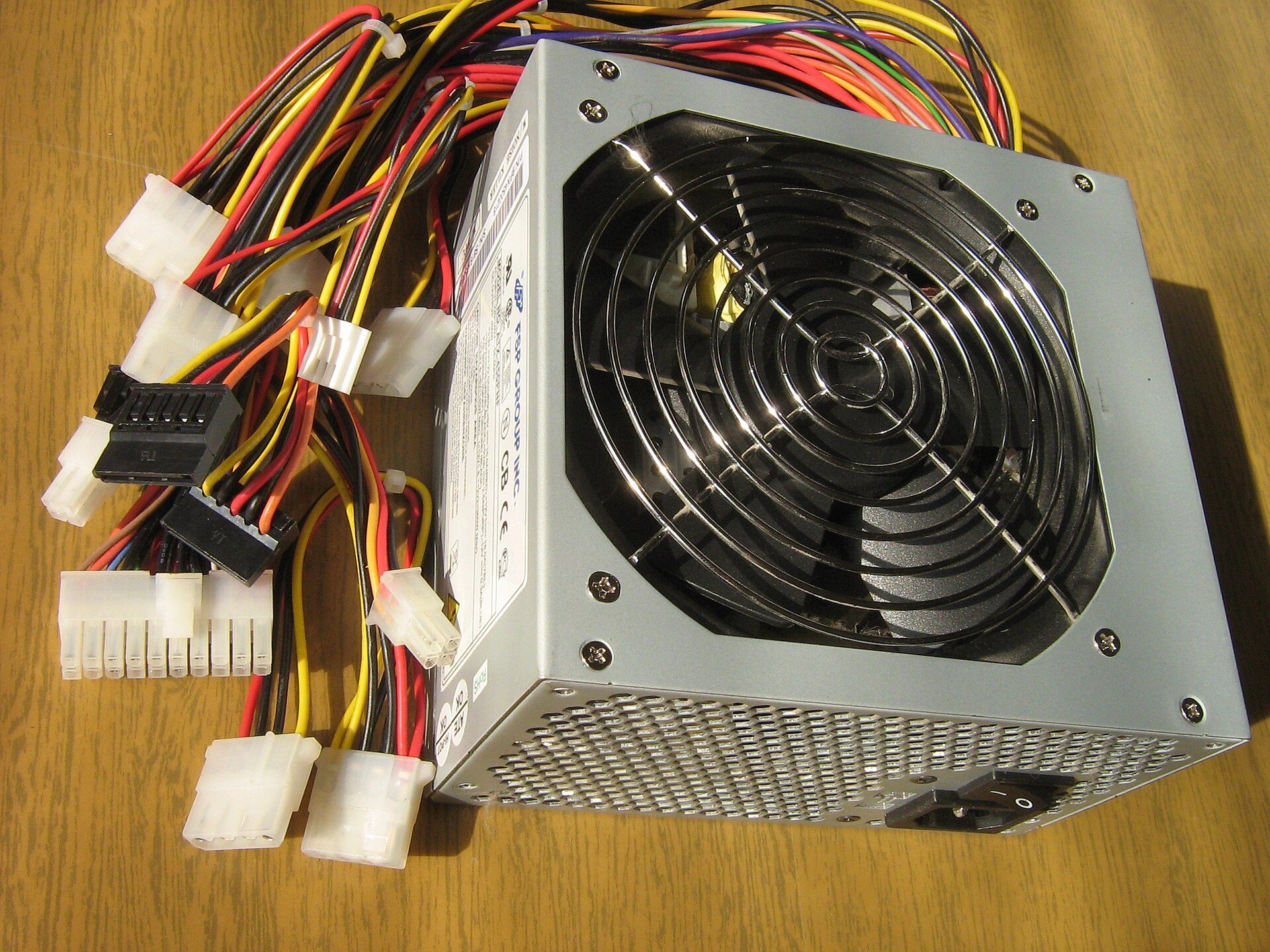
Photo: Victor Korniyenko / Wikimedia Commons, CC BY-SA 3.0
Laptops
- Shut down fully (not Sleep) and unplug the charger.
- Removable battery: take it out. Built-in battery: after removing the bottom cover, the first job is to disconnect the battery cable from the motherboard as the manufacturer's service guide describes; some models have a battery disconnect option in the BIOS.
- Open the case with plastic pry tools, never a metal screwdriver in the seams.
Sockets, UPS and the workspace
A repair bench should have earthed sockets, an RCD on the circuit, and no daisy-chained extension leads. Keep drinks away from an open machine. When something needs measuring, helpdesk only measures low-voltage DC (a USB port, a power supply output with a proper tester), never the 220 V mains.
Electrical safety warning: Never open the casing of a computer power supply, UPS, charger or monitor: they contain capacitors and high-voltage circuits that can give a dangerous shock even after unplugging. Do not plug in an open machine to "test quickly" unless a diagnostic procedure requires it and you have been trained to do so. If you notice a burning smell, smoke or crackling, unplug at the wall if it is safe, do not touch the machine and tell the person in charge. If someone is being electrocuted, cut the power before touching them and call 115 (the emergency medical number in Vietnam).
Anti-static: wrist straps, mats and handling components
The aim of anti-static precautions is to keep your body, the case and the component at the same potential, so no current jumps through the component when you touch it.
Wearing a wrist strap correctly
A wrist strap (Figure 2) consists of a band with a metal plate against your skin, a coiled cord and a crocodile clip. Wear it snug against your skin, not over your sleeve. Clip it to bare metal on the case frame (the frame edge, a power supply screw), not to paint, plastic or a component. At a fixed bench, clip it to the grounding point of an anti-static mat.
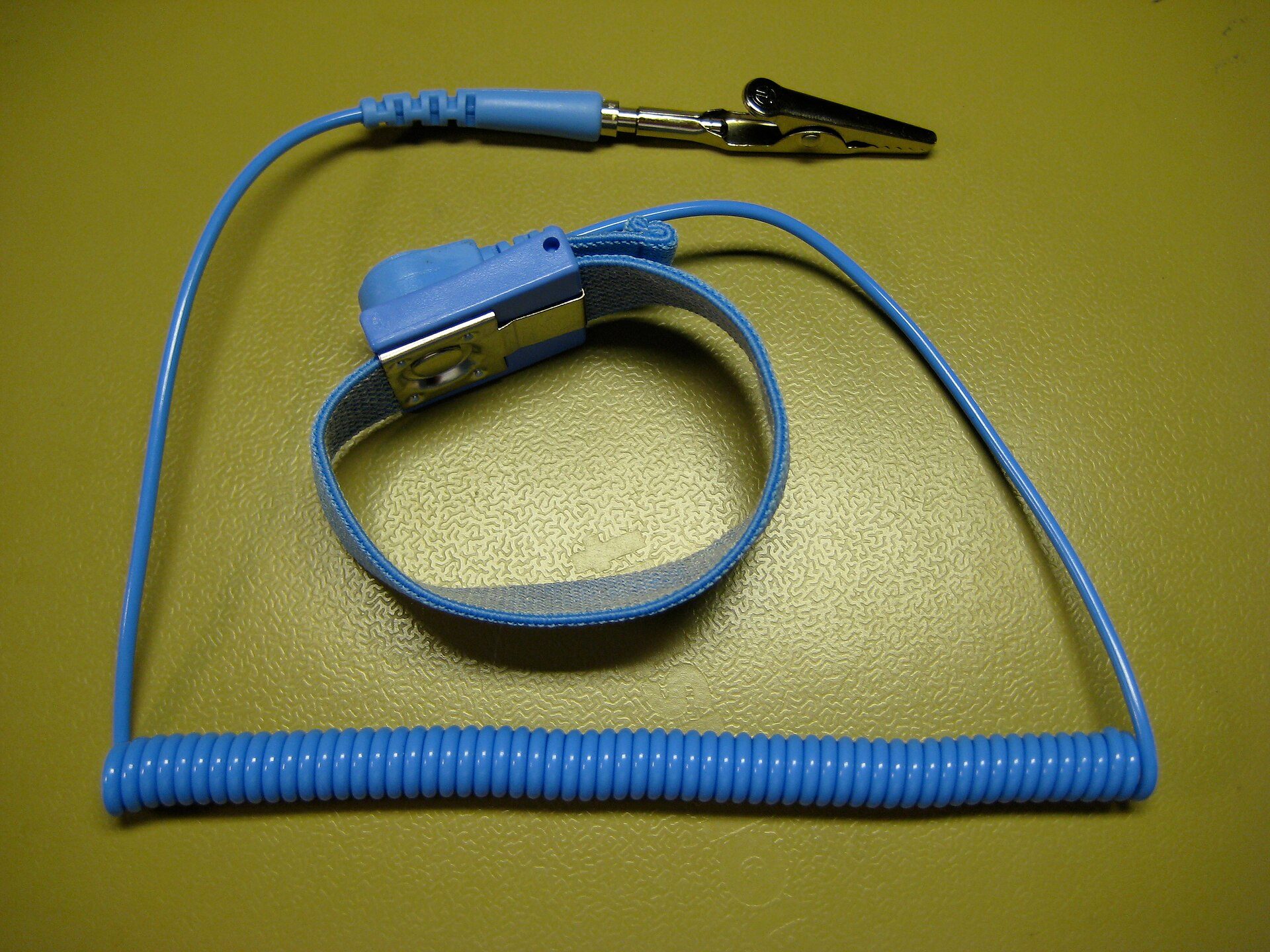
Photo: Kms / Wikimedia Commons, CC BY 3.0
When you have no strap
If you are on site and forgot your strap, at least touch bare metal on the case frame before touching a component, and touch it again every time you stand up or walk around. This is less reliable than a strap and only a stopgap.
Handling and storing components
| Do | Don't |
|---|---|
| Hold RAM, cards and SSDs by the edges | Touch the gold contacts, chips or circuit side |
| Store removed parts in anti-static bags | Put parts on carpet, cushioned chairs or ordinary plastic bags |
| Work on a wooden desk or anti-static mat | Work on a carpeted floor or in a wool jumper |
| Keep new parts in their bag until fitting | Unbag a part and leave it on the desk all morning |
In dry weather (the northern Vietnamese winter, rooms with air conditioning running all day) your body builds up more charge, so take extra care.
Swollen laptop batteries: spotting and handling them safely
A lithium-ion battery swells because gas builds up inside the cells as it ages, is overcharged, runs hot for long periods or is faulty. A swollen battery is a failed battery; it is not safe to "keep using for now".
Signs
- The touchpad bulges and is hard to click; the keyboard rises in the middle.
- The bottom cover gaps open, the case bends and the laptop rocks on the desk.
- With the cover off, the battery pack is puffed up like a pillow (Figure 3).
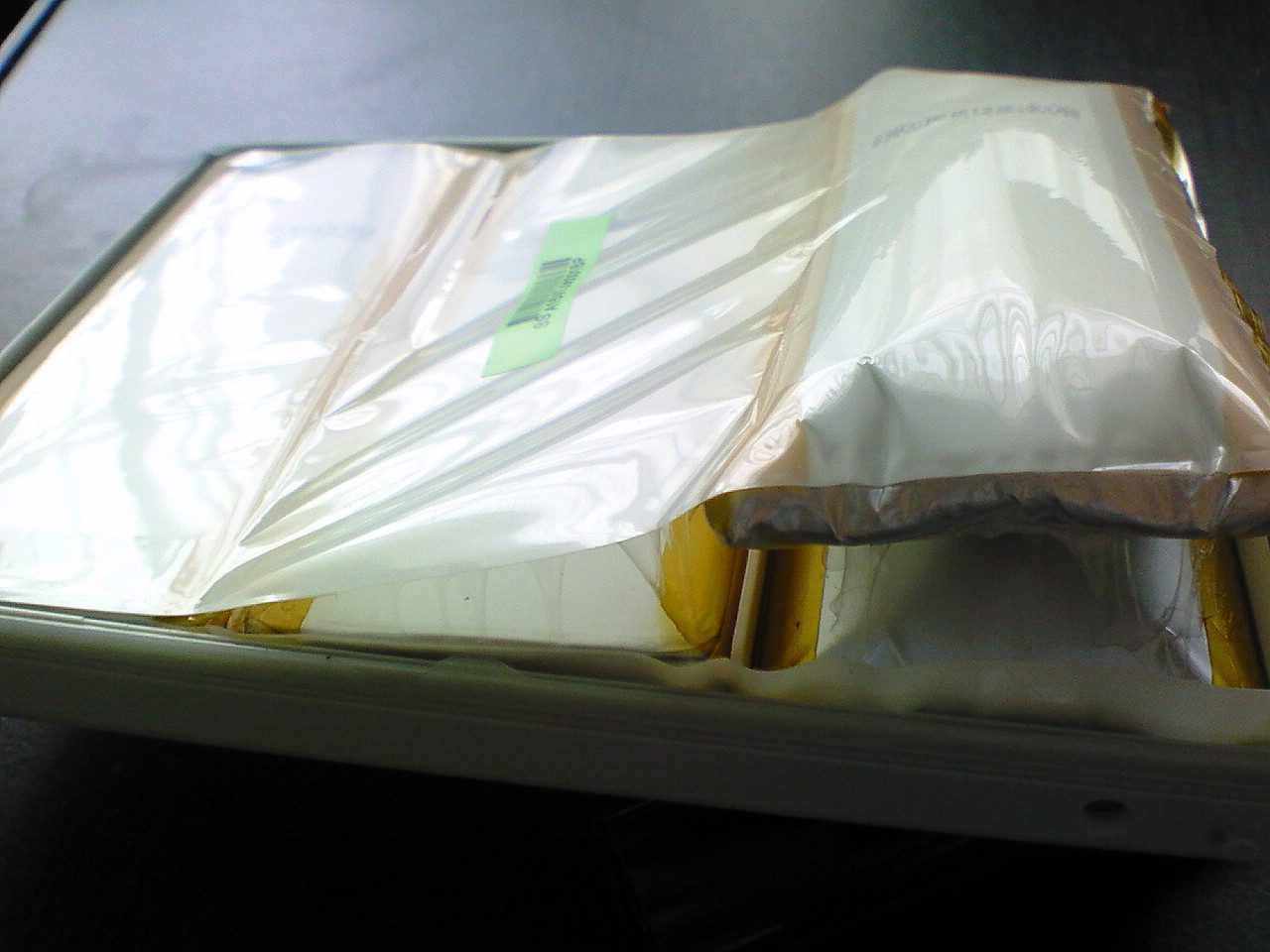
Photo: flickr user sparti24 / Wikimedia Commons, CC BY-SA 2.0
Step-by-step handling
- Shut down, unplug the charger and do not switch it back on to "grab the last files".
- Place the laptop on a non-flammable surface (tiles, metal) in a ventilated spot away from paper, cloth and chemicals; never in a closed drawer.
- Inform the user and your manager and log a ticket. If it is still under warranty, send it to the service centre.
- Only someone trained, following the manufacturer's procedure, should remove a swollen battery; never bend it, pry hard, or push a knife or screwdriver into a cell.
- Take failed batteries to a battery collection point, never the ordinary bin.
Lithium battery fire warning: A swollen battery that is squeezed, punctured or kept charging can heat up, smoke and catch fire very quickly. If a battery smokes, gets very hot or hisses: move away, do not breathe the smoke, get people out and call 114 (the fire service in Vietnam) if there are flames. Only use an extinguisher on a small fire and only if you have been trained. Never take a laptop with a swollen battery on a plane or send it by courier.
The helpdesk toolkit and rescue USB drives
A good toolkit helps you work faster and damage fewer screws and cases. It need not be expensive; it does need the right pieces.
Hand tools
- Precision screwdriver set (Figure 4): Phillips PH00, PH0 and PH1 for laptops and desktops; small Torx bits (T5–T8) for some laptops and hard drives. Use the right size so you do not strip screws.
- Plastic pry tools and plastic or insulated tweezers: for opening laptop cases and releasing ribbon cables.
- A compartment or magnetic screw tray: one compartment per dismantling step.
- Anti-static wrist strap and anti-static bags.
- A small torch, a soft brush and a can of compressed air for dust.
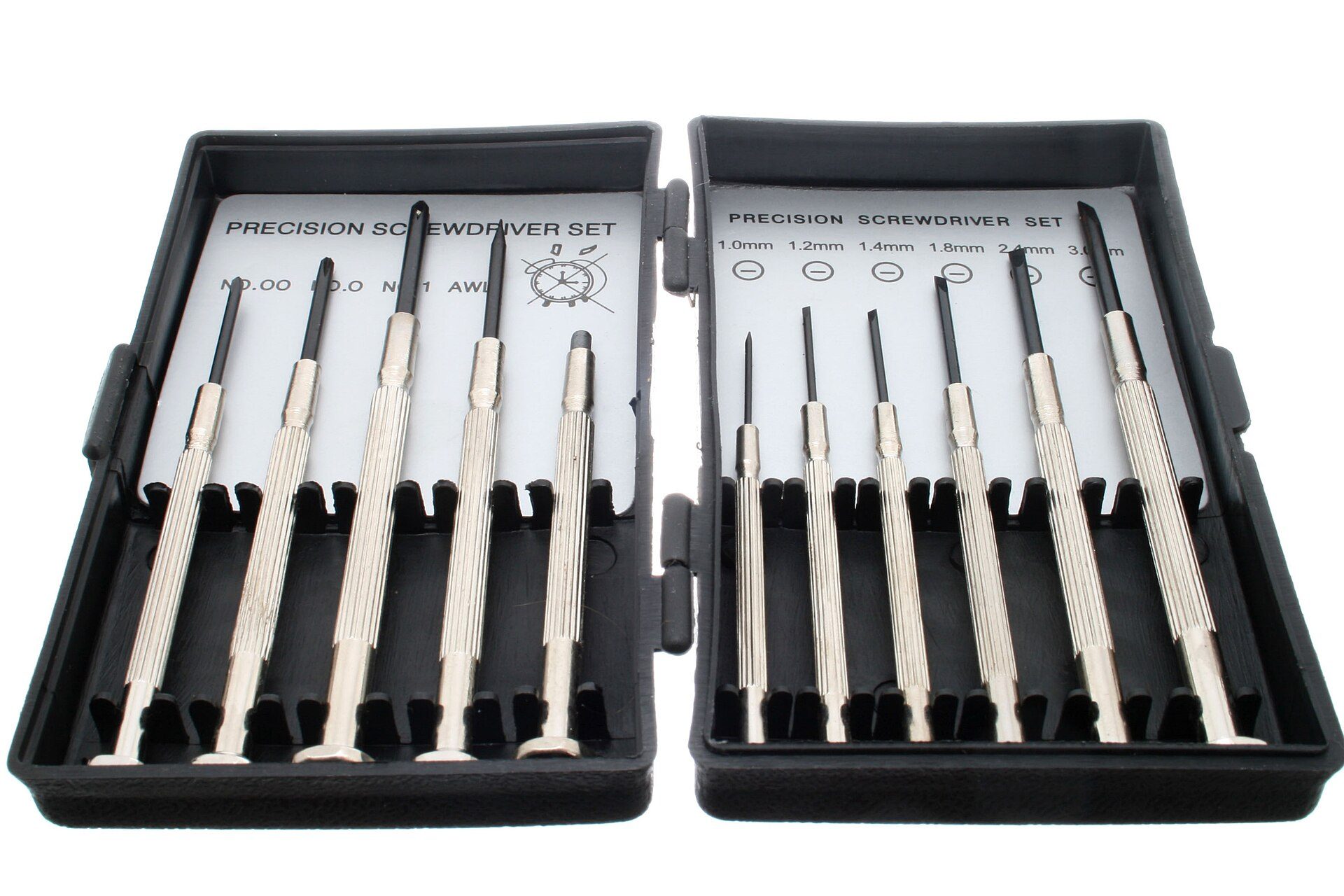
Photo: oomlout / Wikimedia Commons, CC BY-SA 2.0
Consumables
Thermal paste (replace it whenever you remove a CPU cooler), high-strength isopropyl alcohol to wipe off old paste, lint-free cloths, cable ties and labels. How to apply paste and clean fans is covered in laptop overheating: cleaning the fan and applying thermal paste.
Rescue USB drives
Prepare at least two 16–32 GB USB drives, clearly labelled: one with Windows installation media created with Microsoft's official tool, one with RAM and disk diagnostic tools and a bootable antivirus scanner. Use only licensed or legitimately free software; refresh the installer every few months; scan the drive for malware after plugging it into an unfamiliar machine.
Starter toolkit cost (2026 reference, varies by shop)
| Item | Quantity × unit price | Amount |
|---|---|---|
| Precision screwdriver set | 1 × 350,000 VND | 350,000 VND |
| Anti-static wrist strap | 1 × 60,000 VND | 60,000 VND |
| Plastic pry tools and tweezers | 1 set × 80,000 VND | 80,000 VND |
| Magnetic screw tray | 1 × 70,000 VND | 70,000 VND |
| Thermal paste | 1 tube × 120,000 VND | 120,000 VND |
| Isopropyl alcohol, 500 ml | 1 bottle × 90,000 VND | 90,000 VND |
| 32 GB USB drives for rescue media | 2 × 120,000 VND | 240,000 VND |
| Small torch | 1 × 100,000 VND | 100,000 VND |
| Compressed air can | 1 × 150,000 VND | 150,000 VND |
| Total | 1,260,000 VND | |
Check: 350,000 + 60,000 + 80,000 + 70,000 + 120,000 + 90,000 + 240,000 + 100,000 + 150,000 = 1,260,000 VND (about US$48). Many companies issue a toolkit to helpdesk staff; if you buy your own, it lasts for years.
Notes and photos before you take a machine apart
Reconnecting a cable wrongly, ending up with a spare screw, or a user claiming "it wasn't scratched before IT touched it" can all be avoided with a few photos.
Before dismantling
- Ask whether the user has backed up important data; if the job touches the drive, back up first.
- Photograph the outside condition (scratches, cracks), the back with cables connected and the serial number label.
- Record in the ticket: machine name, user, reported fault, planned work.
While dismantling
Take a photo after each step. Laptop screws often differ in length: sketch the case on paper and place each screw on its spot on the sketch, or use a tray with compartments numbered by step. For ribbon cables with locks, photograph the lock direction clearly before opening it.
After reassembly
Check that the machine boots and the part is detected, count the screws (none left over, none missing), photograph the final condition and record the result in the ticket. An example of a clear ticket is in printer not printing: 7 diagnostic steps.
Worked example: a RAM upgrade for the accounts desktop
Tuan, a new helpdesk technician at a 40-person company in Binh Duong, gets a ticket: the accountant's desktop is slow in Excel and needs upgrading from 8 GB to 16 GB of RAM. The new RAM has arrived and is the right type for the motherboard. Tuan times each step so he can quote users accurately next time.
Steps and timing
| Step | Task | Time |
|---|---|---|
| 1 | Ask the accountant to save files; shut down through Windows | 3 minutes |
| 2 | Photograph the back, switch off the PSU, unplug, hold the power button 10 seconds, lift the PC onto the desk | 3 minutes |
| 3 | Remove the side panel, put on the strap and clip it to the frame, photograph the RAM slots | 4 minutes |
| 4 | Take the RAM from its bag, hold it by the edges, insert it in the free slot aligned with the notch, hear the latch click | 4 minutes |
| 5 | Close the panel, reconnect cables from the photo, power on, check Windows shows 16 GB | 6 minutes |
| 6 | Take "after" photos, update the ticket, ask the accountant to confirm | 5 minutes |
| Total | 25 minutes | |
Check: 3 + 3 + 4 + 4 + 6 + 5 = 25 minutes. Tuan tells the user "about half an hour", leaving 5 minutes in reserve.
What Tuan did right
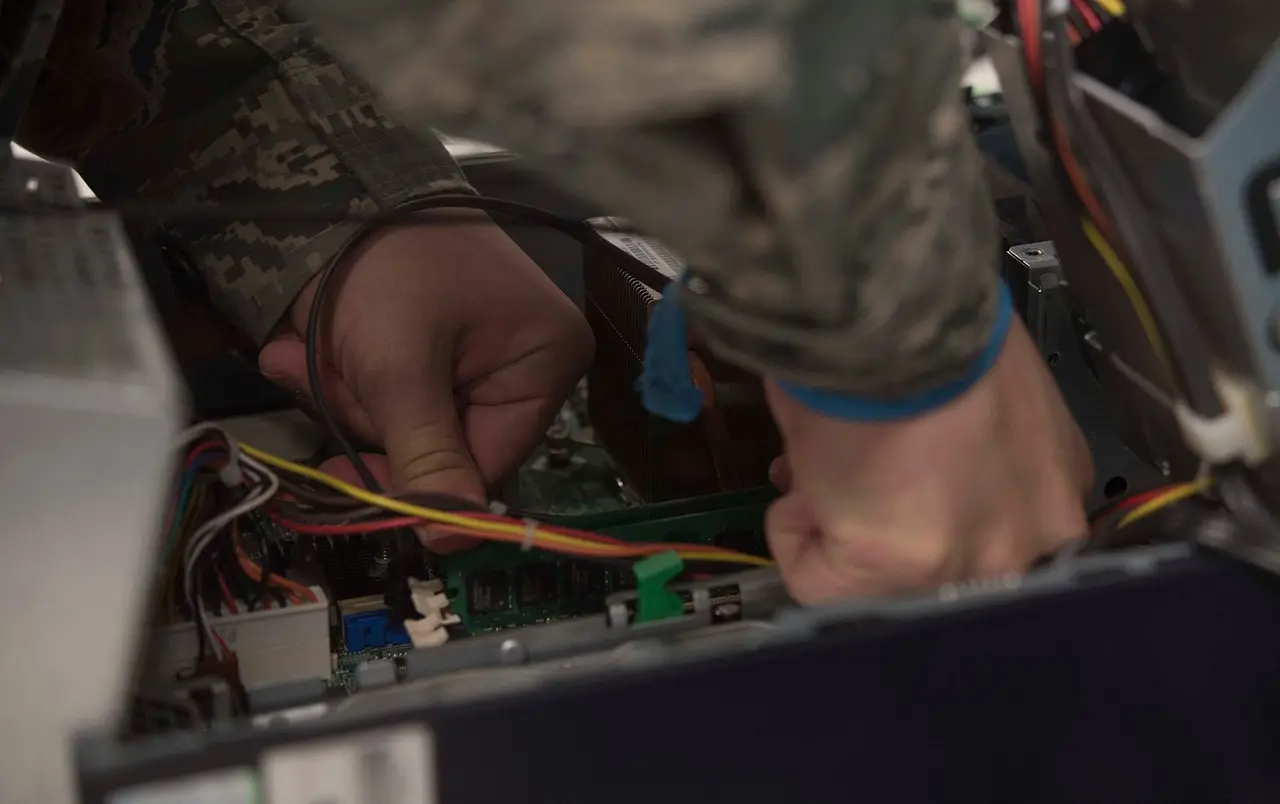
He did not work under the desk, did not skip discharging, clipped the strap to bare frame metal (Figure 5 shows a similar scene: a technician with a blue band on his wrist working inside a desktop) and logged the ticket with before and after photos. If Windows had only shown 8 GB, he would shut down, disconnect and reseat the RAM, never press on it with the machine running.
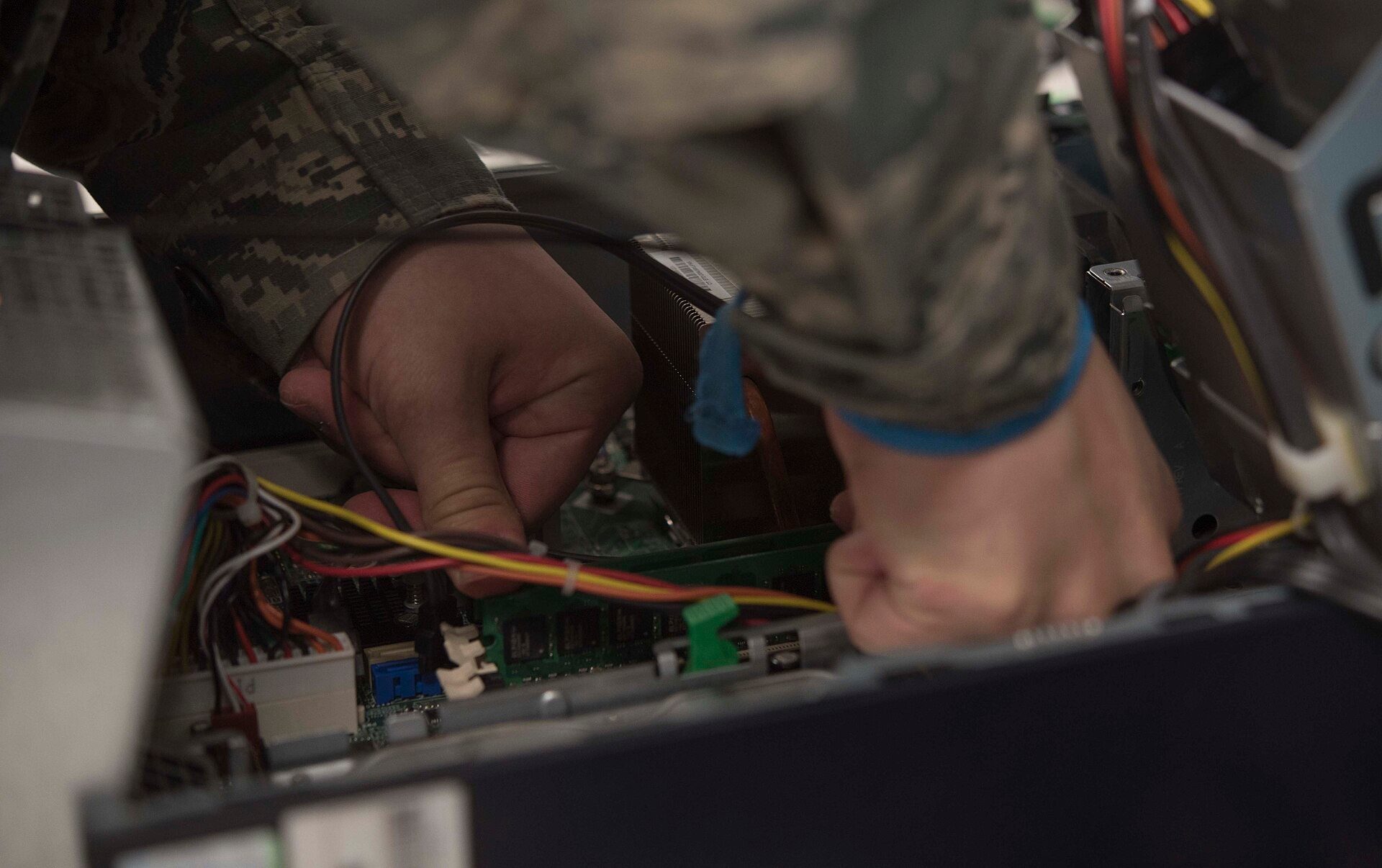
Photo: Airman 1st Class Jordyn Fetter / Wikimedia Commons, Public domain
Common mistakes of new helpdesk staff
Shutting down without unplugging
Sign: the LED on the motherboard is still lit when you open the case. Cause: thinking that shutting down Windows cuts all power. Fix: always switch off the PSU, unplug, hold the power button, then reach inside.
Clipping the strap to paint
Sign: you wear a strap but it does nothing. Cause: powder-coated paint on the case insulates. Fix: find the frame edge, screw holes or the PSU screws, which are bare metal.
Pressing the lid shut on a swollen battery
Sign: cracked case, broken touchpad, hot battery. Cause: wanting to return the laptop quickly. Fix: stop using the machine, follow the swollen battery procedure and log a ticket for a replacement battery.
A spare screw after reassembly
Sign: a screw left on the desk and no idea where it belongs. Cause: no photos, no screw compartments. Fix: reopen using your photos; next time use a paper sketch or compartment tray.
Frequently asked questions
Do I need an anti-static wrist strap to repair a PC?
Use one whenever you touch internal components: RAM, SSDs, cards, the motherboard. Straps are cheap, while ESD damage can cause silent faults that are very hard to trace. Without a strap, touch bare frame metal often as a stopgap.
Is a swollen laptop battery dangerous?
Yes. A swollen battery can catch fire if squeezed, punctured or charged further. Shut down, unplug, place it on a non-flammable surface in a ventilated spot and hand it to a qualified person for replacement.
Should I open a computer power supply to repair it?
Not as helpdesk. Power supplies contain capacitors that hold high voltage after unplugging. Replace a faulty unit with a new one of the right wattage and connectors.
What does a basic PC repair toolkit include?
Precision screwdrivers, plastic pry tools, tweezers, a screw tray, an anti-static strap, thermal paste, isopropyl alcohol, a torch, compressed air and rescue USB drives. Around 1.2–1.5 million VND in total (2026 reference).
What is a rescue USB drive for?
Reinstalling Windows, running RAM and disk tests and scanning for viruses when a machine will not boot into Windows. Create it with official tools and legitimate software, label it and refresh it regularly.
Practice tasks and self-assessment
- Write a 5-step safety checklist for opening a desktop and stick it on your desk.
- Remove the side panel of an old desktop, put on a strap and point out 3 bare-metal clip points.
- Remove the bottom cover of an old laptop following the manufacturer's guide, sketch the screw map on paper and reassemble with no spare screws.
- Create one Windows installation USB with the official tool and label it with the date.
Self-assessment criteria
- Pass: you always complete the disconnect and discharge steps before touching the inside of a machine.
- Pass: the strap is clipped to bare metal and you hold components by the edges.
- Pass: the laptop is reassembled with every screw and boots normally, with before and after photos.
- Not yet: opening a machine while plugged in, pressing or prying a swollen battery, or opening a power supply.
Once the safety habits and toolkit are in place, move on to the next roadmap step: Hardware: assembly, diagnosis & part replacement, where you learn about CPUs, RAM, SSDs, power supplies and motherboards, build a desktop and diagnose machines that will not power on, blue screens and overheating.
Keep learning IT helpdesk: after safety come hardware, Windows and software installation, networking, Wi-Fi and printers, accounts and Microsoft 365, user security and ticket workflow. See the 8-step IT support technician roadmap.